> ## Documentation Index
> Fetch the complete documentation index at: https://spreecommerce.org/docs/llms.txt
> Use this file to discover all available pages before exploring further.
# Price Lists
> Learn how to set up volume pricing, user-specific pricing, and more in Spree Commerce.
export const Since = ({version, from}) => {
const knownPrevious = {
'5.0': '4.10',
'6.0': '5.4'
};
const previous = (from ?? knownPrevious[version]) ?? (() => {
const [major, minor] = version.split('.').map(Number);
if (Number.isNaN(major) || Number.isNaN(minor) || minor < 1) {
throw new Error(`: cannot derive previous version automatically. ` + `Pass an explicit "from" prop, e.g. .`);
}
return `${major}.${minor - 1}`;
})();
return
Spree {version}+
;
};
Price lists are a powerful tool for managing customer-specific pricing strategies - essential for industries like B2B, wholesale, and marketplaces. They let you offer different prices to different customer segments based on conditions like location, quantity, or account status, without needing to duplicate product records or use heavy customizations.
With Spree’s native support for price lists, you can create and manage custom pricing logic directly in the admin dashboard - no development required.
## Create a Price List
To get started, navigate to **Products → Price Lists** in the admin dashboard.
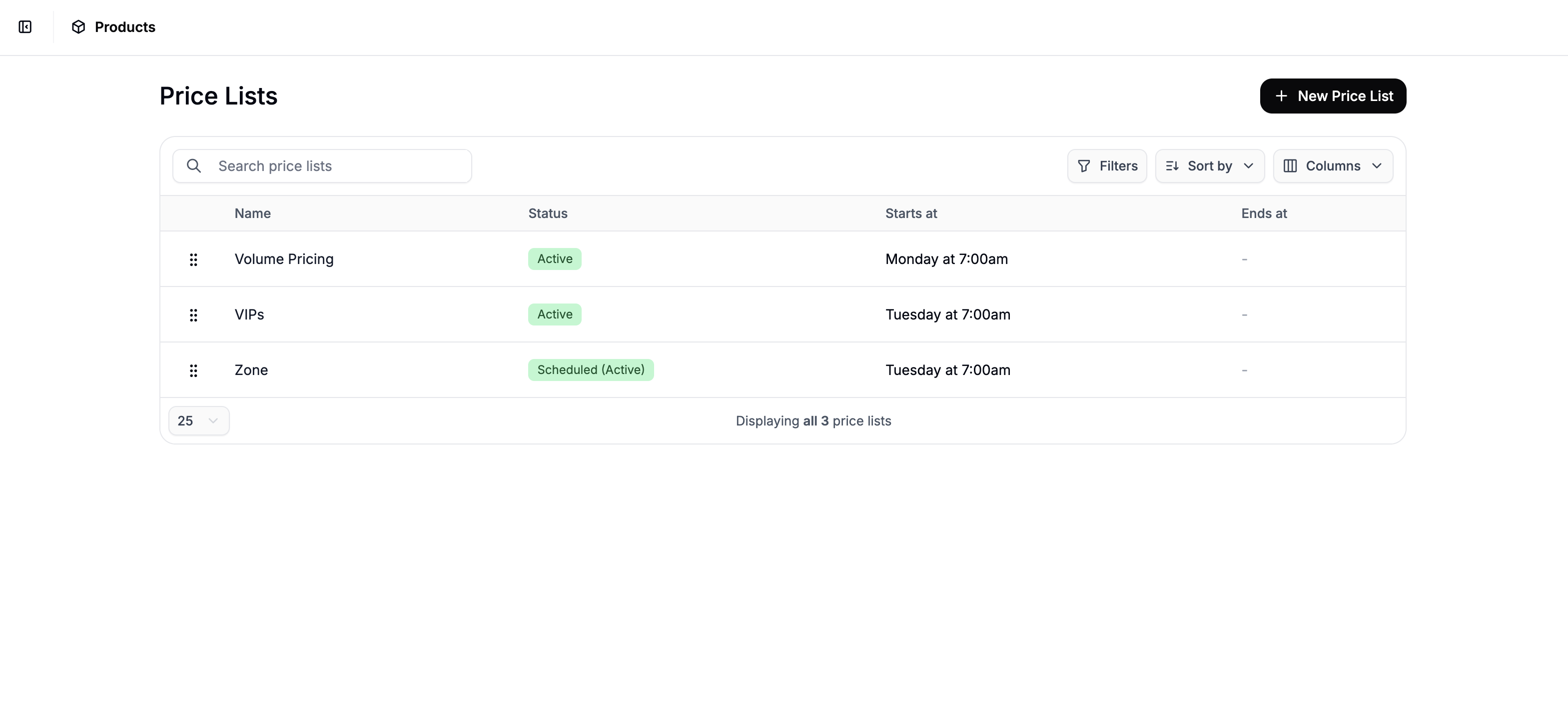 Here, you’ll see an overview of all active and inactive price lists. Click **New Price List** in the top right corner to open the price list creation form.
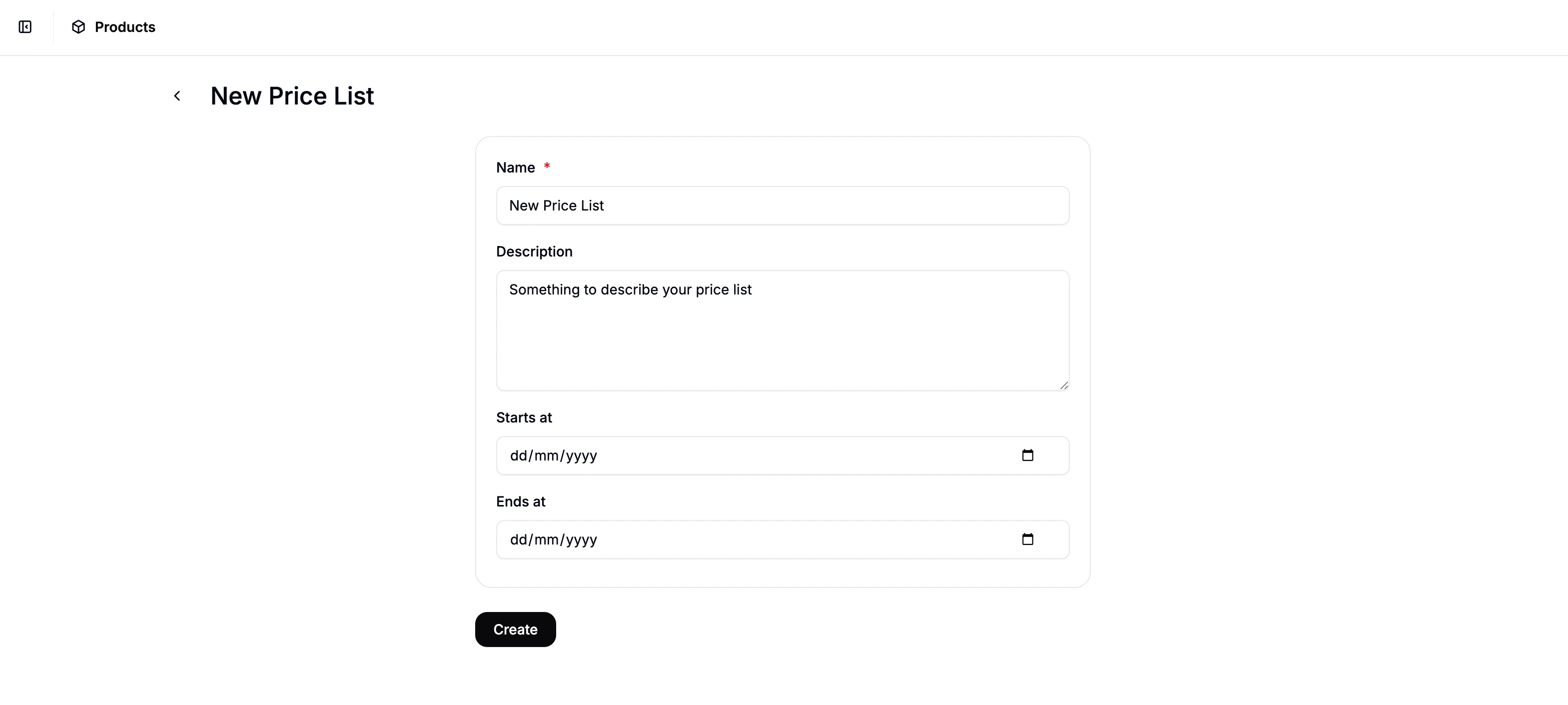 Fill in the following fields:
* **Name** - Internal name for the price list (displayed in the admin).
* **Description (optional)** - Notes or context for other admins.
* **Start Date** and **End Date** - Defines when the price list should be active.
* If not set, the price list will take effect immediately and it will never expire
Once you’ve completed the above, click **Create** to proceed.
## Configure a Price List
Fill in the following fields:
* **Name** - Internal name for the price list (displayed in the admin).
* **Description (optional)** - Notes or context for other admins.
* **Start Date** and **End Date** - Defines when the price list should be active.
* If not set, the price list will take effect immediately and it will never expire
Once you’ve completed the above, click **Create** to proceed.
## Configure a Price List
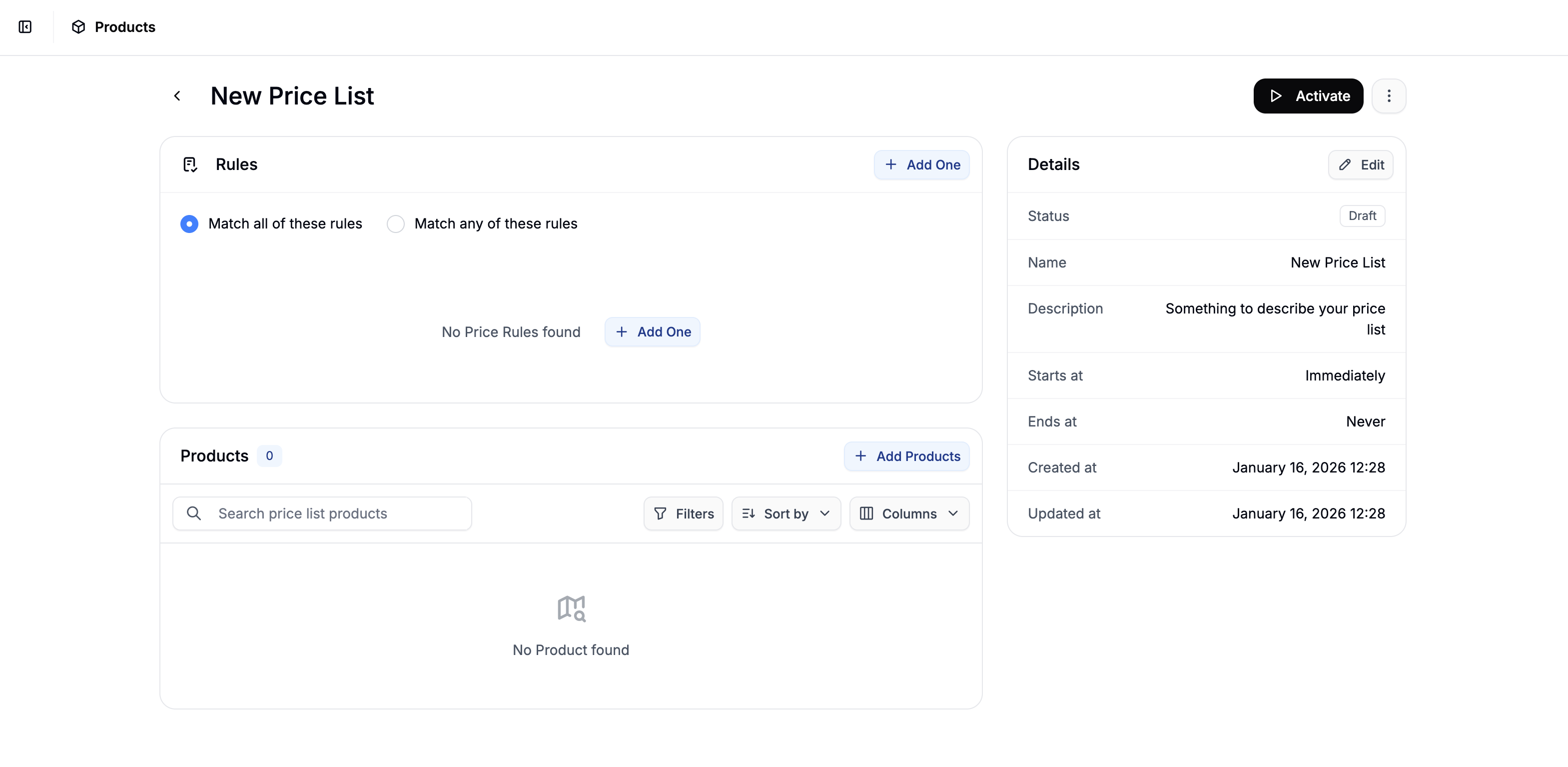 Once created, you’ll be redirected to the price list edit form, where you can define rules for when the price list should apply, add products to be included in the price list, and set the modified prices of those products.
### Add Rules
Once created, you’ll be redirected to the price list edit form, where you can define rules for when the price list should apply, add products to be included in the price list, and set the modified prices of those products.
### Add Rules
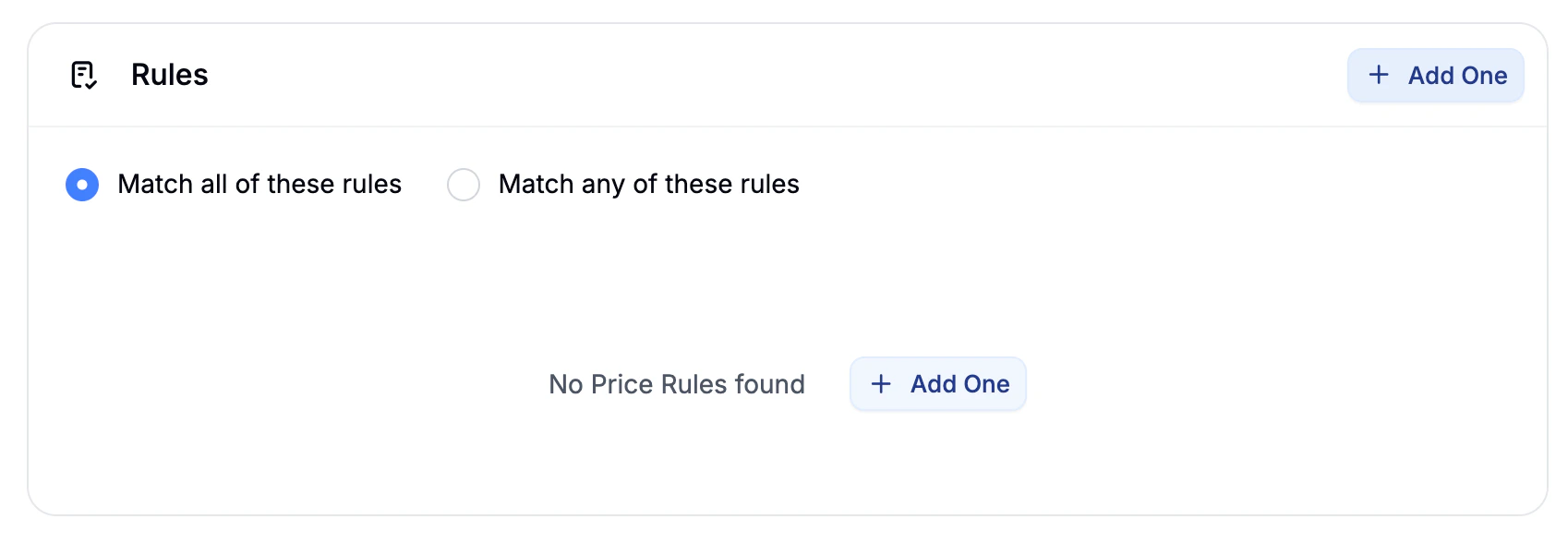 You can add multiple rules with Match Any or Match All logic.
Available Rule Types:
* **User** - Apply pricing only for specific users.
* **Customer Group** - Apply pricing to a specific customer group.
* **Market** - Apply pricing to customers shopping in a specific market.
* **Volume** - Apply pricing when order quantity falls within a min–max range.
* **Zone** - Apply pricing to customers in a specific tax/shipping zone.
To add a rule, simply click **Add Rule**, select a rule type, and configure its criteria.
### Add Products
You can add multiple rules with Match Any or Match All logic.
Available Rule Types:
* **User** - Apply pricing only for specific users.
* **Customer Group** - Apply pricing to a specific customer group.
* **Market** - Apply pricing to customers shopping in a specific market.
* **Volume** - Apply pricing when order quantity falls within a min–max range.
* **Zone** - Apply pricing to customers in a specific tax/shipping zone.
To add a rule, simply click **Add Rule**, select a rule type, and configure its criteria.
### Add Products
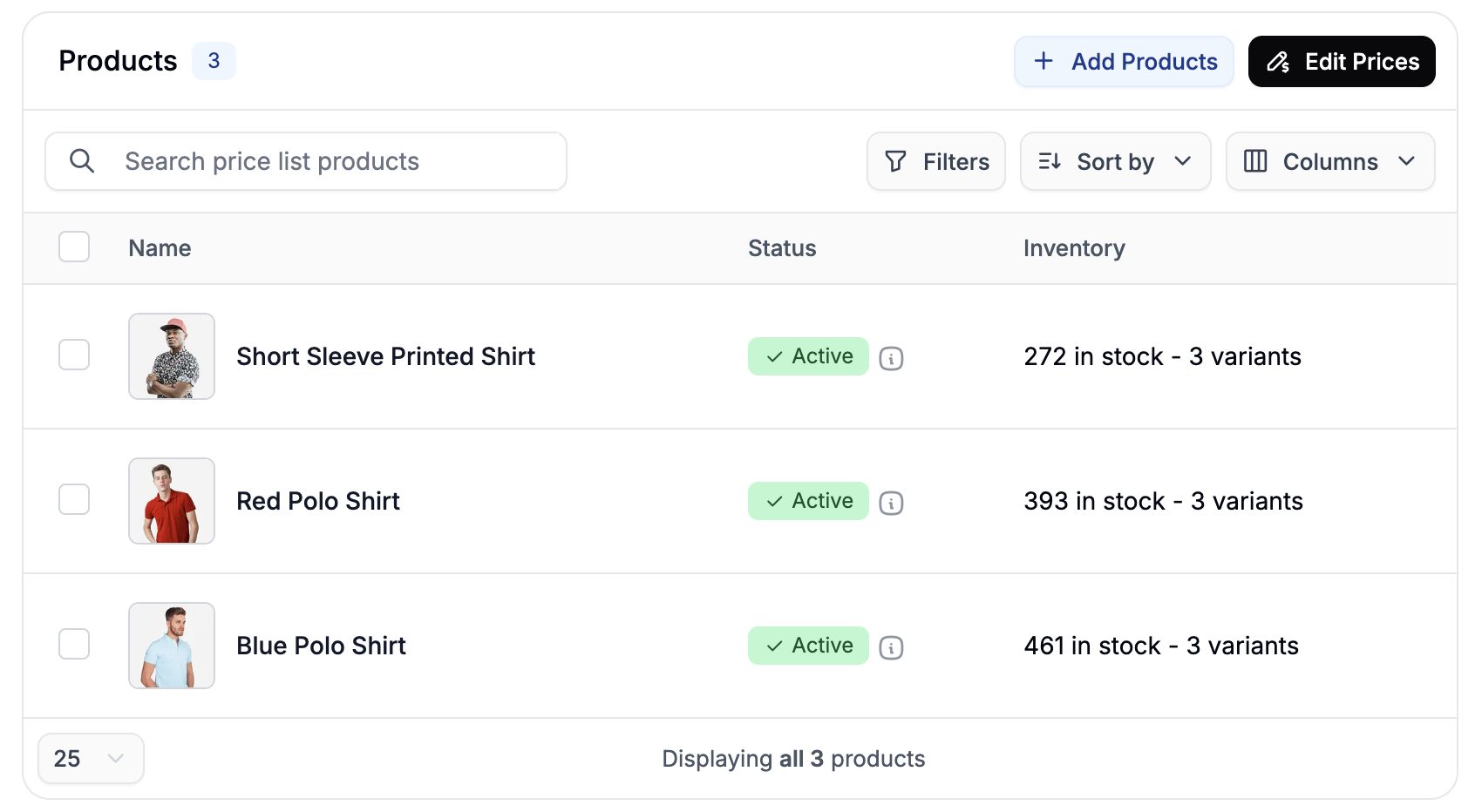 Next, you’ll need to add some products to the price list. To do so, click **Add Products** in Products subsection to open the product selector side panel.
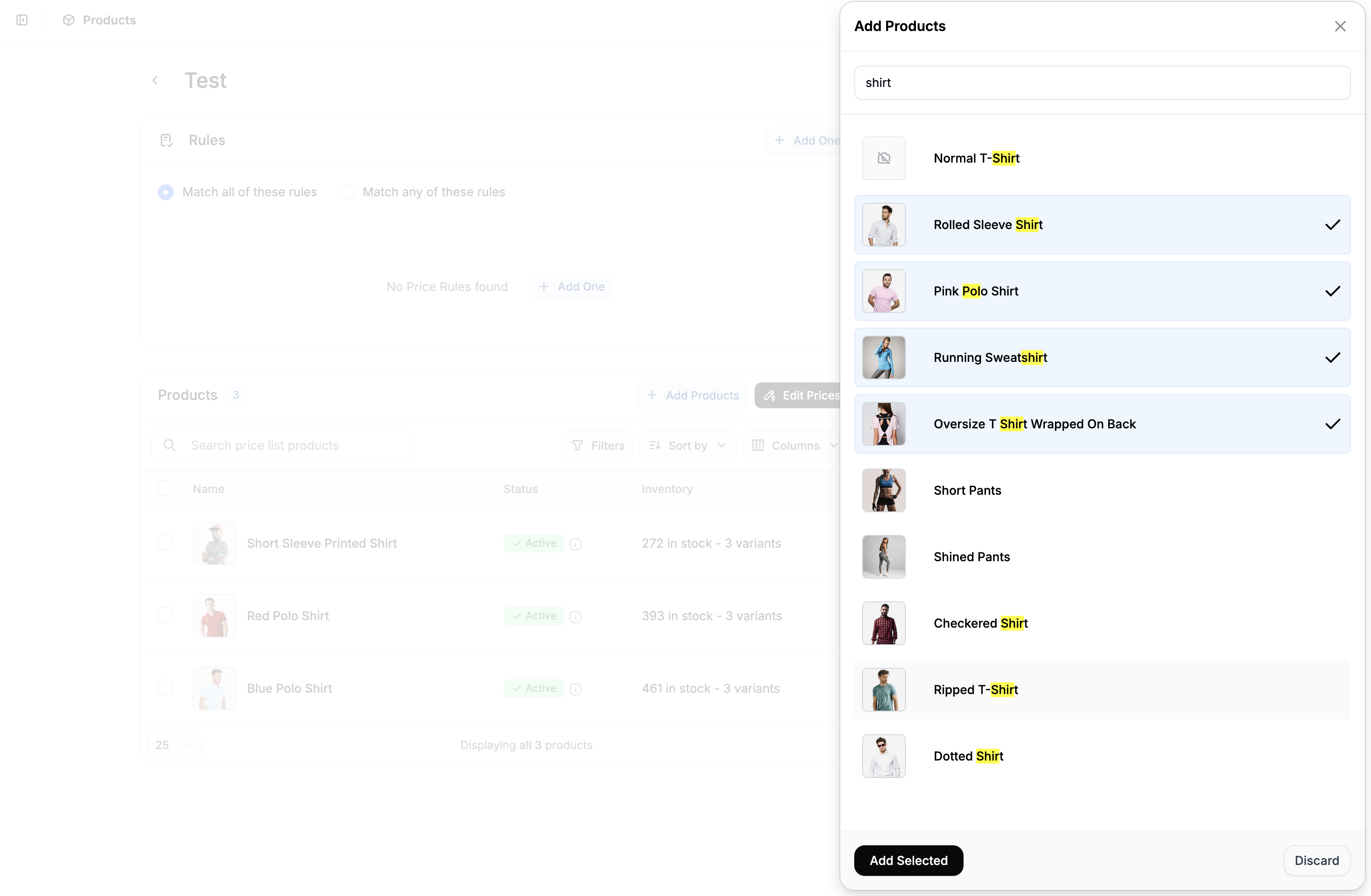 Search for products by name or SKU, select one or more products and click **Add Selected** to add them to the price list.
The selected products will now appear in the product list.
### Setting Prices
To define custom prices for the list, click **Edit Prices** in the top right of the product list to open the price edit form.
Search for products by name or SKU, select one or more products and click **Add Selected** to add them to the price list.
The selected products will now appear in the product list.
### Setting Prices
To define custom prices for the list, click **Edit Prices** in the top right of the product list to open the price edit form.
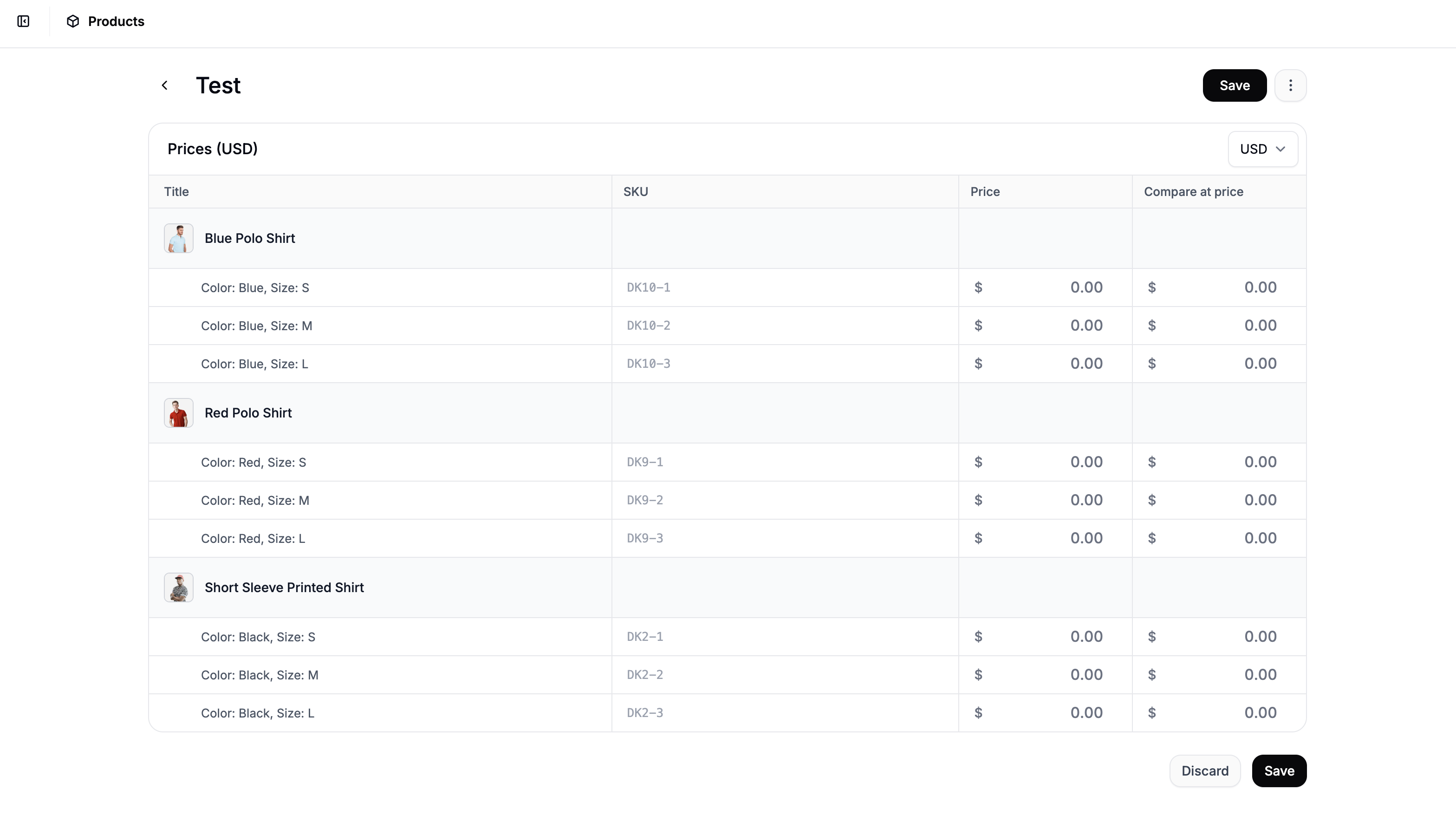 Select which currency you'd like to update prices for, and update the values in the **Price** column and optionally in the **Compare At** column.
You can highlight multiple fields and copy + paste like you would in a spreadsheet.
Select which currency you'd like to update prices for, and update the values in the **Price** column and optionally in the **Compare At** column.
You can highlight multiple fields and copy + paste like you would in a spreadsheet.
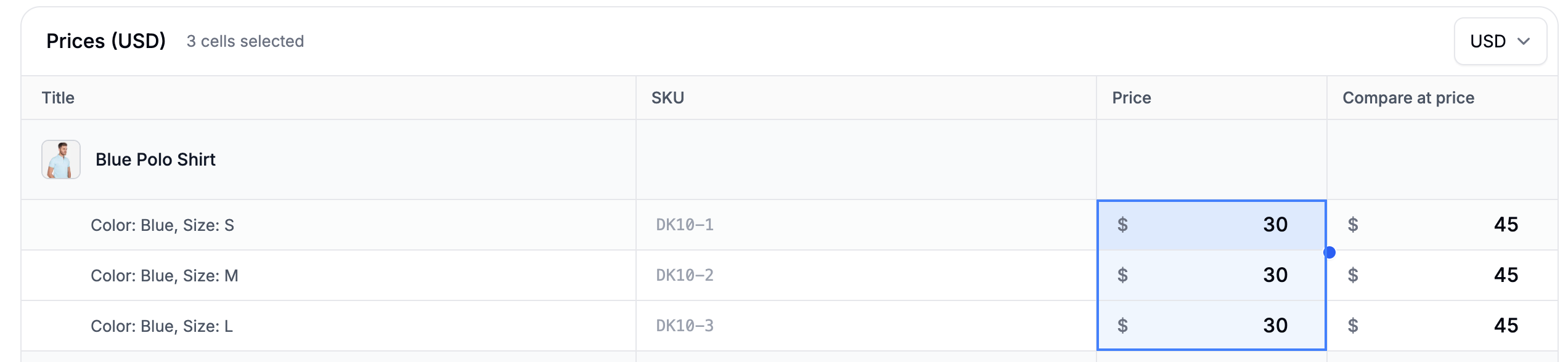 Once you’ve finished entering the custom prices, click **Save** to apply your changes.
## Activating the Price List
Once everything is configured, go back to the price list editor, and click **Activate** in the top right corner.
Once you’ve finished entering the custom prices, click **Save** to apply your changes.
## Activating the Price List
Once everything is configured, go back to the price list editor, and click **Activate** in the top right corner.
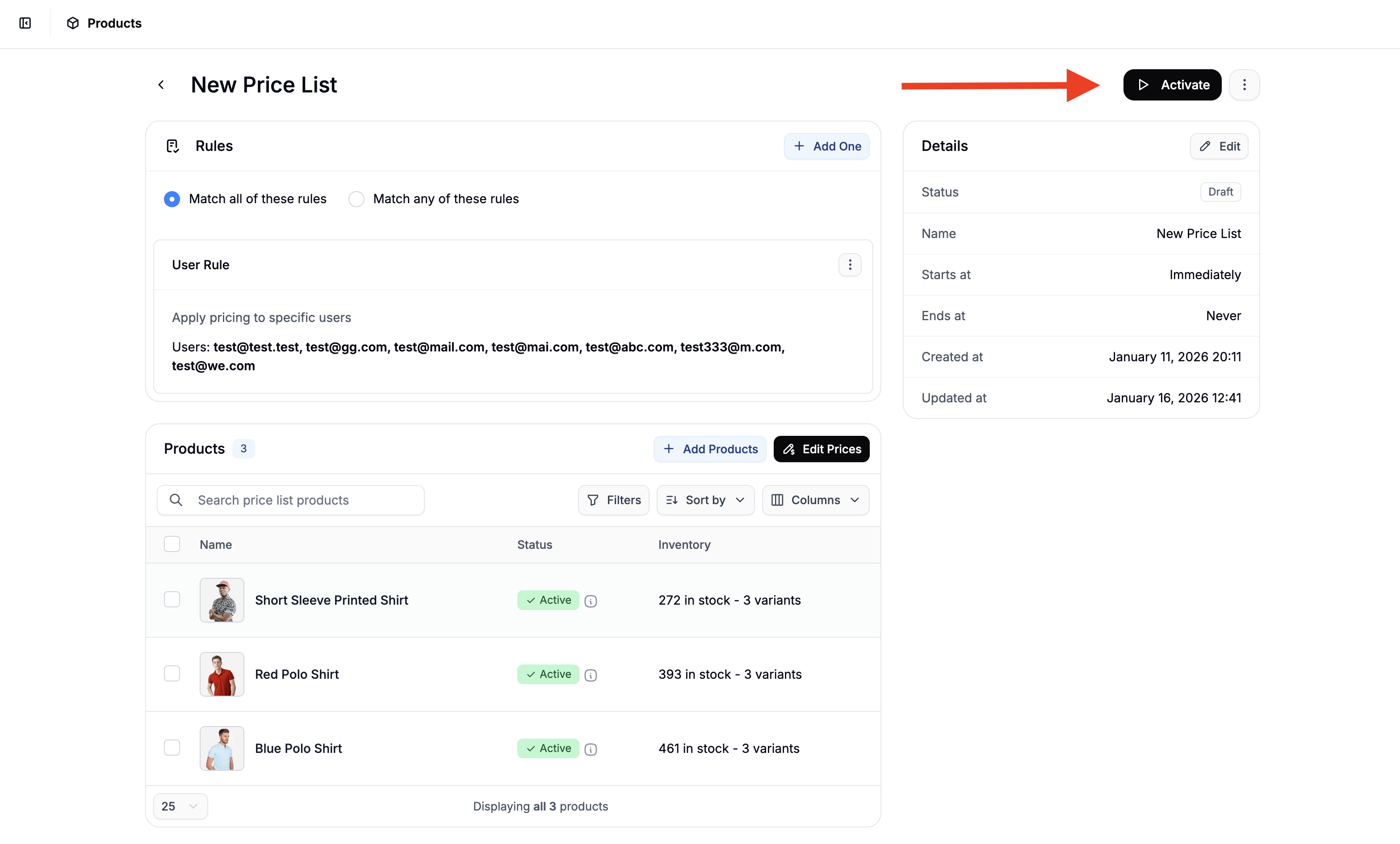 The price list will now take effect immediately for any user or order that matches the configured rules.
You can deactivate the price list at any time by clicking the **Deactivate** button.
If you set a start date for the price list, the **Activate/Deactivate** button will instead say **Schedule/Unschedule**.
The price list will now take effect immediately for any user or order that matches the configured rules.
You can deactivate the price list at any time by clicking the **Deactivate** button.
If you set a start date for the price list, the **Activate/Deactivate** button will instead say **Schedule/Unschedule**.