> ## Documentation Index
> Fetch the complete documentation index at: https://spreecommerce.org/docs/llms.txt
> Use this file to discover all available pages before exploring further.
# Multi-Currency Import/Export
> Learn how to import and export product prices across multiple currencies in Spree Commerce.
If your store is configured to sell in more than one currency, Spree's product import/export automatically handles pricing for each currency in a single file. This makes it straightforward to review, update, or set prices across all your markets without needing separate exports for each currency.
Multi-currency import/export relies on your Markets configuration. Each currency in the export corresponds to a market you've set up in your store. See [Settings → Markets](https://spreecommerce.org/docs/user/settings/markets) for more details.
## How It Works
When you export your product catalog, Spree generates one row per product variant for your default currency — exactly as it always has. For each additional currency your store supports, Spree adds an extra row for each variant containing only the pricing information for that currency.
These additional rows are called **price-only rows**. They contain a smaller set of columns:
* **SKU** - Identifies which variant the price belongs to
* **Slug** - Identifies which product the variant belongs to
* **Price** - The price in the specified currency
* **Compare At Price** - The original/crossed-out price, if applicable
* **Currency** - The currency code for this row (e.g., `EUR`, `GBP`)
All other product fields (name, description, taxons, metafields, etc.) are left blank in price-only rows — they're intentionally omitted because those fields are already handled by the primary row.
## Exporting Multi-Currency Prices
The export process is the same as a standard product export. Navigate to the **Products** tab and click **Export** in the top-right corner.
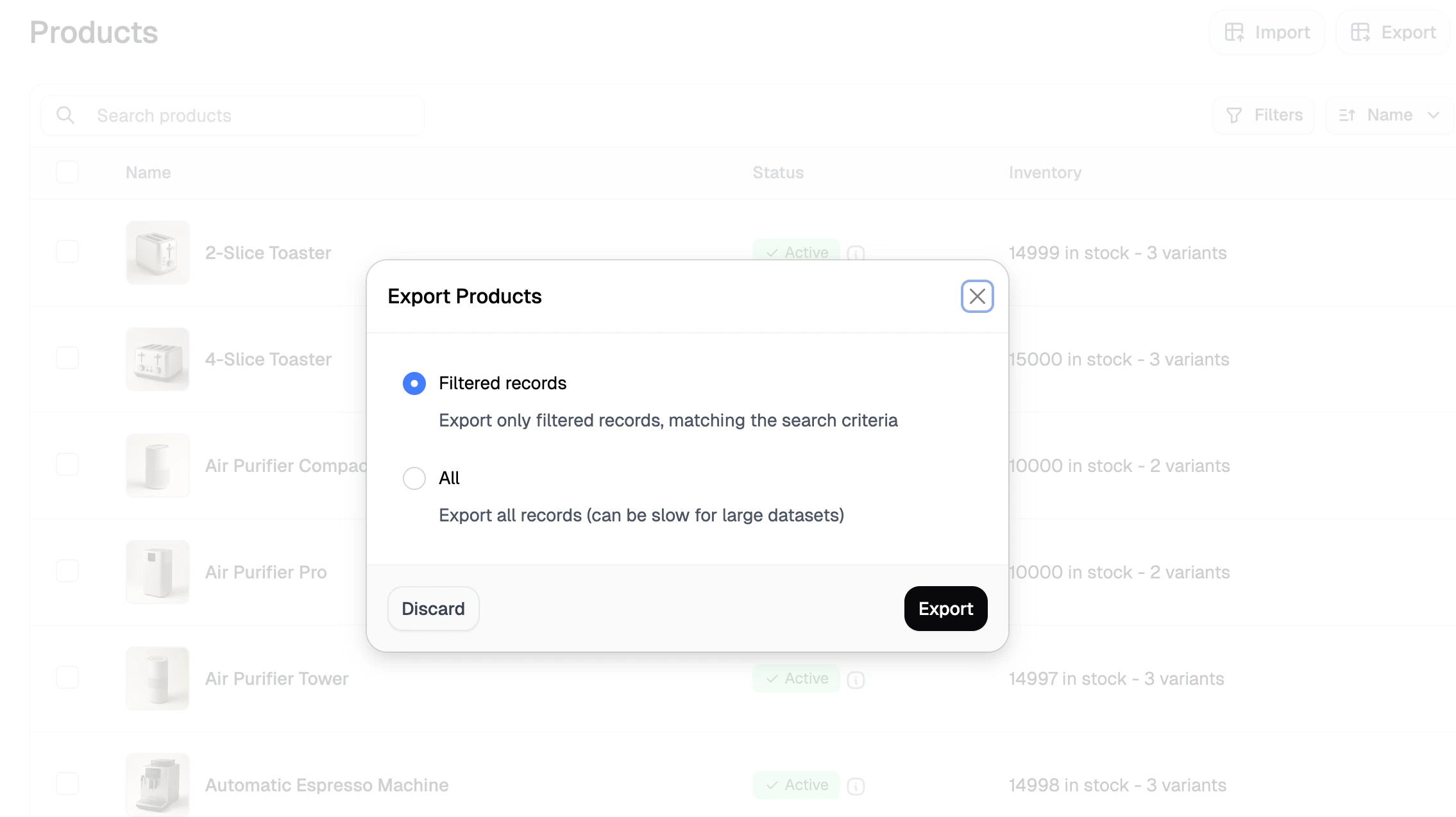 Choose to export **Filtered Records** or **All**, then click **Export**. A download link will be sent to your admin email address.
When you open the file, you'll see your standard product rows followed by price-only rows for each additional currency. For example, a store selling in USD (default) and EUR would look something like this:
| SKU | Slug | Name | Price | Currency | ... |
| -------- | ---------- | ---------- | ----- | -------- | --- |
| SHIRT-SM | blue-shirt | Blue Shirt | 29.99 | USD | ... |
| SHIRT-MD | blue-shirt | Blue Shirt | 34.99 | USD | ... |
| SHIRT-SM | blue-shirt | | 27.99 | EUR | |
| SHIRT-MD | blue-shirt | | 31.99 | EUR | |
The blank fields in the EUR rows are expected — only the pricing columns matter for those rows.
## Importing Multi-Currency Prices
You can update prices across currencies by editing the exported file and re-importing it through the standard product importer.
When editing price-only rows, do not change the SKU or slug values. These are used to match each row to the correct product variant — changing them will prevent the import from updating the right records.
To import your updated file, navigate to the **Products** tab and click **Import** in the top-right corner. This opens the import side panel.
Choose to export **Filtered Records** or **All**, then click **Export**. A download link will be sent to your admin email address.
When you open the file, you'll see your standard product rows followed by price-only rows for each additional currency. For example, a store selling in USD (default) and EUR would look something like this:
| SKU | Slug | Name | Price | Currency | ... |
| -------- | ---------- | ---------- | ----- | -------- | --- |
| SHIRT-SM | blue-shirt | Blue Shirt | 29.99 | USD | ... |
| SHIRT-MD | blue-shirt | Blue Shirt | 34.99 | USD | ... |
| SHIRT-SM | blue-shirt | | 27.99 | EUR | |
| SHIRT-MD | blue-shirt | | 31.99 | EUR | |
The blank fields in the EUR rows are expected — only the pricing columns matter for those rows.
## Importing Multi-Currency Prices
You can update prices across currencies by editing the exported file and re-importing it through the standard product importer.
When editing price-only rows, do not change the SKU or slug values. These are used to match each row to the correct product variant — changing them will prevent the import from updating the right records.
To import your updated file, navigate to the **Products** tab and click **Import** in the top-right corner. This opens the import side panel.
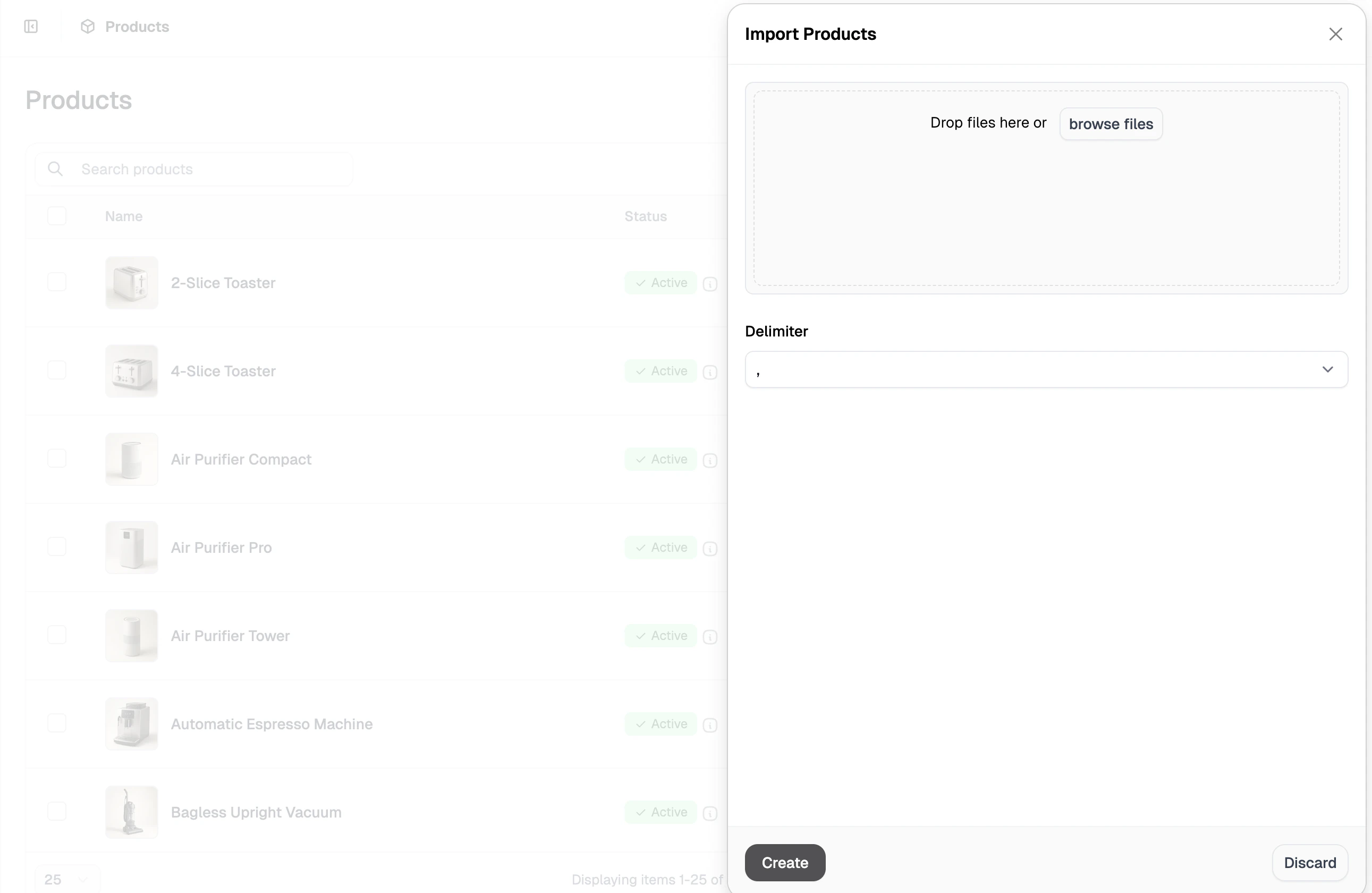 1. Drag and drop your CSV file into the upload area, or click **browse files** to select it from your computer.
2. Select the correct delimiter used in your file (comma, pipe, semicolon, or tab).
3. Click **Create** to proceed to the field mapping step.
4. Review the field mapping and adjust any columns that weren't matched automatically, then click **Continue** to submit.
Spree will automatically detect which rows are full product rows and which are price-only rows. For price-only rows, it will update only the pricing data for the specified currency — it won't overwrite your product descriptions, taxons, or metafields.
You can import pricing updates for a single currency without including rows for other currencies. Just remove any rows you don't want to update before importing.
## Next Steps
* [Import Products](https://spreecommerce.org/docs/user/manage-products/import-products) — Full guide to importing product data
* [Export Products](https://spreecommerce.org/docs/user/manage-products/export-products) — Full guide to exporting your product catalog
* [Settings → Markets](https://spreecommerce.org/docs/user/settings/markets) — Configure markets and currencies for your store
* [Price Lists](https://spreecommerce.org/docs/user/manage-products/price-lists) — Set customer- or volume-specific pricing on top of your base prices
1. Drag and drop your CSV file into the upload area, or click **browse files** to select it from your computer.
2. Select the correct delimiter used in your file (comma, pipe, semicolon, or tab).
3. Click **Create** to proceed to the field mapping step.
4. Review the field mapping and adjust any columns that weren't matched automatically, then click **Continue** to submit.
Spree will automatically detect which rows are full product rows and which are price-only rows. For price-only rows, it will update only the pricing data for the specified currency — it won't overwrite your product descriptions, taxons, or metafields.
You can import pricing updates for a single currency without including rows for other currencies. Just remove any rows you don't want to update before importing.
## Next Steps
* [Import Products](https://spreecommerce.org/docs/user/manage-products/import-products) — Full guide to importing product data
* [Export Products](https://spreecommerce.org/docs/user/manage-products/export-products) — Full guide to exporting your product catalog
* [Settings → Markets](https://spreecommerce.org/docs/user/settings/markets) — Configure markets and currencies for your store
* [Price Lists](https://spreecommerce.org/docs/user/manage-products/price-lists) — Set customer- or volume-specific pricing on top of your base prices