> ## Documentation Index
> Fetch the complete documentation index at: https://spreecommerce.org/docs/llms.txt
> Use this file to discover all available pages before exploring further.
# Bulk Product Operations
> Learn how to perform bulk product operations in Spree Commerce.
Managing a large product catalog doesn’t mean you need to edit each product one by one. Spree’s bulk operations make it easy to update multiple products at once, saving you time and reducing repetitive work.
Bulk operations can be used to:
* Update product statuses
* Add/remove taxons
* Add/remove tags
Bulk operations can be used in combination with product search and filters, for example, to quickly tag all products in a specific taxon.
## How to Perform Bulk Operations
Navigate to the **Products** tab in the admin dashboard.
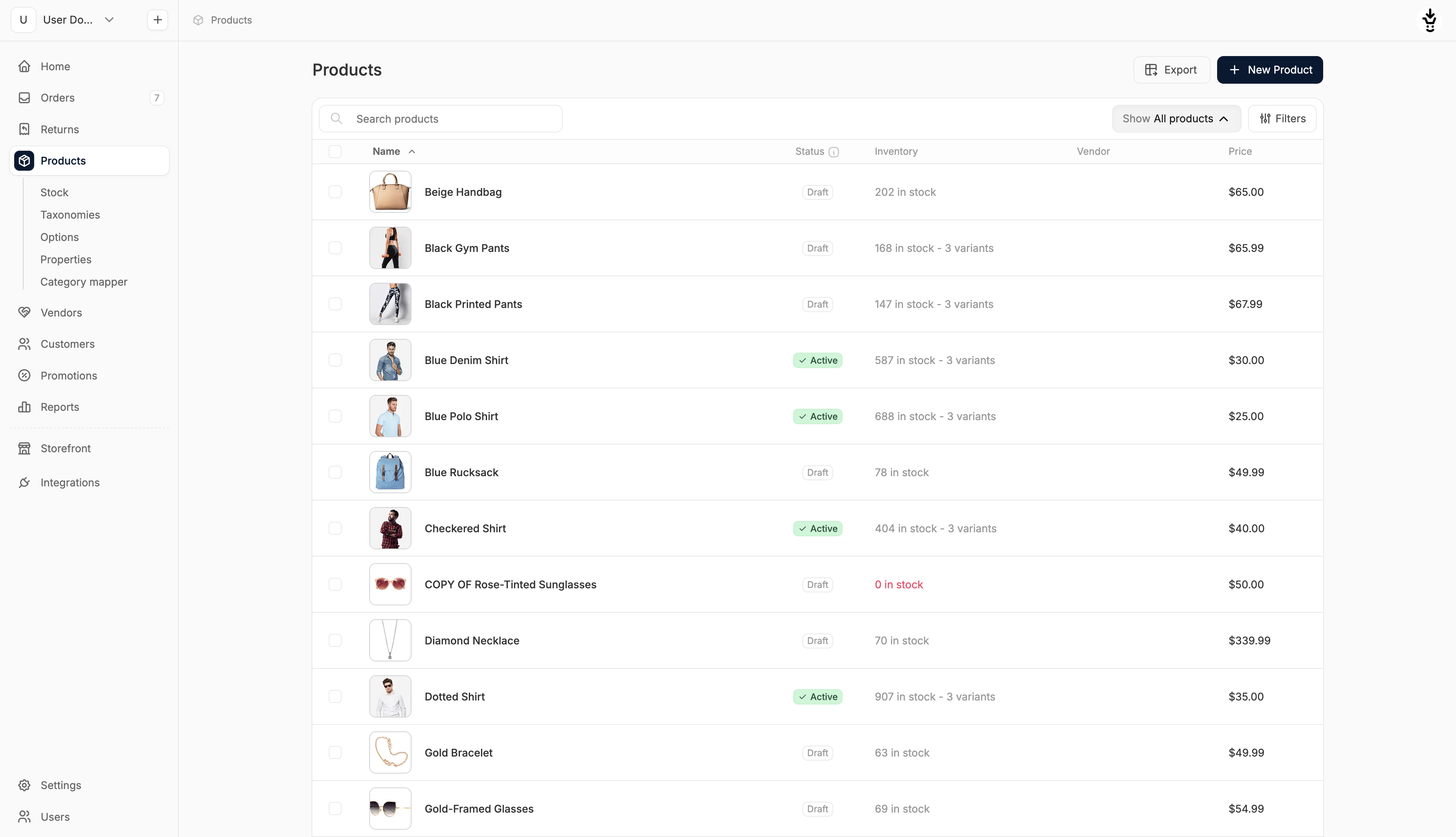 Select one or more products by checking the boxes on the left-hand side of the list.
Once selected, the bulk actions menu will appear at the bottom of the page.
Select one or more products by checking the boxes on the left-hand side of the list.
Once selected, the bulk actions menu will appear at the bottom of the page.
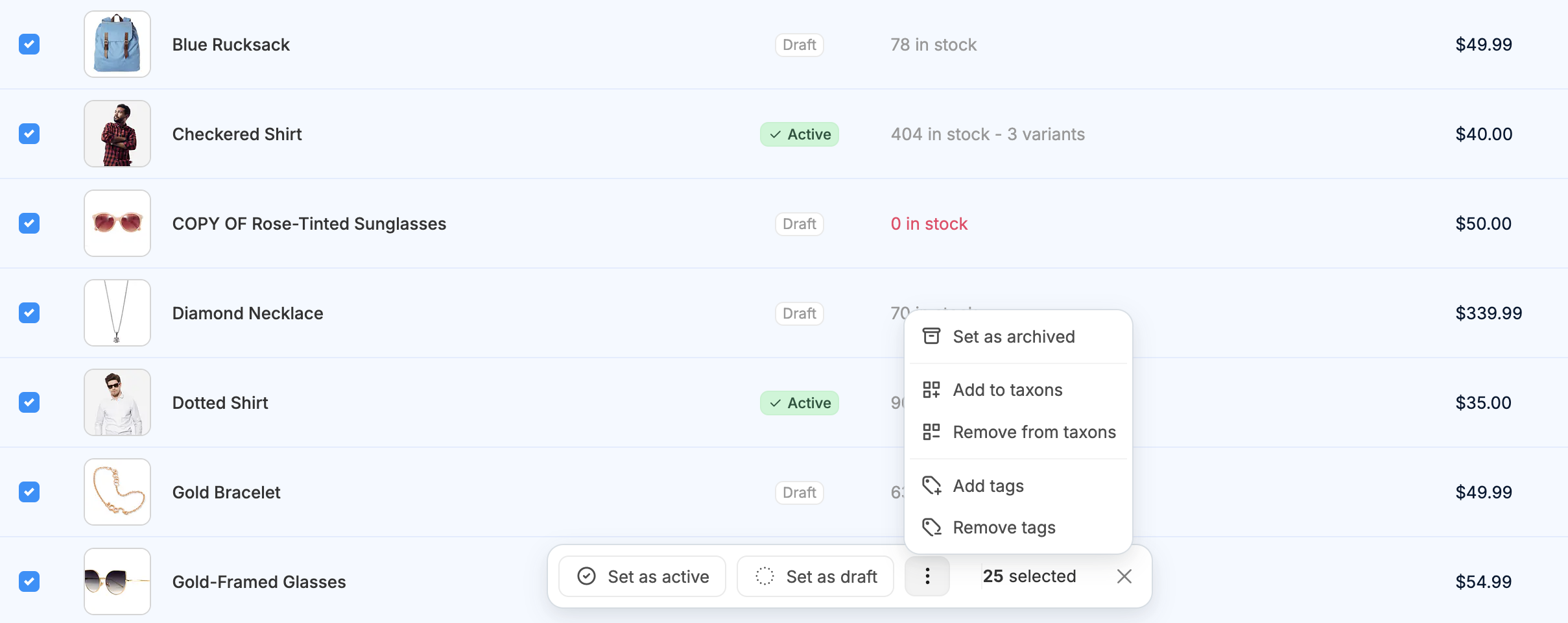 The menu will show how many products are selected and present several action options.
## Status Updates
The menu will show how many products are selected and present several action options.
## Status Updates
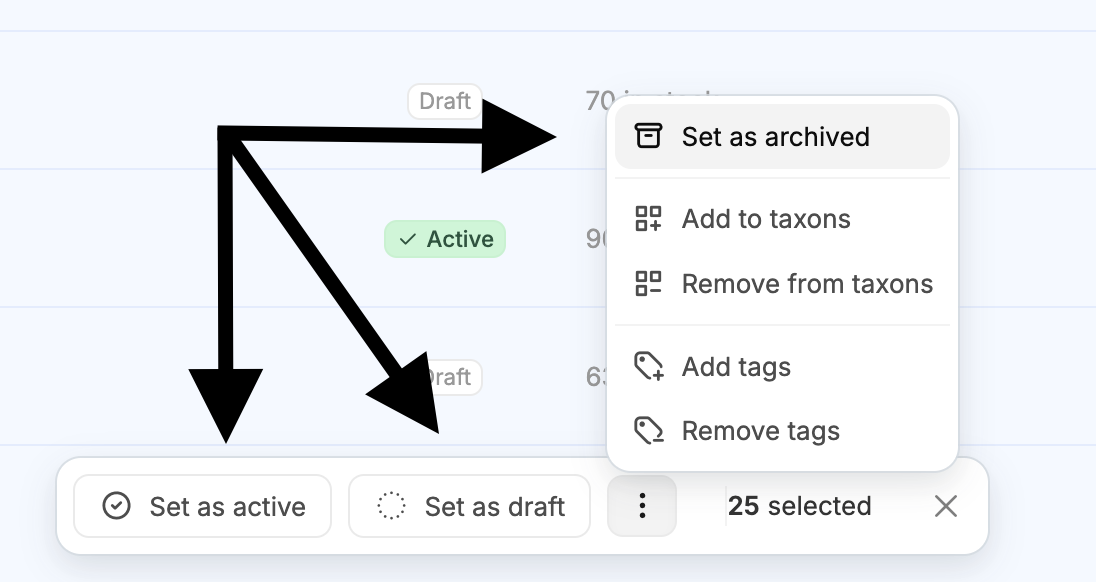 The following actions are available directly in the bulk menu:
* **Set as Active**: Marks selected products as active and visible on the storefront.
* **Set as Draft**: Moves selected products to draft status, making them hidden from the storefront.
* **Set as Archived**: Archives the selected products, removing them from storefront view while keeping them in the admin (accessed in the three-dot menu).
## Taxon Management
These options, accessible in the three-dot menu, let you bulk-manage product categories and collections:
### Add to Taxons
The following actions are available directly in the bulk menu:
* **Set as Active**: Marks selected products as active and visible on the storefront.
* **Set as Draft**: Moves selected products to draft status, making them hidden from the storefront.
* **Set as Archived**: Archives the selected products, removing them from storefront view while keeping them in the admin (accessed in the three-dot menu).
## Taxon Management
These options, accessible in the three-dot menu, let you bulk-manage product categories and collections:
### Add to Taxons
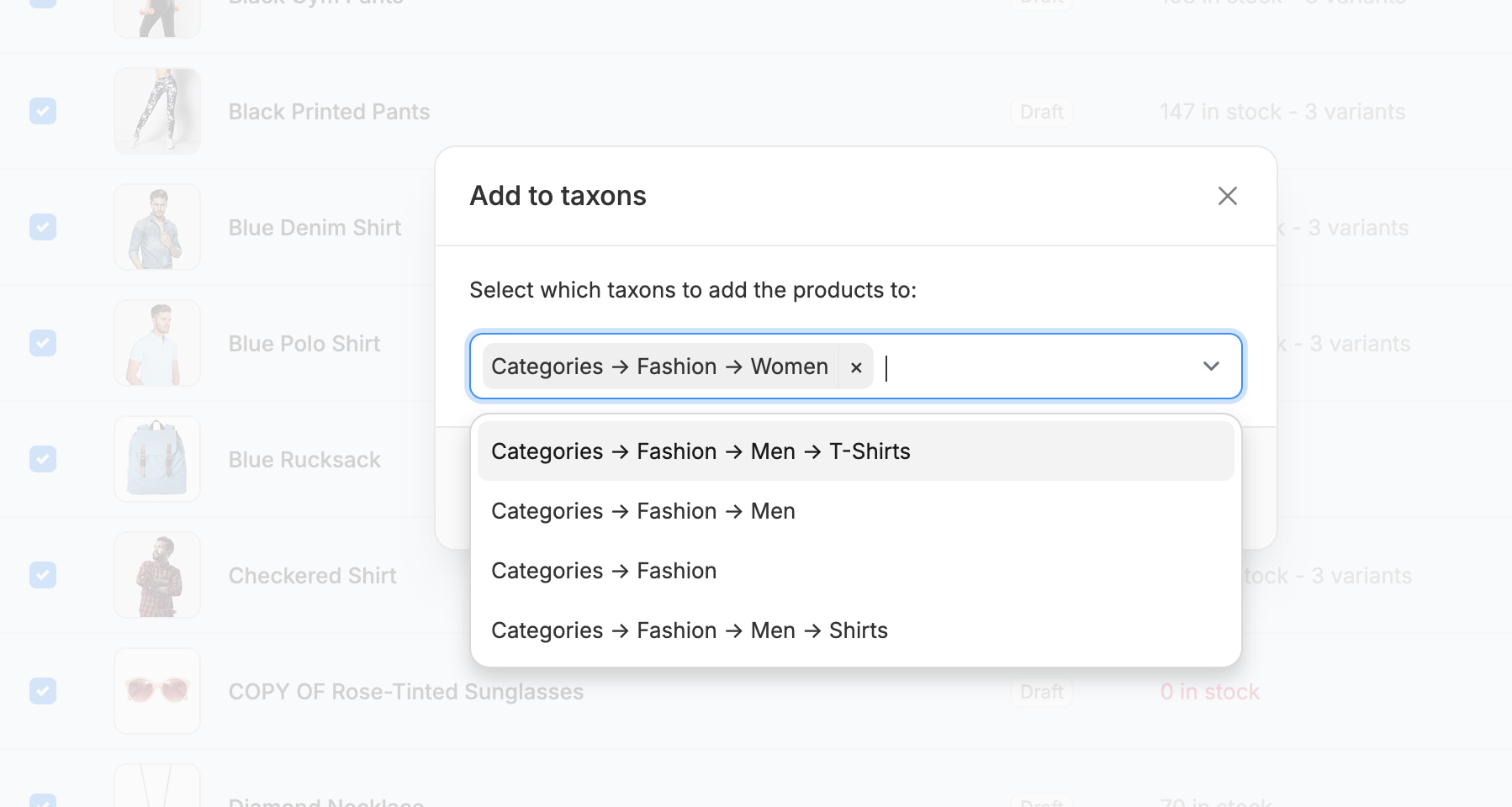 Using the **Add to taxons** operation, you can assign one or more taxons to the selected products.
Simply select taxons from the dropdown list or start typing to narrow results.
### Remove from Taxons
Using the **Add to taxons** operation, you can assign one or more taxons to the selected products.
Simply select taxons from the dropdown list or start typing to narrow results.
### Remove from Taxons
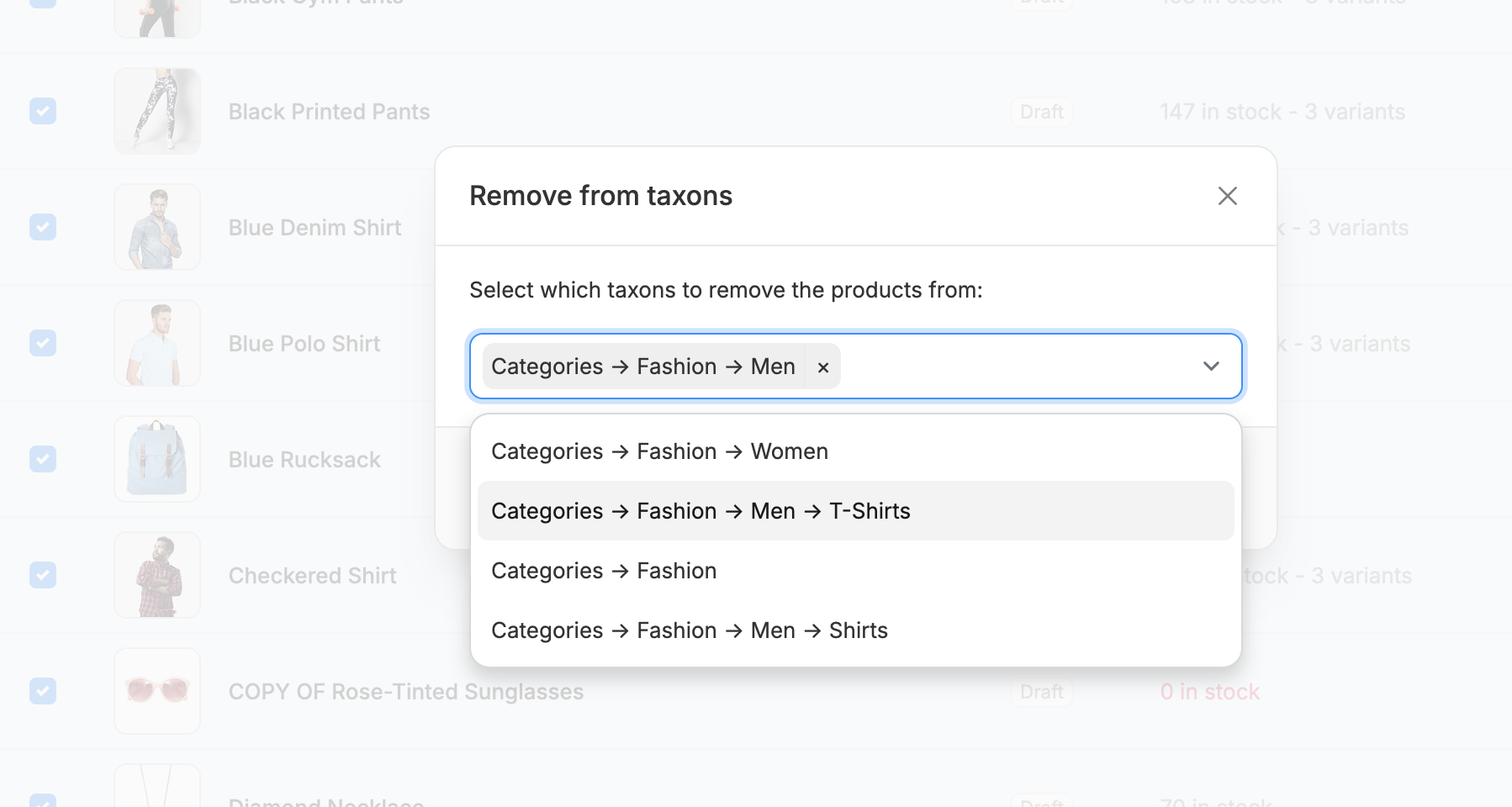 Similar to above, you can use the **Remove from taxons** operation to remove specific taxons from selected products.
Multiple taxons can be removed at once using the same interface.
## Tag Management
You can also quickly assign or unassign tags across multiple products:
### Add Tags
Similar to above, you can use the **Remove from taxons** operation to remove specific taxons from selected products.
Multiple taxons can be removed at once using the same interface.
## Tag Management
You can also quickly assign or unassign tags across multiple products:
### Add Tags
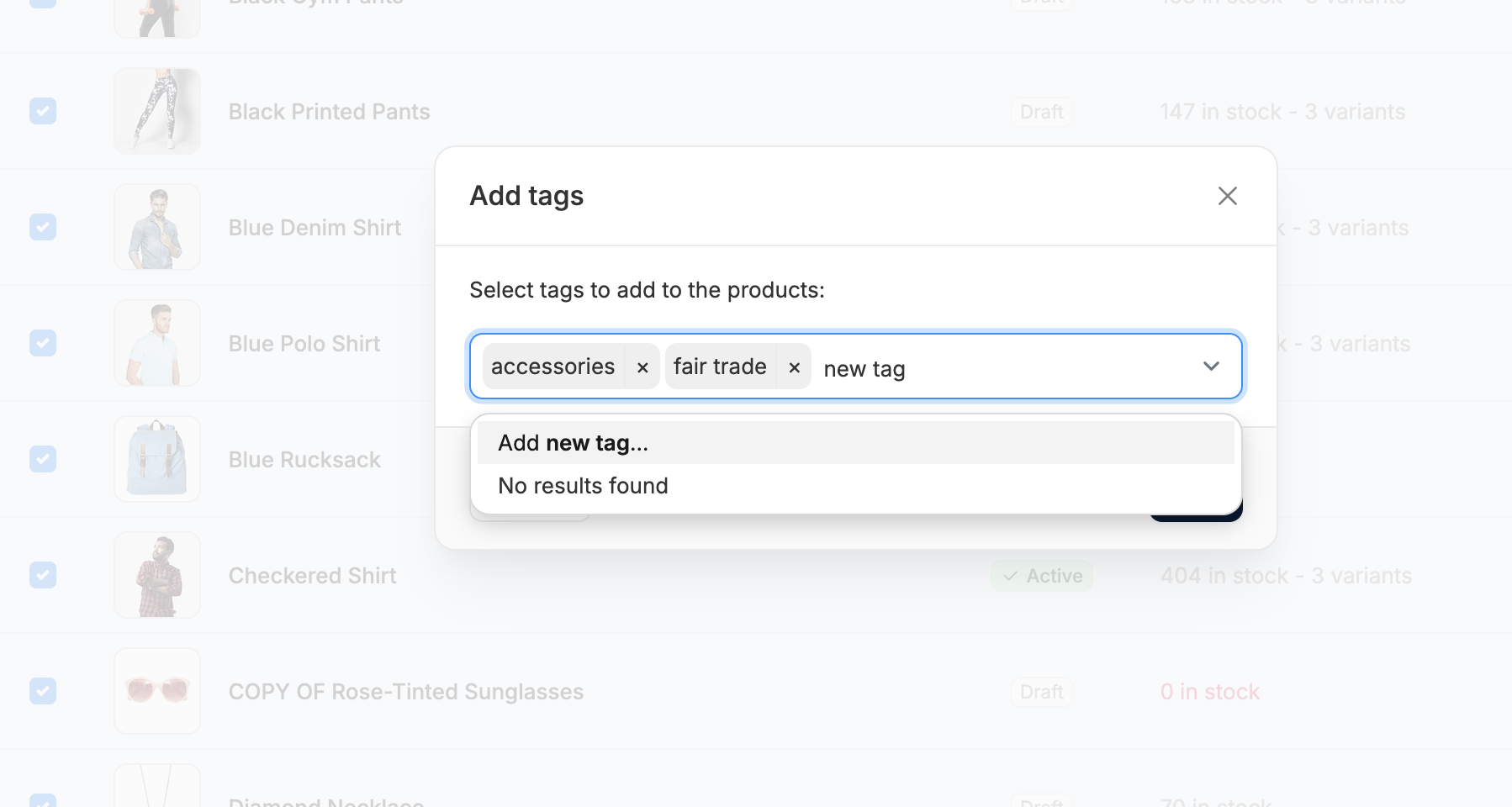 Using the **Add tags** operation, you can apply one or more tags to all selected products at once.
Select tags from the dropdown list or create new ones on the fly directly within the interface.
### Remove Tags
Using the **Add tags** operation, you can apply one or more tags to all selected products at once.
Select tags from the dropdown list or create new ones on the fly directly within the interface.
### Remove Tags
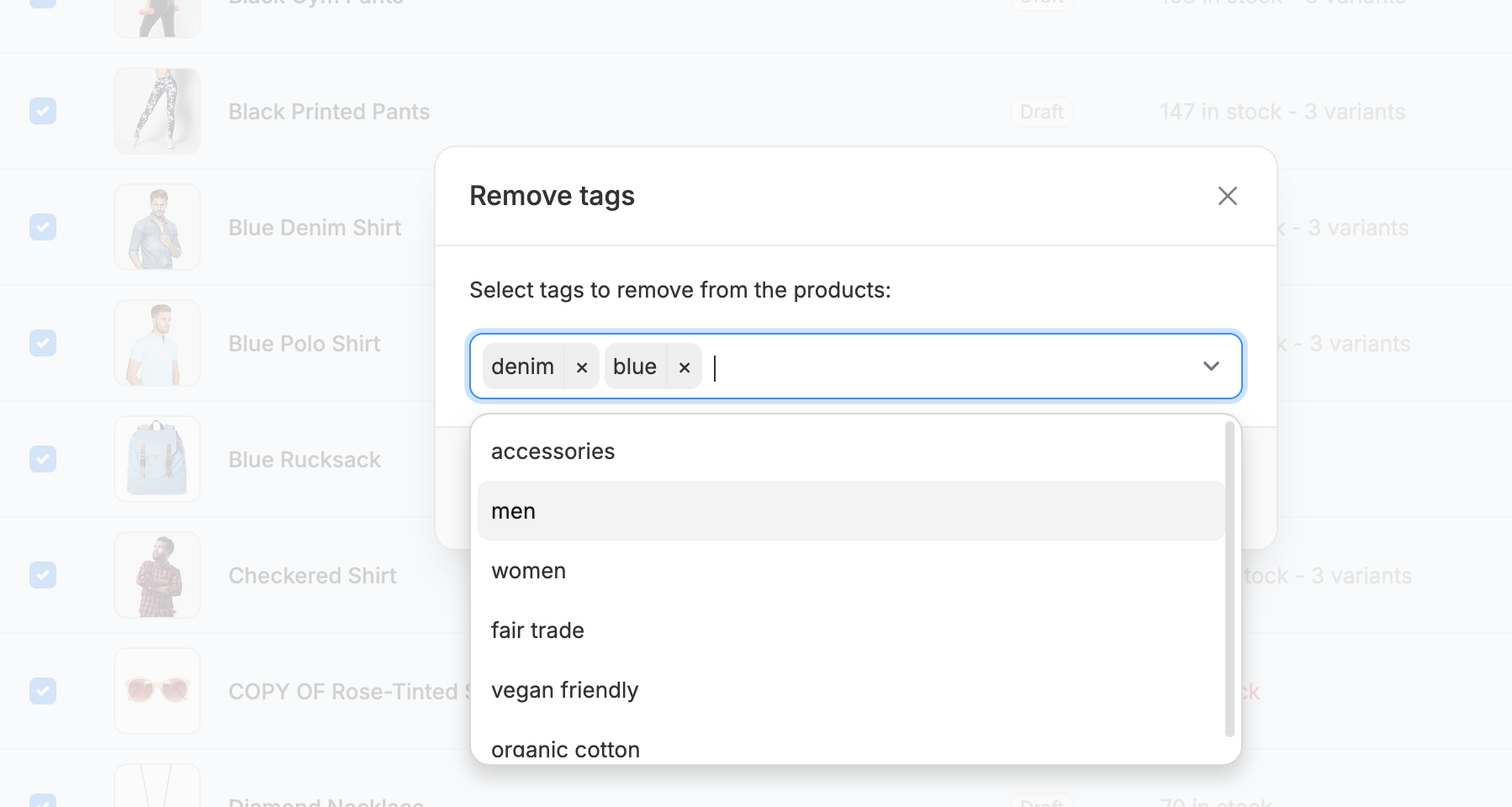 The **Remove tags** operation allows you to remove selected tags from all chosen products.
As before, multiple tags can be removed at once.
## Saving Changes
The **Remove tags** operation allows you to remove selected tags from all chosen products.
As before, multiple tags can be removed at once.
## Saving Changes
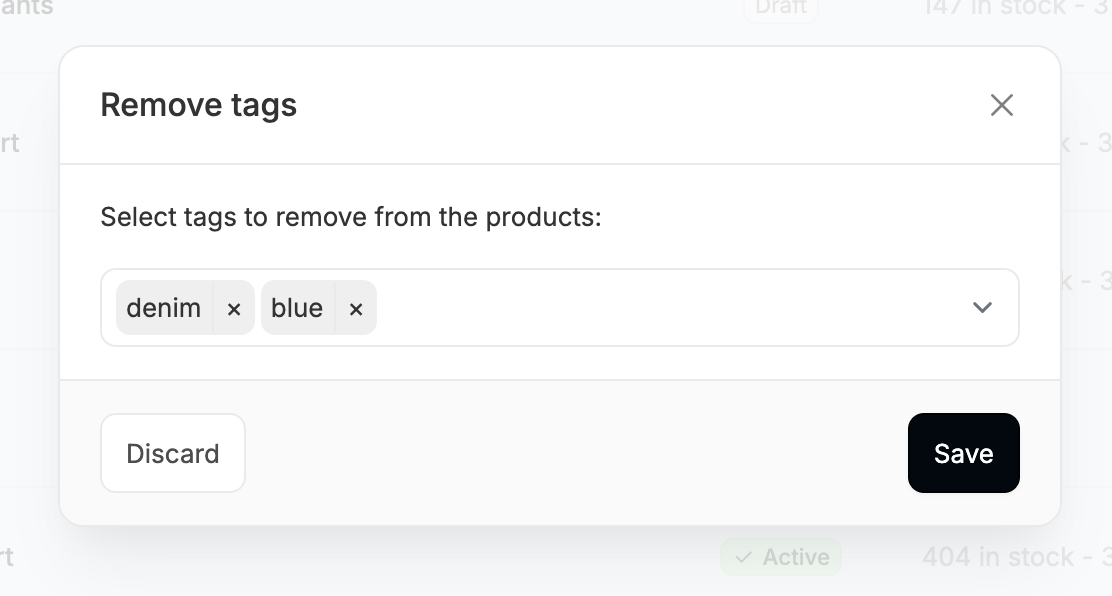 After selecting and confirming your desired operation, always click **Save** in the bottom right corner of the modal to apply your changes.