> ## Documentation Index
> Fetch the complete documentation index at: https://spreecommerce.org/docs/llms.txt
> Use this file to discover all available pages before exploring further.
# Set Up Wholesale Pricing
> Learn how to offer wholesale pricing to specific customer groups using Price Lists in Spree Commerce.
Wholesale pricing lets you show different prices to different types of buyers — for example, trade customers or registered wholesalers see their negotiated prices, while regular customers continue to see standard retail prices. Because pricing is tied to the customer's account, there's no need for separate storefronts or manual price management.
In Spree, you do this by creating a Customer Group for your wholesale buyers, then creating a Price List with a Customer Group rule that targets it. You can create as many price lists as you need — one per wholesaler or tier — each with its own pricing and conditions.
This approach also enables a combined B2C and B2B setup on a single storefront: retail customers see base prices by default, while logged-in wholesale customers automatically see their contracted pricing. No separate store or login portal required.
## Prerequisites
Before you start, you should have your products set up with base prices. Wholesale pricing overrides those base prices for customers in the relevant group — all other customers continue to see the standard price.
Familiarity with how Price Lists work is helpful. See [Price Lists](https://spreecommerce.org/docs/user/manage-products/price-lists) for a full reference.
## 1. Create a Customer Group
First, you'll need a Customer Group to represent your wholesale buyers. If you already have a suitable group set up, you can skip to [Step 2](#2-create-a-wholesale-price-list).
Navigate to **Customers → Customer Groups** in the admin dashboard and click **New Customer Group**.
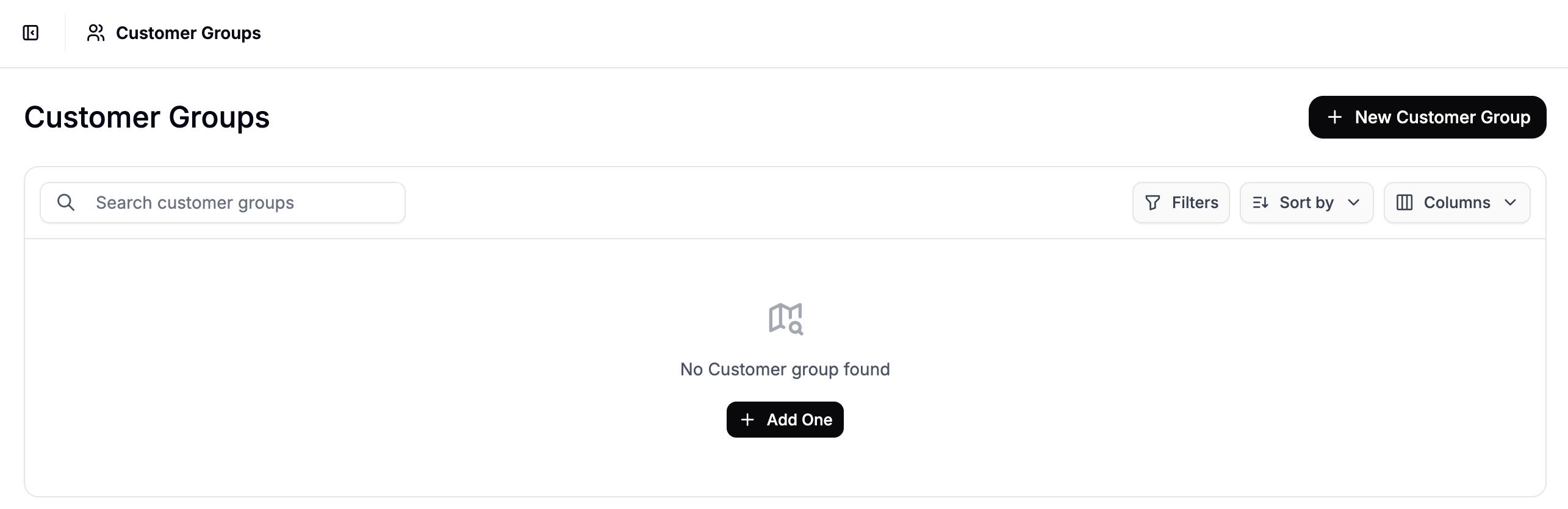 Fill in the details:
* **Name** — e.g., `Wholesale Buyers` or a specific account name if this group is for a single wholesaler
* **Description** — optional, but useful for other admins (e.g., `Registered trade accounts with negotiated wholesale pricing`)
Click **Create** to save the group.
## 2. Add Customers to the Group
Once the group is created, you'll be taken to its detail view. Click **Add Customers** to open the customer selector panel.
Fill in the details:
* **Name** — e.g., `Wholesale Buyers` or a specific account name if this group is for a single wholesaler
* **Description** — optional, but useful for other admins (e.g., `Registered trade accounts with negotiated wholesale pricing`)
Click **Create** to save the group.
## 2. Add Customers to the Group
Once the group is created, you'll be taken to its detail view. Click **Add Customers** to open the customer selector panel.
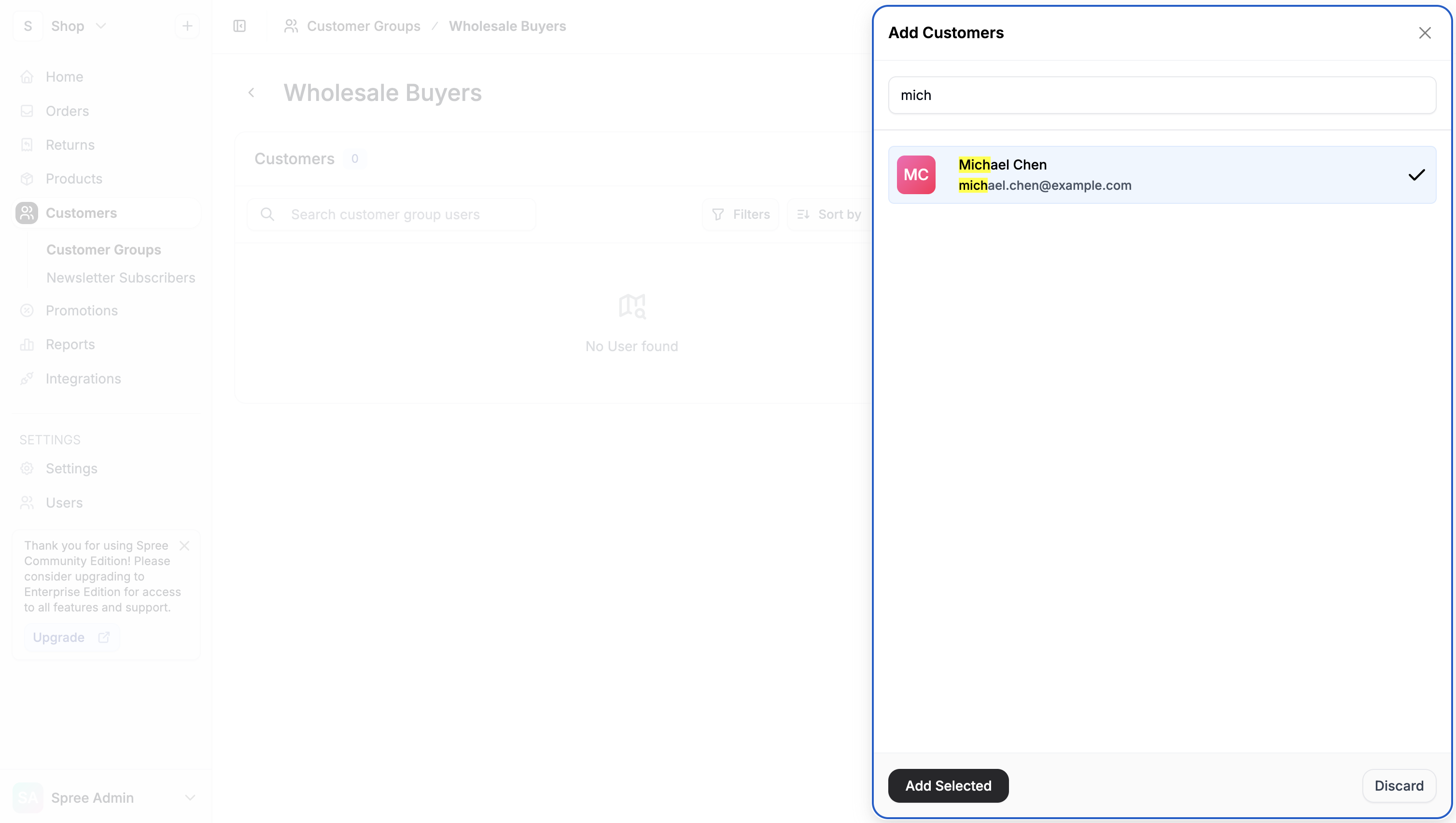 Search for the customers you want to include, check the boxes next to their names, and click **Add Selected**. The customers will now appear in the group.
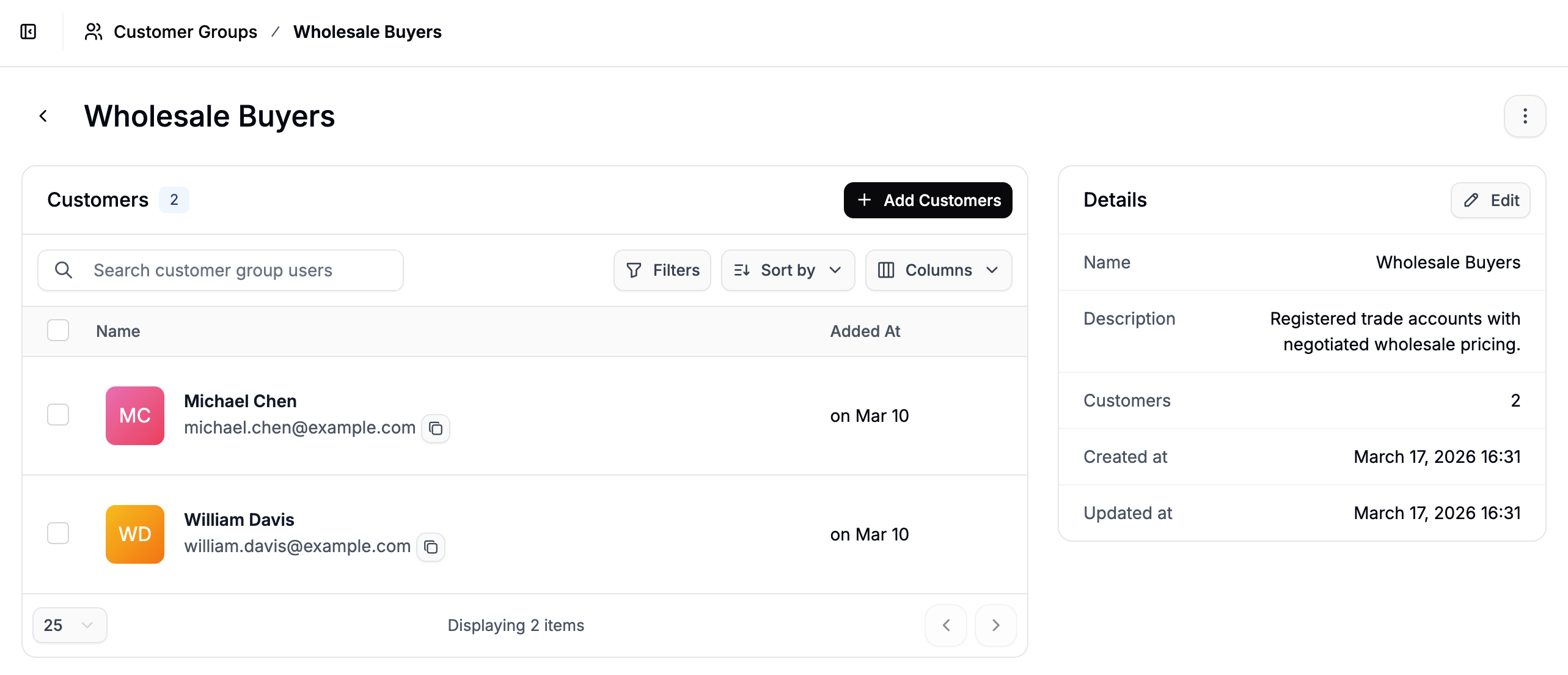 Repeat this process whenever you onboard a new wholesale account — simply add them to the relevant group and their pricing will apply automatically on their next login.
## 3. Create a Wholesale Price List
With your customer group in place, navigate to **Products → Price Lists** and click **New Price List**.
Repeat this process whenever you onboard a new wholesale account — simply add them to the relevant group and their pricing will apply automatically on their next login.
## 3. Create a Wholesale Price List
With your customer group in place, navigate to **Products → Price Lists** and click **New Price List**.
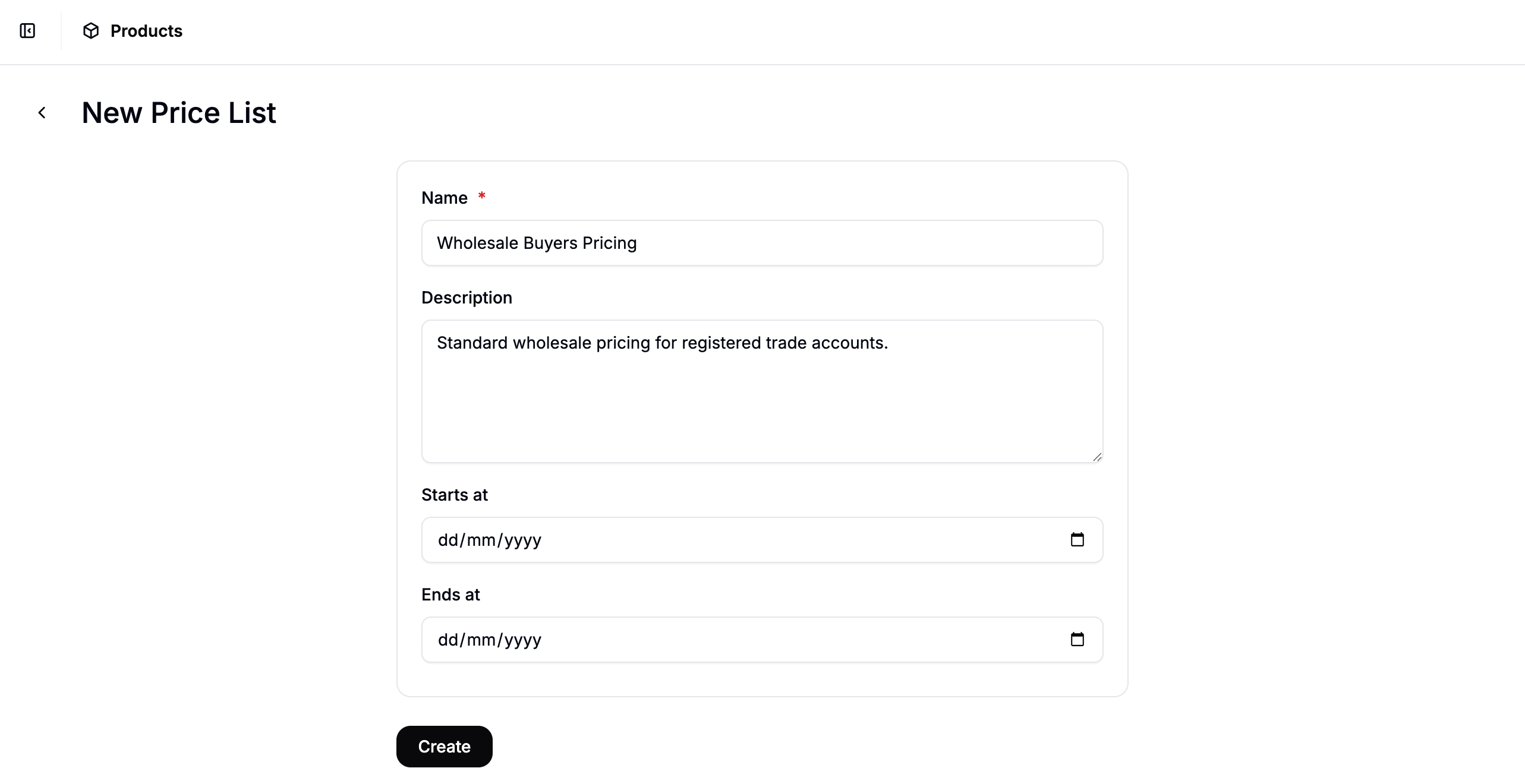 Fill in the details:
* **Name** — e.g., `Wholesale Buyers Pricing`
* **Description** — optional (e.g., `Standard wholesale pricing for registered trade accounts`)
* **Start Date / End Date** — leave blank if this pricing should apply indefinitely
Click **Create** to open the price list editor.
### Add a Customer Group Rule
In the price list editor, click **Add Rule** and select **Customer Group** from the rule type dropdown. Select **Wholesale Buyers** from the options.
Fill in the details:
* **Name** — e.g., `Wholesale Buyers Pricing`
* **Description** — optional (e.g., `Standard wholesale pricing for registered trade accounts`)
* **Start Date / End Date** — leave blank if this pricing should apply indefinitely
Click **Create** to open the price list editor.
### Add a Customer Group Rule
In the price list editor, click **Add Rule** and select **Customer Group** from the rule type dropdown. Select **Wholesale Buyers** from the options.
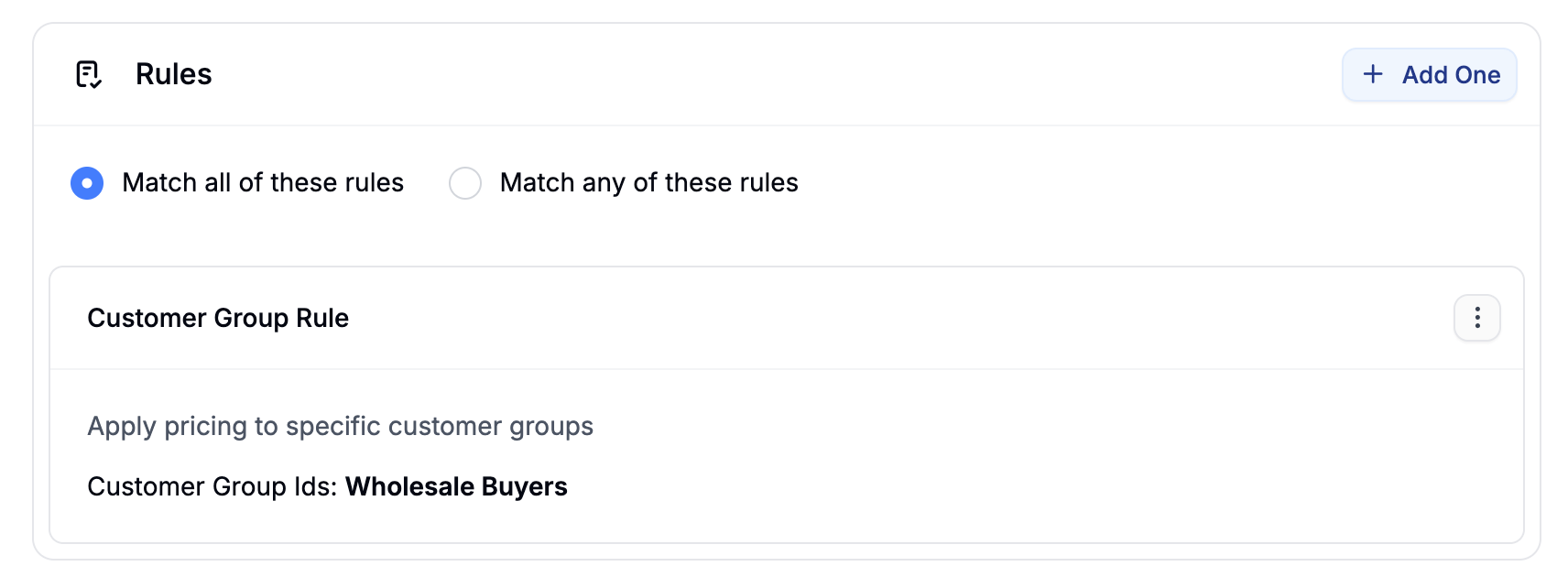 This ensures the price list only applies to logged-in customers who are members of that group.
### Add Products and Set Prices
Click **Add Products** to open the product selector. Search for and select the products you want to include in this price list, then click **Add Selected**.
Once the products appear in the list, click **Edit Prices** to open the price editor. Enter the wholesale price for each product in the **Price** column.
This ensures the price list only applies to logged-in customers who are members of that group.
### Add Products and Set Prices
Click **Add Products** to open the product selector. Search for and select the products you want to include in this price list, then click **Add Selected**.
Once the products appear in the list, click **Edit Prices** to open the price editor. Enter the wholesale price for each product in the **Price** column.
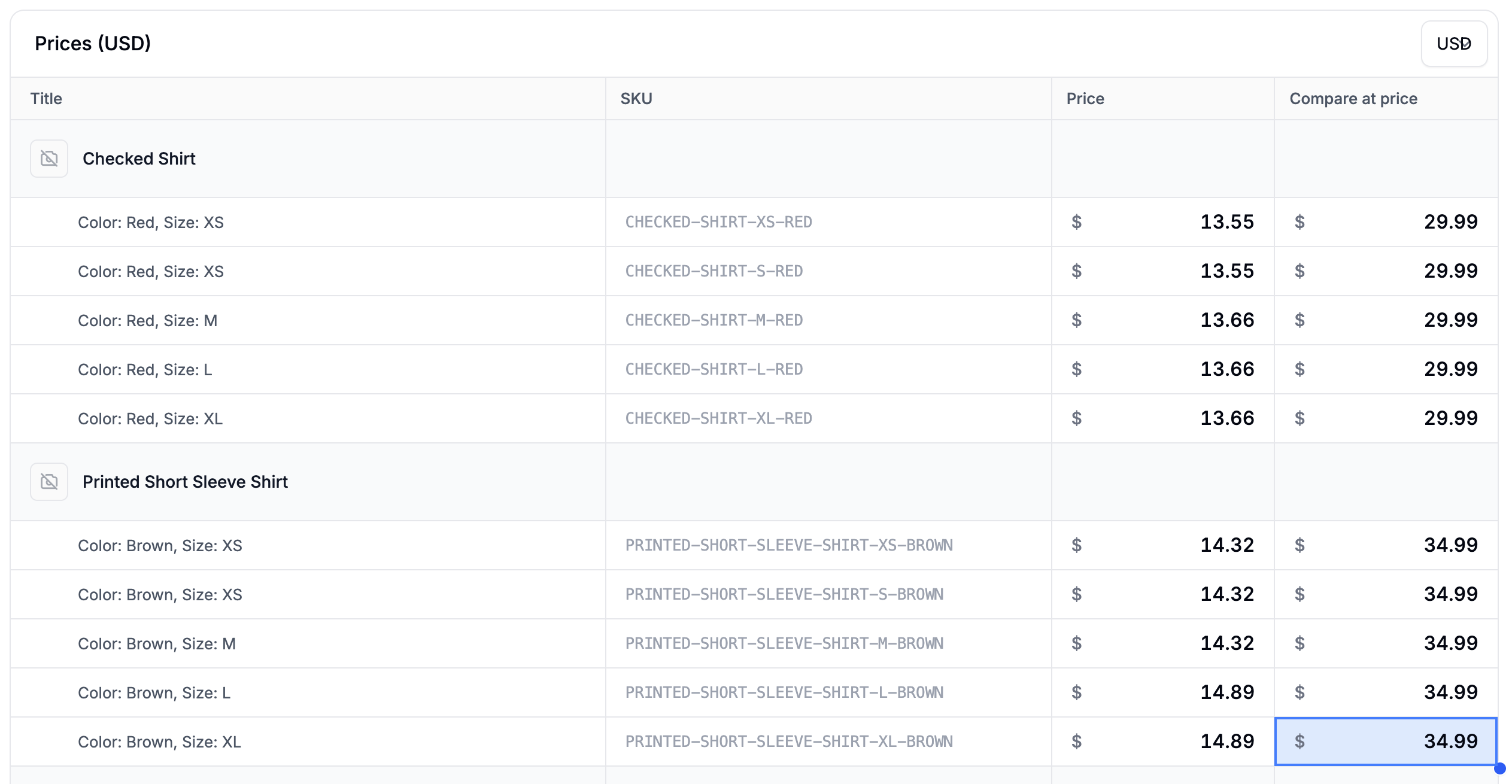 Click **Save** to apply the prices, then click **Activate** (or **Schedule** if it has a future start date) to make the price list live.
If you work with multiple wholesalers on different negotiated terms, create a separate Customer Group and Price List for each. For example, a `Distributor A` group and `Distributor A Pricing` list, and a `Distributor B` group with its own list. Each wholesaler's customers will only ever see their own contracted prices.
## 4. Verify Pricing
To confirm the setup is working correctly, log in to your storefront using a customer account that belongs to the Wholesale Buyers group and browse to a product you included in the price list. The wholesale price should be displayed instead of the standard retail price.
If the expected price is not showing, check that:
* The customer's account has been added to the correct Customer Group
* The product has been added to the price list
* The price list is set to **Active**
* The Customer Group rule is correctly configured
## Next Steps
* [Customer Groups](https://spreecommerce.org/docs/user/customers/customer-groups) — full reference for creating and managing customer groups
* [Price Lists](https://spreecommerce.org/docs/user/manage-products/price-lists) — full reference for rules, product selection, and price editing
* [Set Up Volume Pricing](https://spreecommerce.org/docs/user/how-to/volume-pricing) — add quantity-based tiers on top of your wholesale pricing
* [Set Up Multi-Region Pricing](https://spreecommerce.org/docs/user/how-to/multi-region-pricing) — apply regional price variations within a customer group
Click **Save** to apply the prices, then click **Activate** (or **Schedule** if it has a future start date) to make the price list live.
If you work with multiple wholesalers on different negotiated terms, create a separate Customer Group and Price List for each. For example, a `Distributor A` group and `Distributor A Pricing` list, and a `Distributor B` group with its own list. Each wholesaler's customers will only ever see their own contracted prices.
## 4. Verify Pricing
To confirm the setup is working correctly, log in to your storefront using a customer account that belongs to the Wholesale Buyers group and browse to a product you included in the price list. The wholesale price should be displayed instead of the standard retail price.
If the expected price is not showing, check that:
* The customer's account has been added to the correct Customer Group
* The product has been added to the price list
* The price list is set to **Active**
* The Customer Group rule is correctly configured
## Next Steps
* [Customer Groups](https://spreecommerce.org/docs/user/customers/customer-groups) — full reference for creating and managing customer groups
* [Price Lists](https://spreecommerce.org/docs/user/manage-products/price-lists) — full reference for rules, product selection, and price editing
* [Set Up Volume Pricing](https://spreecommerce.org/docs/user/how-to/volume-pricing) — add quantity-based tiers on top of your wholesale pricing
* [Set Up Multi-Region Pricing](https://spreecommerce.org/docs/user/how-to/multi-region-pricing) — apply regional price variations within a customer group