> ## Documentation Index
> Fetch the complete documentation index at: https://spreecommerce.org/docs/llms.txt
> Use this file to discover all available pages before exploring further.
# Set Up Volume Pricing
> Learn how to offer tiered discounts based on order quantity using Price Lists in Spree Commerce.
Volume pricing lets you automatically offer lower prices when customers order larger quantities. A common use case is rewarding bulk buyers — for example, offering one price for orders of 21–50 units and a deeper discount for orders of 51–100 units.
In Spree, you set this up using Price Lists with a Volume rule. Each pricing tier gets its own price list, and Spree applies the correct price automatically based on the quantity in the customer's order.
In this guide, we'll set up two tiers: a mid-volume tier (21–50 units) and a high-volume tier (51–100 units).
This guide focuses on volume-based pricing. If you need to combine volume pricing with customer group or regional rules — for example, offering wholesale volume discounts only to registered trade customers — see [Set Up Wholesale Pricing by Customer Group](https://spreecommerce.org/docs/user/how-to/wholesale-pricing) instead.
## Prerequisites
Before you start, you should have your products uploaded and set up with base prices. Volume pricing overrides those base prices when the quantity conditions are met — products without a base price will not be affected.
Familiarity with how Price Lists work is helpful. See [Price Lists](https://spreecommerce.org/docs/user/manage-products/price-lists) for a full reference.
## 1. Create the First Volume Price List (21–50 Units)
To create price list, navigate to **Products → Price Lists** in the admin dashboard and click **New Price List**.
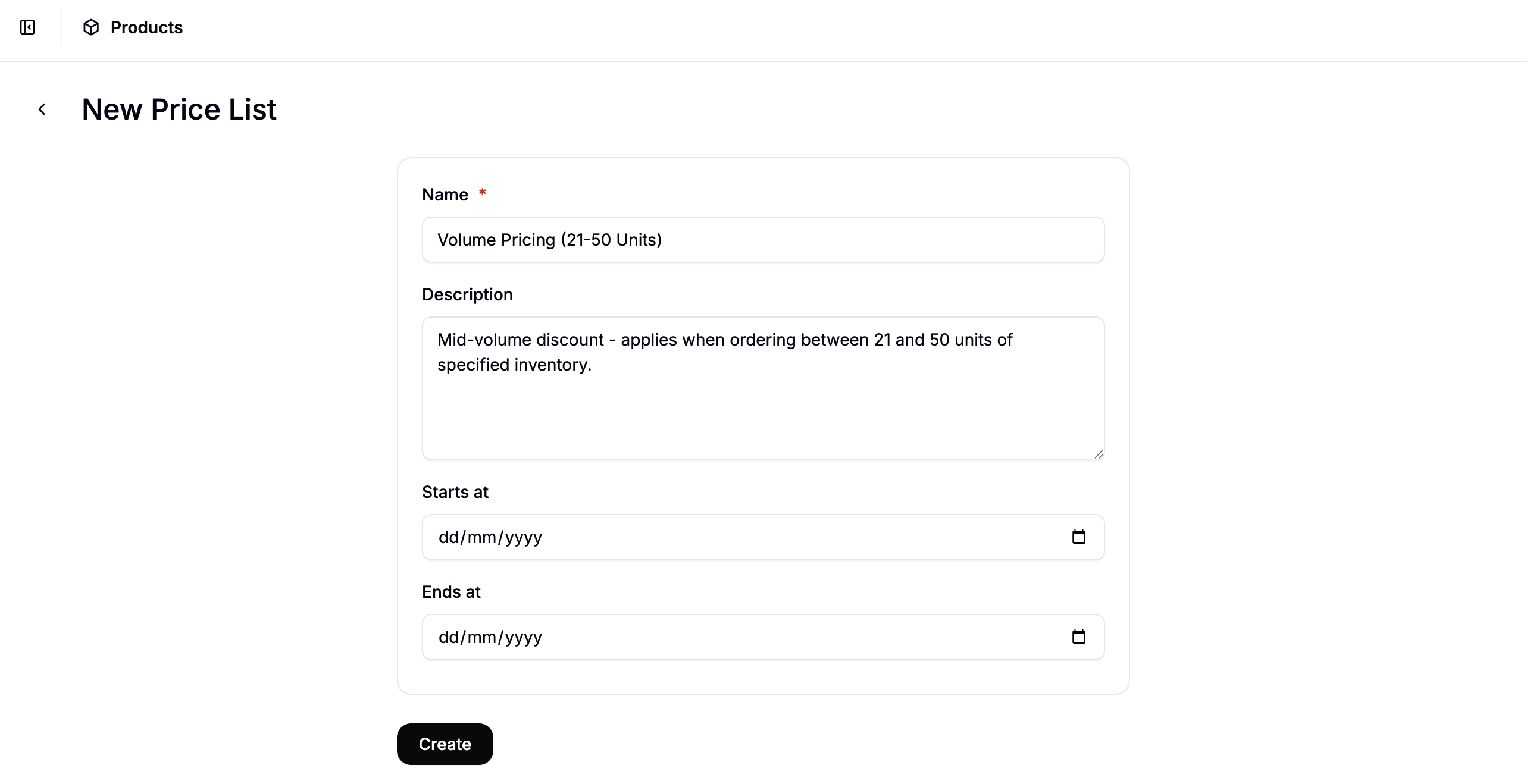 Fill in the details for the first tier:
* **Name** — e.g., `Volume Pricing (21–50 Units)`
* **Description** — optional (e.g., `Mid-volume discount — applies when ordering between 21 and 50 units`)
* **Start Date / End Date** — leave blank if this pricing should apply indefinitely
Click **Create** to open the price list editor.
### Add a Volume Rule
In the price list editor, click **Add Rule** and select **Volume** from the rule type dropdown.
Fill in the details for the first tier:
* **Name** — e.g., `Volume Pricing (21–50 Units)`
* **Description** — optional (e.g., `Mid-volume discount — applies when ordering between 21 and 50 units`)
* **Start Date / End Date** — leave blank if this pricing should apply indefinitely
Click **Create** to open the price list editor.
### Add a Volume Rule
In the price list editor, click **Add Rule** and select **Volume** from the rule type dropdown.
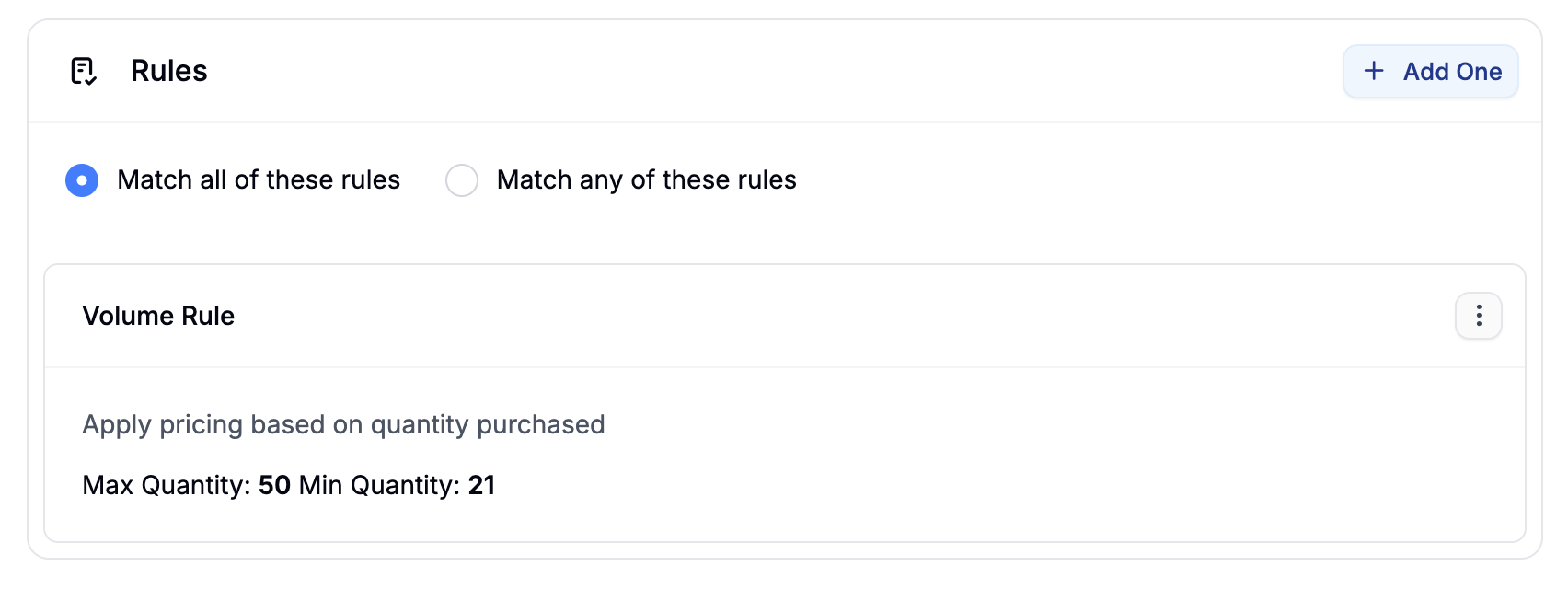 Set the quantity range for this tier:
* **Min Quantity** — `21`
* **Max Quantity** — `50`
This ensures the price list only activates when a customer's order quantity falls within that range.
### Add Products and Set Prices
Click **Add Products** to open the product selector. Search for and select the products you want to include in this tier, then click **Add Selected**.
Once the products appear in the list, click **Edit Prices** to open the price editor. Enter the discounted price for each product in the **Price** column.
Set the quantity range for this tier:
* **Min Quantity** — `21`
* **Max Quantity** — `50`
This ensures the price list only activates when a customer's order quantity falls within that range.
### Add Products and Set Prices
Click **Add Products** to open the product selector. Search for and select the products you want to include in this tier, then click **Add Selected**.
Once the products appear in the list, click **Edit Prices** to open the price editor. Enter the discounted price for each product in the **Price** column.
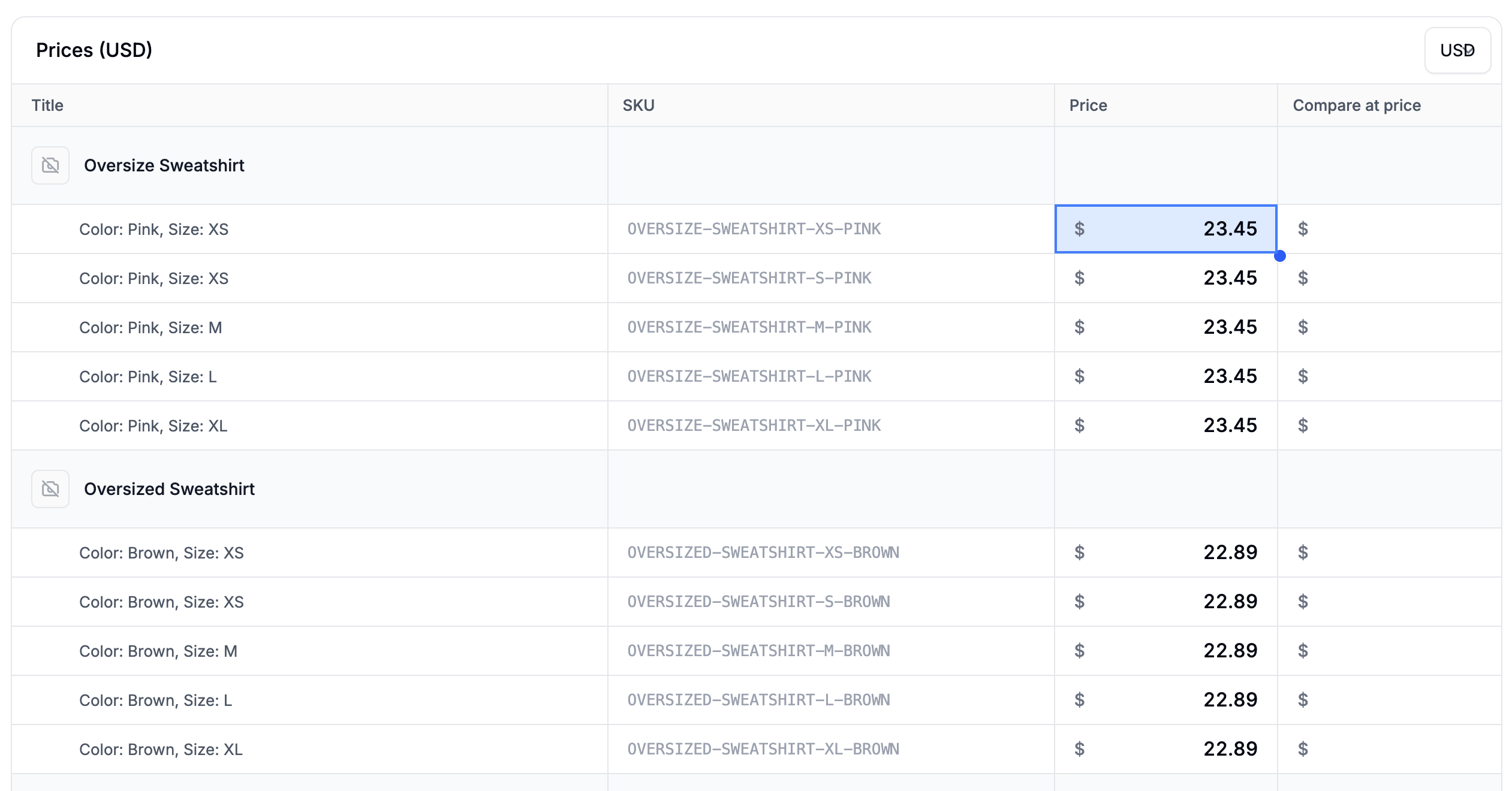 Click **Save** to apply the prices, then click **Activate** (or **Schedule** if it has a future start date) to make the price list live.
## 2. Create the Second Volume Price List (51–100 Units)
Repeat the same process for the higher-volume tier. Click **New Price List** and fill in the details:
* **Name** — e.g., `Volume Pricing (51–100 Units)`
* **Description** — optional (e.g., `High-volume discount — applies when ordering between 51 and 100 units`)
In the price list editor, add a **Volume** rule and set:
* **Min Quantity** — `51`
* **Max Quantity** — `100`
Add the same products and enter the deeper discounted prices for this tier, then click **Save** and **Activate**.
If you want pricing to apply for orders above 100 units with no upper limit, leave the **Max Quantity** field blank on that price list.
## 3. Verify on the Storefront
To confirm your volume tiers are working correctly, test by adding products to the cart in quantities that fall within each tier.
1. Visit your storefront and add a product to the cart.
2. Set the quantity to a value within the first tier (e.g., `25`) and confirm the mid-volume price is applied at checkout.
3. Update the quantity to a value within the second tier (e.g., `60`) and confirm the deeper discount is applied.
4. Set the quantity below the first tier threshold (e.g., `5`) and confirm the standard base price is shown.
If the expected price is not being applied, check that:
* The product has been added to the correct price list
* The price list is set to **Active**
* The Volume rule min and max quantities are correctly set and do not overlap between tiers
## Next Steps
* [Price Lists](https://spreecommerce.org/docs/user/manage-products/price-lists) — full reference for rules, product selection, and price editing
* [Set Up Wholesale Pricing by Customer Group](https://spreecommerce.org/docs/user/how-to/wholesale-pricing) — offer tiered pricing to specific customer segments
* [Set Up Multi-Region Pricing](https://spreecommerce.org/docs/user/how-to/multi-region-pricing) — combine regional and volume rules for market-specific discounts
Click **Save** to apply the prices, then click **Activate** (or **Schedule** if it has a future start date) to make the price list live.
## 2. Create the Second Volume Price List (51–100 Units)
Repeat the same process for the higher-volume tier. Click **New Price List** and fill in the details:
* **Name** — e.g., `Volume Pricing (51–100 Units)`
* **Description** — optional (e.g., `High-volume discount — applies when ordering between 51 and 100 units`)
In the price list editor, add a **Volume** rule and set:
* **Min Quantity** — `51`
* **Max Quantity** — `100`
Add the same products and enter the deeper discounted prices for this tier, then click **Save** and **Activate**.
If you want pricing to apply for orders above 100 units with no upper limit, leave the **Max Quantity** field blank on that price list.
## 3. Verify on the Storefront
To confirm your volume tiers are working correctly, test by adding products to the cart in quantities that fall within each tier.
1. Visit your storefront and add a product to the cart.
2. Set the quantity to a value within the first tier (e.g., `25`) and confirm the mid-volume price is applied at checkout.
3. Update the quantity to a value within the second tier (e.g., `60`) and confirm the deeper discount is applied.
4. Set the quantity below the first tier threshold (e.g., `5`) and confirm the standard base price is shown.
If the expected price is not being applied, check that:
* The product has been added to the correct price list
* The price list is set to **Active**
* The Volume rule min and max quantities are correctly set and do not overlap between tiers
## Next Steps
* [Price Lists](https://spreecommerce.org/docs/user/manage-products/price-lists) — full reference for rules, product selection, and price editing
* [Set Up Wholesale Pricing by Customer Group](https://spreecommerce.org/docs/user/how-to/wholesale-pricing) — offer tiered pricing to specific customer segments
* [Set Up Multi-Region Pricing](https://spreecommerce.org/docs/user/how-to/multi-region-pricing) — combine regional and volume rules for market-specific discounts