> ## Documentation Index
> Fetch the complete documentation index at: https://spreecommerce.org/docs/llms.txt
> Use this file to discover all available pages before exploring further.
# Schedule a Sale
> Learn how to use Price Lists to schedule time-limited sale pricing across your catalog, including market-specific discounts.
Seasonal and promotional pricing events — Black Friday, end-of-season sales, flash discounts — require precise timing. Prices need to go live at the right moment, apply to the right customers, and revert automatically when the window closes. Doing this manually is error-prone, and scrambling to update prices or remove a promotion code at midnight is not how you want to spend a Friday evening.
Price Lists in Spree are designed for exactly this. You build the sale in advance — set the discounted prices, define which markets or customer groups it applies to, and attach a start and end date. Spree schedules the activation automatically. When the sale starts, the discounted prices appear on product pages for the right customers. When it ends, base prices return — no manual intervention needed.
This guide walks through a Black Friday scenario: one set of discounts for US customers and another for EU customers, starting Friday midnight and ending Monday. The same approach works for any time-limited pricing event, whether it's a single market or several.
## Price Lists vs. Promotions
Both tools can reduce what a customer pays, but they work differently and suit different situations.
**Promotions** apply a discount at checkout — a percentage off the order total, a fixed amount off, free shipping, or a coupon code. They're well suited to straightforward sitewide offers (e.g., 15% off everything with a code) or one-time deals. However, if you want to apply *different discounts to different products* — say, 20% off one category, 10% off another, 15% off one set of products, 25% off another set — you'd need a separate promotion for each variation. Promotions also don't change the price shown on the product page; the discount appears at checkout.
**Price Lists** let you set the actual sale price for each product individually. One price list can cover your entire catalog — add as many products as you need and set each one's sale price directly. The discounted price shows on the product page, not just at checkout, and the list activates and deactivates automatically on schedule. This makes Price Lists the better tool for sitewide or catalog-wide sales where you want the reduced price to be visible from the moment a customer lands on a product.
For a simple sitewide percentage discount with a code, promotions may be quicker to set up. Price Lists shine when you need scale, market-specific rates, or per-product control over the discounted price.
## Prerequisites
Before you start, make sure:
* Your products are set up with base prices in both USD and EUR
* You have a **United States** market and an **EU** (or equivalent European) market configured. See [Settings → Markets](https://spreecommerce.org/docs/user/settings/markets) for setup instructions.
* You're familiar with how Price Lists work. See [Price Lists](https://spreecommerce.org/docs/user/manage-products/price-lists) for a full reference.
## 1. Create the US Black Friday Price List
Navigate to **Products → Price Lists** in the admin dashboard and click **New Price List**.
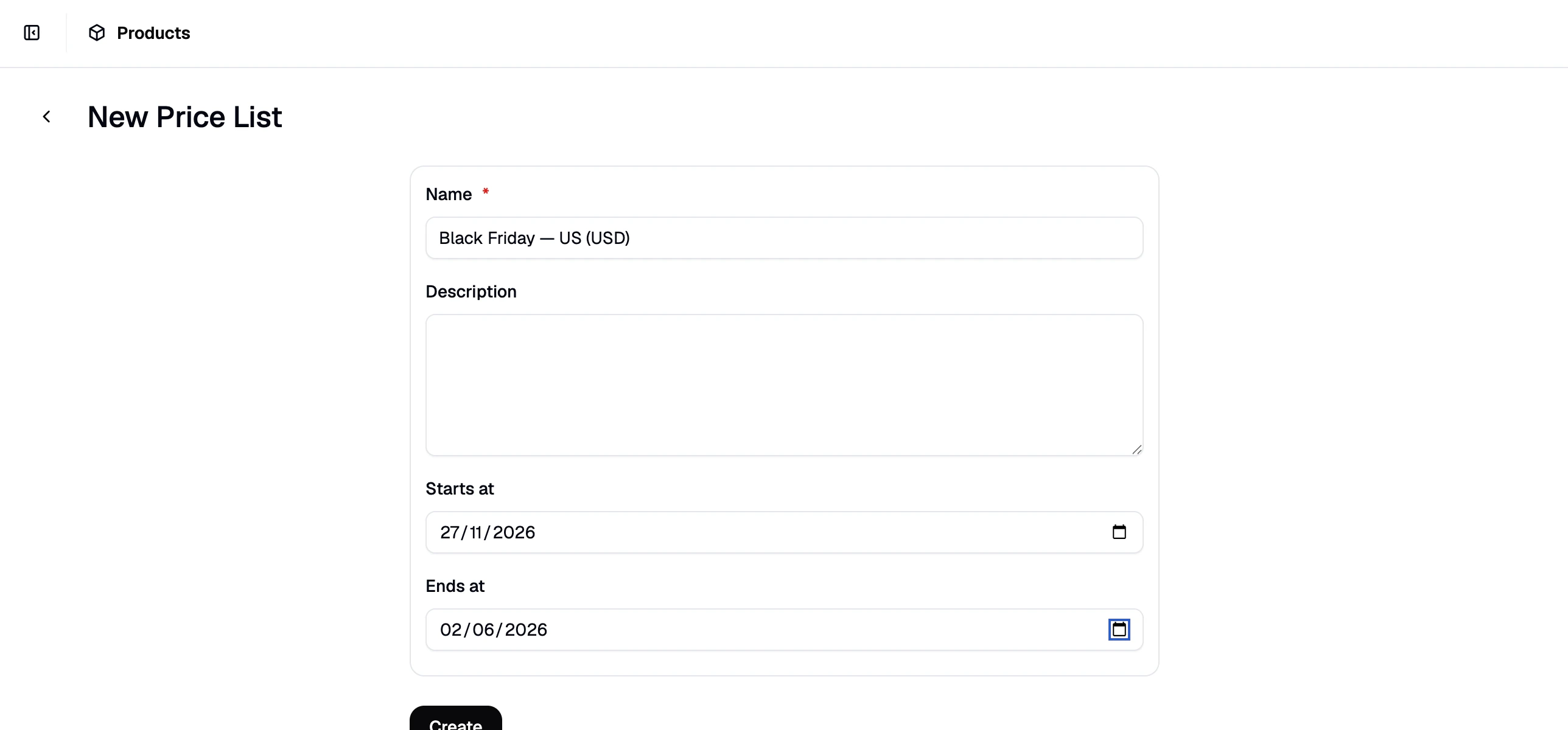 Fill in the details:
* **Name** — e.g., `Black Friday — US (USD)`
* **Description** — optional (e.g., `Sale discounts for US customers, Black Friday weekend`)
* **Start Date** — set to the date and time your sale begins (e.g., Friday, 00:00)
* **End Date** — set to the date and time your sale ends (e.g., Monday, 23:59)
Click **Create** to open the price list editor.
### Add a Market Rule
In the price list editor, click **Add Rule** and select **Market** from the rule type dropdown. Select **United States** from the options.
Fill in the details:
* **Name** — e.g., `Black Friday — US (USD)`
* **Description** — optional (e.g., `Sale discounts for US customers, Black Friday weekend`)
* **Start Date** — set to the date and time your sale begins (e.g., Friday, 00:00)
* **End Date** — set to the date and time your sale ends (e.g., Monday, 23:59)
Click **Create** to open the price list editor.
### Add a Market Rule
In the price list editor, click **Add Rule** and select **Market** from the rule type dropdown. Select **United States** from the options.
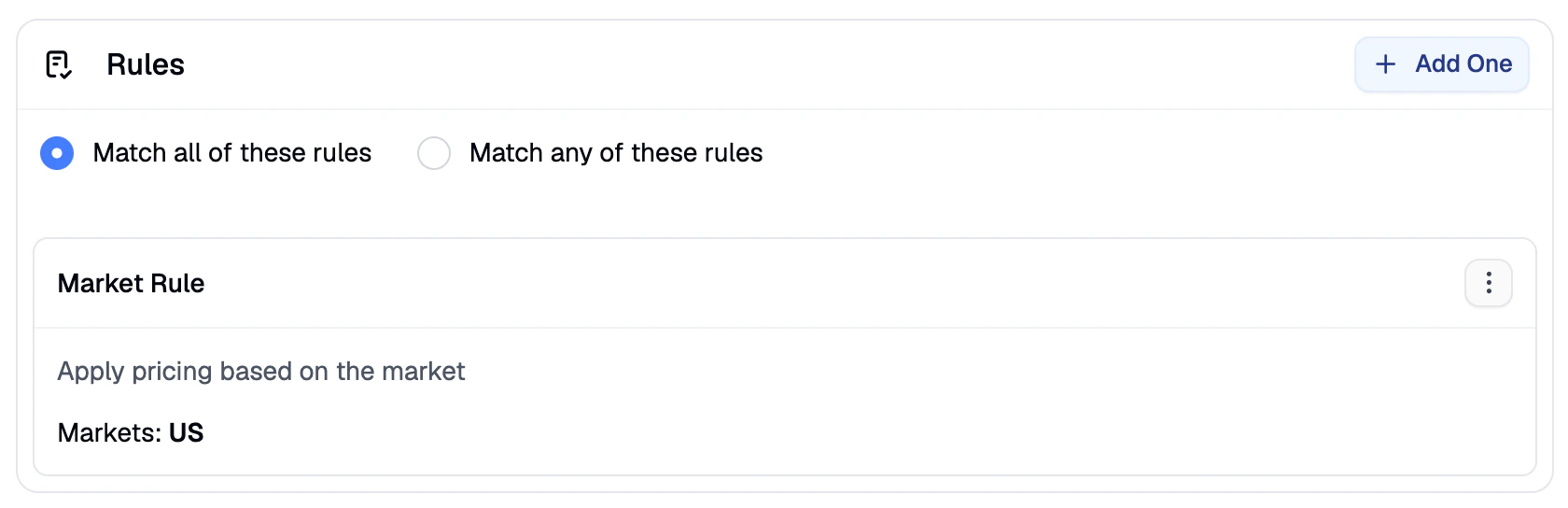 This ensures the sale pricing only applies to customers shopping in the US market.
### Add Products and Set Sale Prices
Click **Add Products** to open the product selector. Select the products you want to include in the sale and click **Add Selected**.
Once the products appear in the list, click **Edit Prices**. Make sure **USD** is selected in the currency switcher, then enter the discounted price for each product in the **Price** column.
This ensures the sale pricing only applies to customers shopping in the US market.
### Add Products and Set Sale Prices
Click **Add Products** to open the product selector. Select the products you want to include in the sale and click **Add Selected**.
Once the products appear in the list, click **Edit Prices**. Make sure **USD** is selected in the currency switcher, then enter the discounted price for each product in the **Price** column.
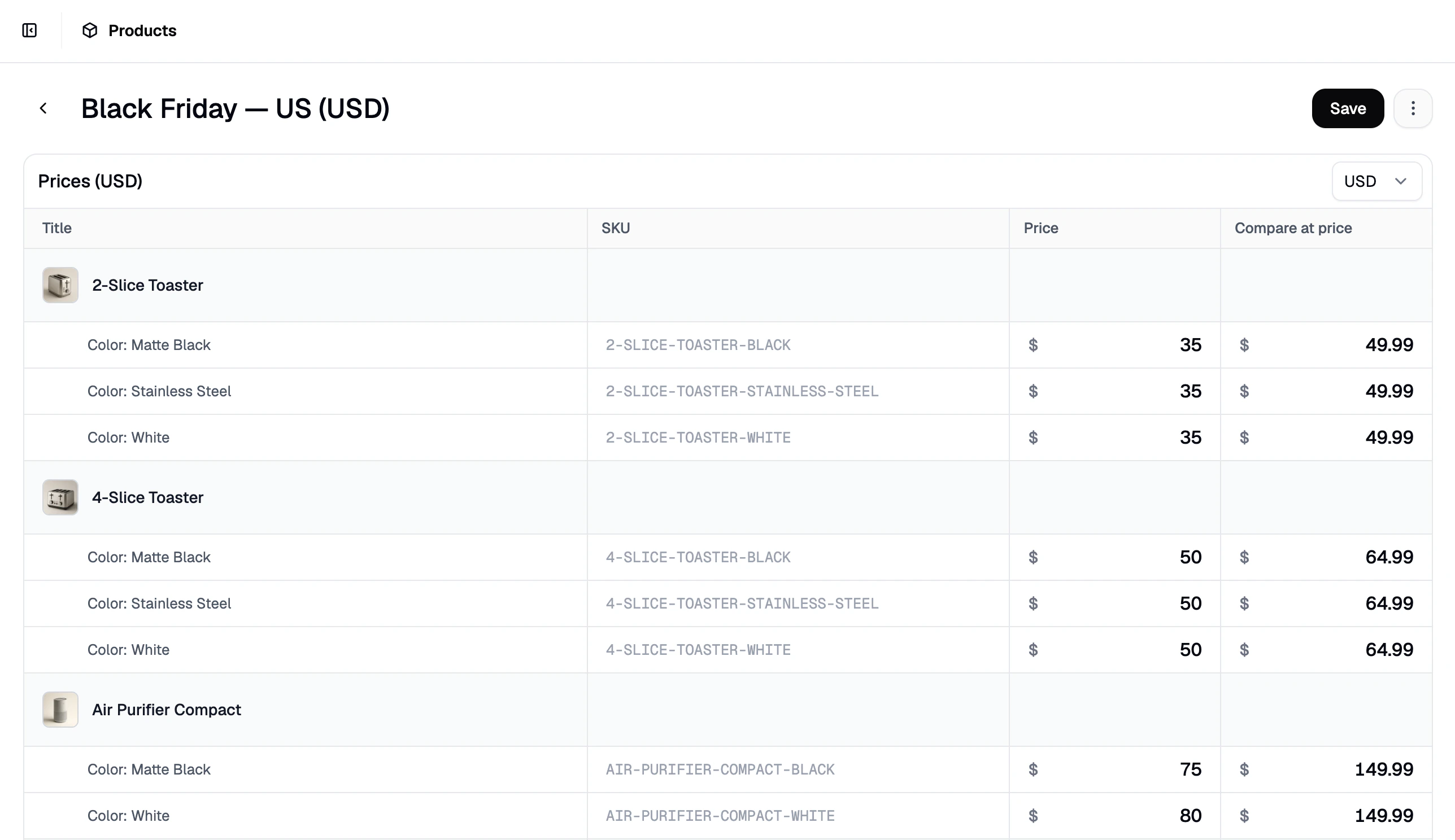 The price editor works like a spreadsheet — you can highlight multiple price fields and paste values in bulk to speed up entry across a large catalog.
Click **Save** to apply the prices.
## 2. Create the EU Black Friday Price List
Click **New Price List** again and create a second list for EU customers:
* **Name** — e.g., `Black Friday — EU (EUR)`
* **Description** — optional (e.g., `Sale discounts for EU customers, Black Friday weekend`)
* **Start Date / End Date** — same window as the US list
Click **Create**, then in the price list editor:
1. Click **Add Rule**, select **Market**, and choose your EU market
2. Click **Add Products** and add the same products
3. Click **Edit Prices**, make sure **EUR** is selected
The price editor works like a spreadsheet — you can highlight multiple price fields and paste values in bulk to speed up entry across a large catalog.
Click **Save** to apply the prices.
## 2. Create the EU Black Friday Price List
Click **New Price List** again and create a second list for EU customers:
* **Name** — e.g., `Black Friday — EU (EUR)`
* **Description** — optional (e.g., `Sale discounts for EU customers, Black Friday weekend`)
* **Start Date / End Date** — same window as the US list
Click **Create**, then in the price list editor:
1. Click **Add Rule**, select **Market**, and choose your EU market
2. Click **Add Products** and add the same products
3. Click **Edit Prices**, make sure **EUR** is selected
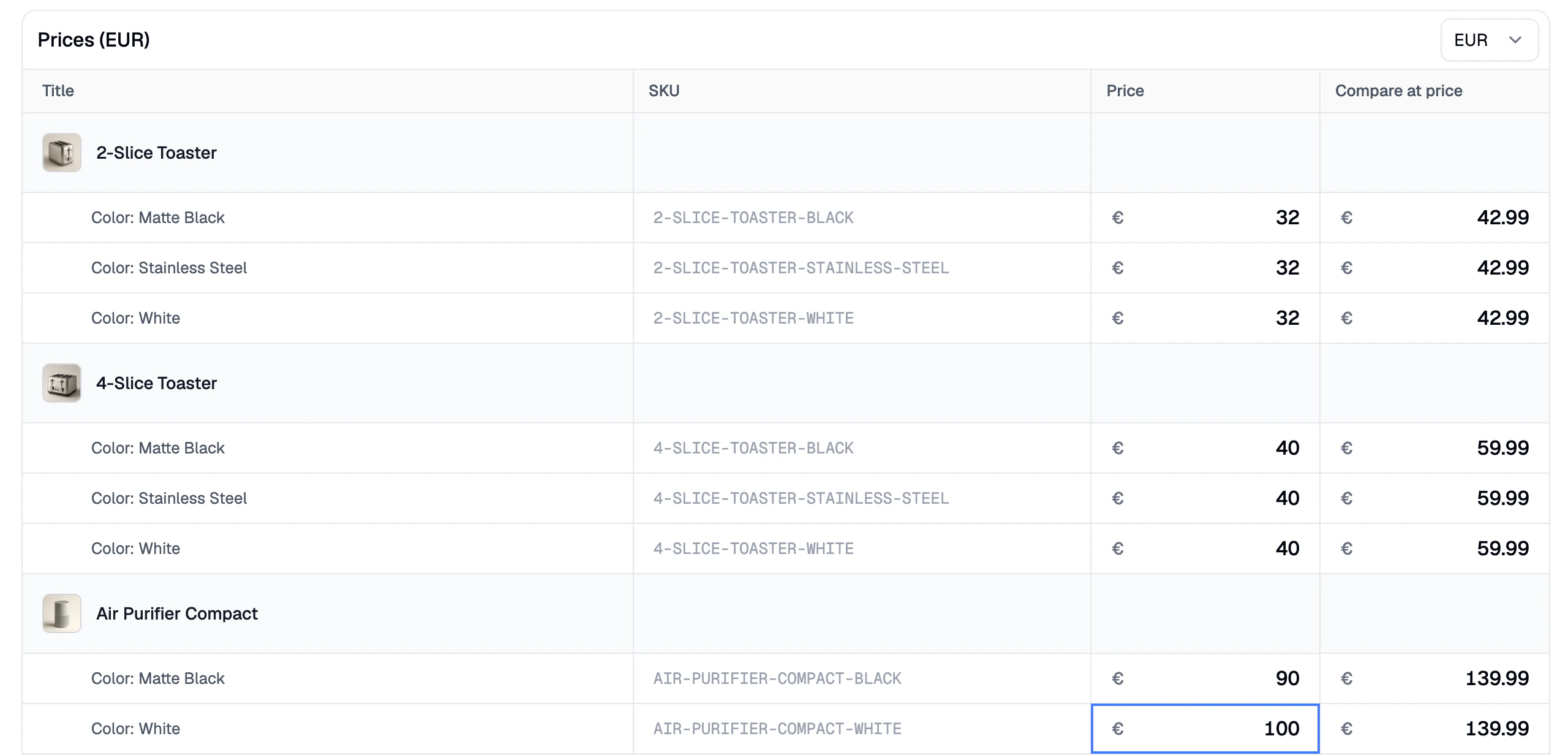 Click **Save**.
## 3. Schedule Both Price Lists
With both price lists configured, go back to each one and click **Schedule** in the top right corner.
Click **Save**.
## 3. Schedule Both Price Lists
With both price lists configured, go back to each one and click **Schedule** in the top right corner.
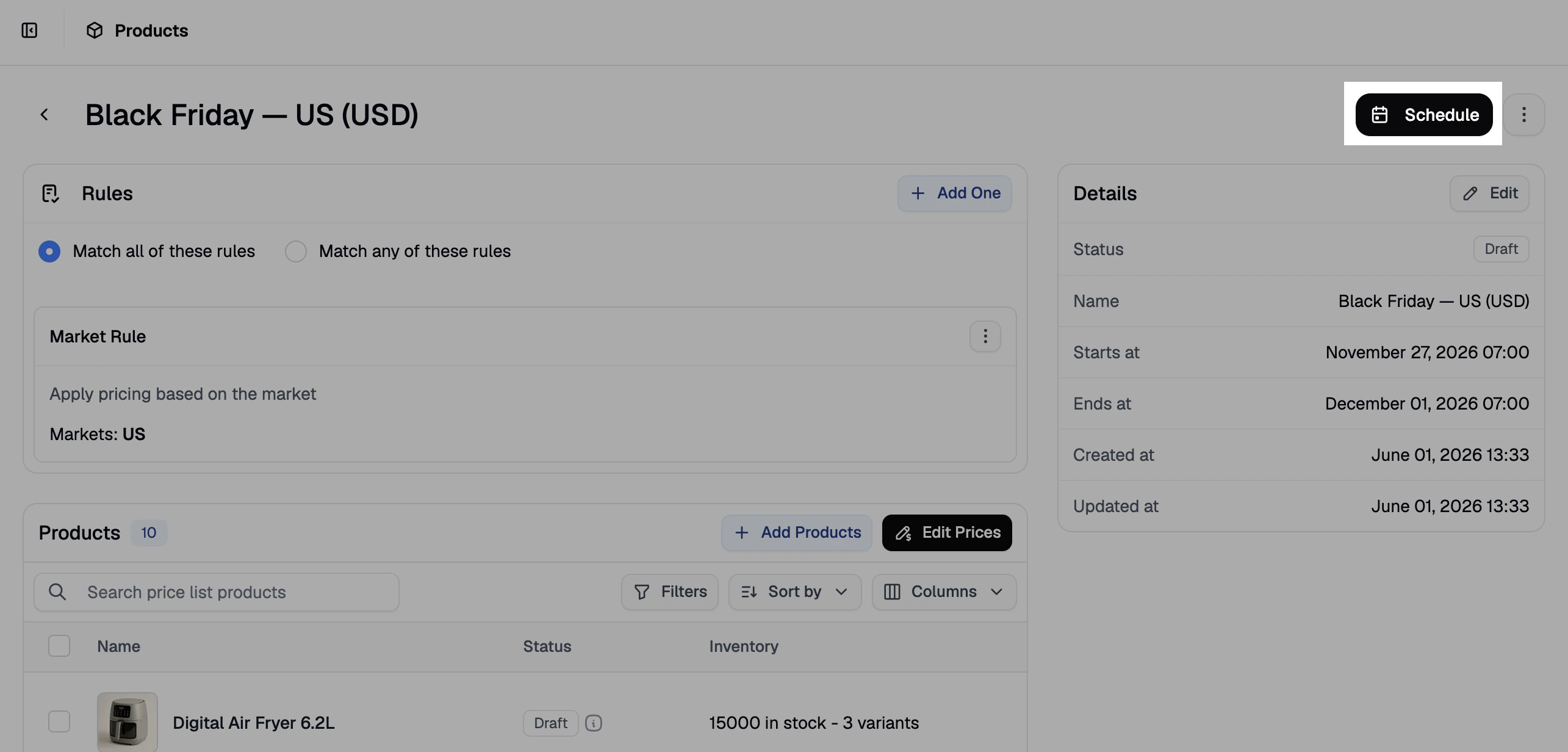 Because both price lists have a future start date, the button reads **Schedule** rather than **Activate**. Spree will automatically activate them at the start date and deactivate them at the end date — no manual intervention needed.
Both price lists will now appear as **Scheduled** in your Price Lists overview. On Black Friday, they activate automatically. On Monday at midnight, they switch off and your base prices return.
## 4. Verify
Once the sale is live (or to test in advance by temporarily setting the start date to now), confirm the pricing is applying correctly:
1. Visit your storefront in the **United States** market as a guest — product pages should show the discounted USD prices.
2. Switch to your **EU** market — product pages should show the discounted EUR prices.
3. Switch to any market not covered by either price list — standard base prices should appear.
If the sale price isn't showing, check that:
* The price list status is **Active** (or **Scheduled**, if the start date hasn't passed yet)
* The product has been added to the price list
* The Market rule is correctly set to the intended market
* The correct currency is selected in the price editor
## Next Steps
* [Price Lists](https://spreecommerce.org/docs/user/manage-products/price-lists) — full reference for rules, scheduling, and price editing
* [Set Up Multi-Region Pricing](https://spreecommerce.org/docs/user/how-to/multi-region-pricing) — apply different prices per market on a permanent basis
* [Set Up Wholesale Pricing](https://spreecommerce.org/docs/user/how-to/wholesale-pricing) — combine market and customer group rules for B2B pricing
Because both price lists have a future start date, the button reads **Schedule** rather than **Activate**. Spree will automatically activate them at the start date and deactivate them at the end date — no manual intervention needed.
Both price lists will now appear as **Scheduled** in your Price Lists overview. On Black Friday, they activate automatically. On Monday at midnight, they switch off and your base prices return.
## 4. Verify
Once the sale is live (or to test in advance by temporarily setting the start date to now), confirm the pricing is applying correctly:
1. Visit your storefront in the **United States** market as a guest — product pages should show the discounted USD prices.
2. Switch to your **EU** market — product pages should show the discounted EUR prices.
3. Switch to any market not covered by either price list — standard base prices should appear.
If the sale price isn't showing, check that:
* The price list status is **Active** (or **Scheduled**, if the start date hasn't passed yet)
* The product has been added to the price list
* The Market rule is correctly set to the intended market
* The correct currency is selected in the price editor
## Next Steps
* [Price Lists](https://spreecommerce.org/docs/user/manage-products/price-lists) — full reference for rules, scheduling, and price editing
* [Set Up Multi-Region Pricing](https://spreecommerce.org/docs/user/how-to/multi-region-pricing) — apply different prices per market on a permanent basis
* [Set Up Wholesale Pricing](https://spreecommerce.org/docs/user/how-to/wholesale-pricing) — combine market and customer group rules for B2B pricing