> ## Documentation Index
> Fetch the complete documentation index at: https://spreecommerce.org/docs/llms.txt
> Use this file to discover all available pages before exploring further.
# Set Up Multi-Region Pricing
> Learn how to charge different prices within the same currency across multiple regional markets.
When you sell to customers across different countries that share a currency — for example, France, Germany, and Spain all using EUR — you may want to set different prices for each market rather than showing everyone the same EUR price. In Spree, you do this using Price Lists: you create a market for each region, then create a Price List that targets that market and overrides the base EUR prices for your products.
In this guide, we'll walk through a common scenario — a store with an existing German market (EUR) adding France and Spain as separate markets with their own regional pricing.
This guide covers multi-region pricing — different prices within the same currency across regions. If you need different currencies for different regions (e.g., USD for the US and EUR for Germany), see [Set Up Multi-Currency Pricing](https://spreecommerce.org/docs/user/how-to/multi-currency-pricing) instead.
## Prerequisites
Before you start, you should have:
* At least one active market already configured with EUR as its currency. In this example, a Germany market with EUR is already set up and your products have EUR prices.
* Familiarity with how Price Lists work. See [Price Lists](https://spreecommerce.org/docs/user/manage-products/price-lists) for a full reference.
## 1. Create Markets for France and Spain
Each region needs its own Market in Spree before you can target it with a Price List.
To create Markets, navigate to **Settings → Markets** in the admin dashboard.
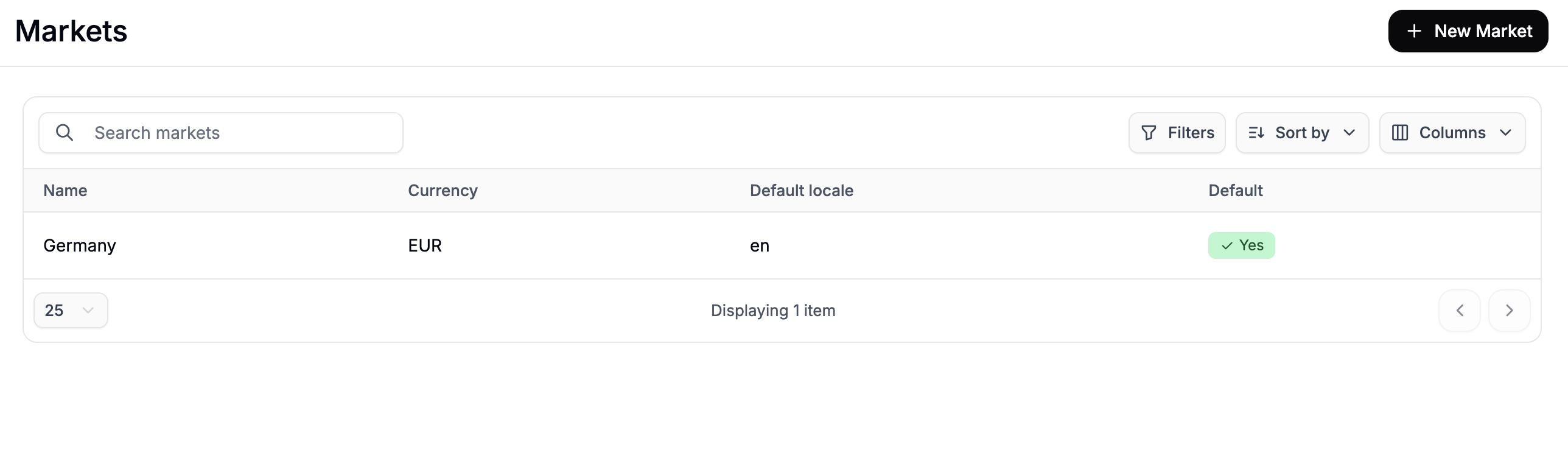 Click **New Market** to open the creation form.
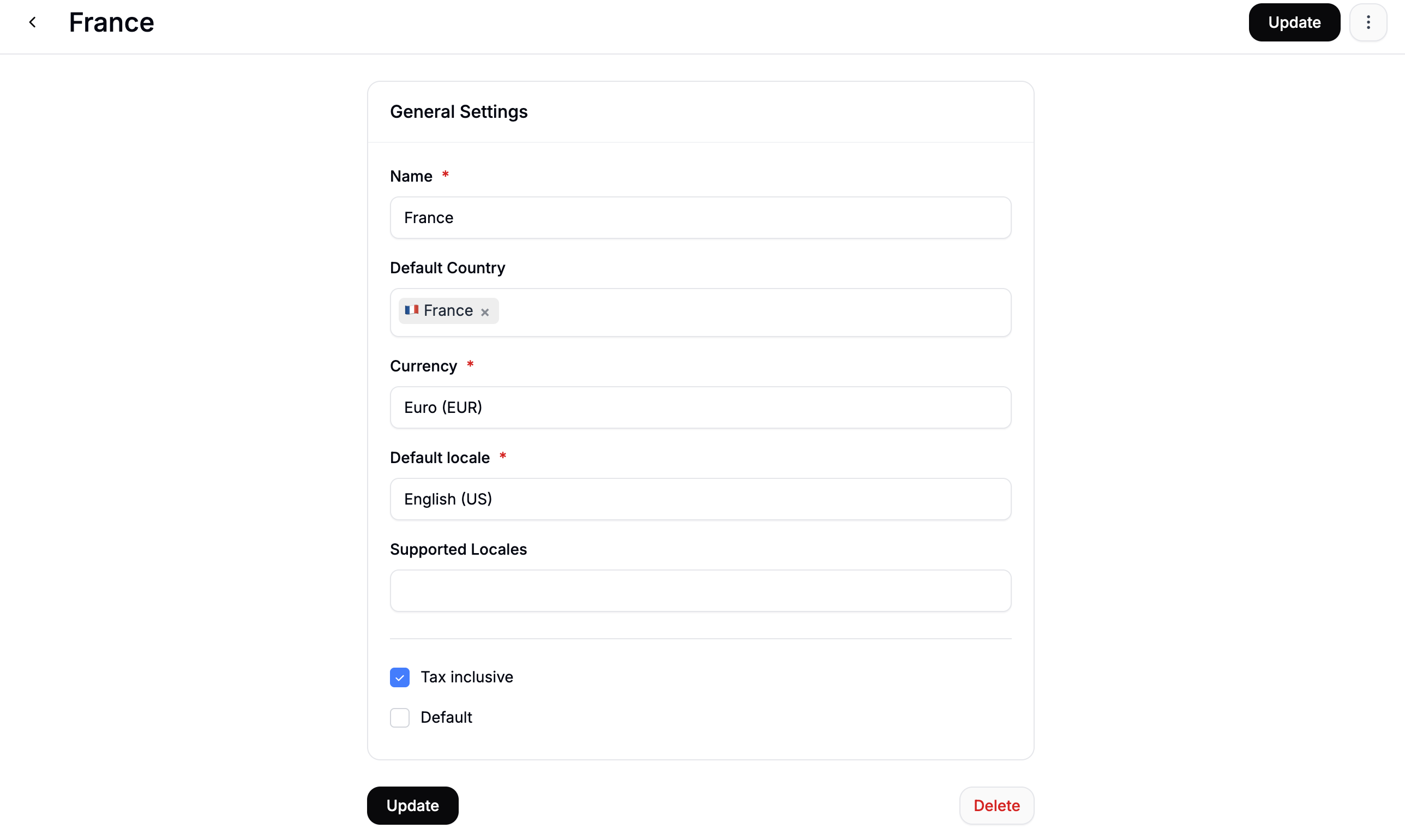 Fill in the details for France:
* **Name** — `France`
* **Default Country** — `France`
* **Currency** — `EUR`
* **Default Locale** — `FR` for French, or `DE` if your storefront runs in German
* **Tax Inclusive** — check this if prices should display with VAT included, which is standard practice in EU markets
* **Default** — leave unchecked
Click **Create**, then repeat this process to create the Spanish market, setting **Default Country** to `Spain` and **Default Locale** to `ES`.
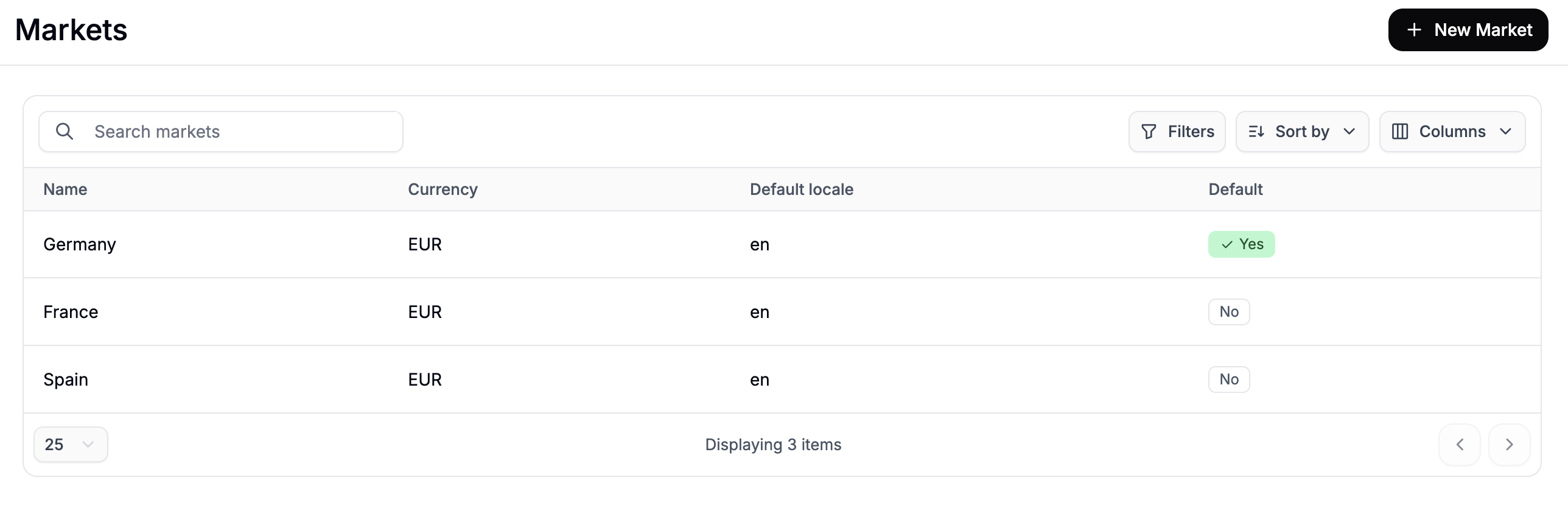
Once done, all three markets — Germany, France, and Spain — will appear in your Markets list.
Fill in the details for France:
* **Name** — `France`
* **Default Country** — `France`
* **Currency** — `EUR`
* **Default Locale** — `FR` for French, or `DE` if your storefront runs in German
* **Tax Inclusive** — check this if prices should display with VAT included, which is standard practice in EU markets
* **Default** — leave unchecked
Click **Create**, then repeat this process to create the Spanish market, setting **Default Country** to `Spain` and **Default Locale** to `ES`.
Once done, all three markets — Germany, France, and Spain — will appear in your Markets list.
 ## 2. Create a Price List for Each Market
With your markets in place, you'll now create a Price List for each one. A Price List targeted at a specific market will override your base EUR prices for customers shopping in that market.
To create Price Lists, navigate to **Products → Price Lists** in the admin dashboard and click **New Price List**.
## 2. Create a Price List for Each Market
With your markets in place, you'll now create a Price List for each one. A Price List targeted at a specific market will override your base EUR prices for customers shopping in that market.
To create Price Lists, navigate to **Products → Price Lists** in the admin dashboard and click **New Price List**.
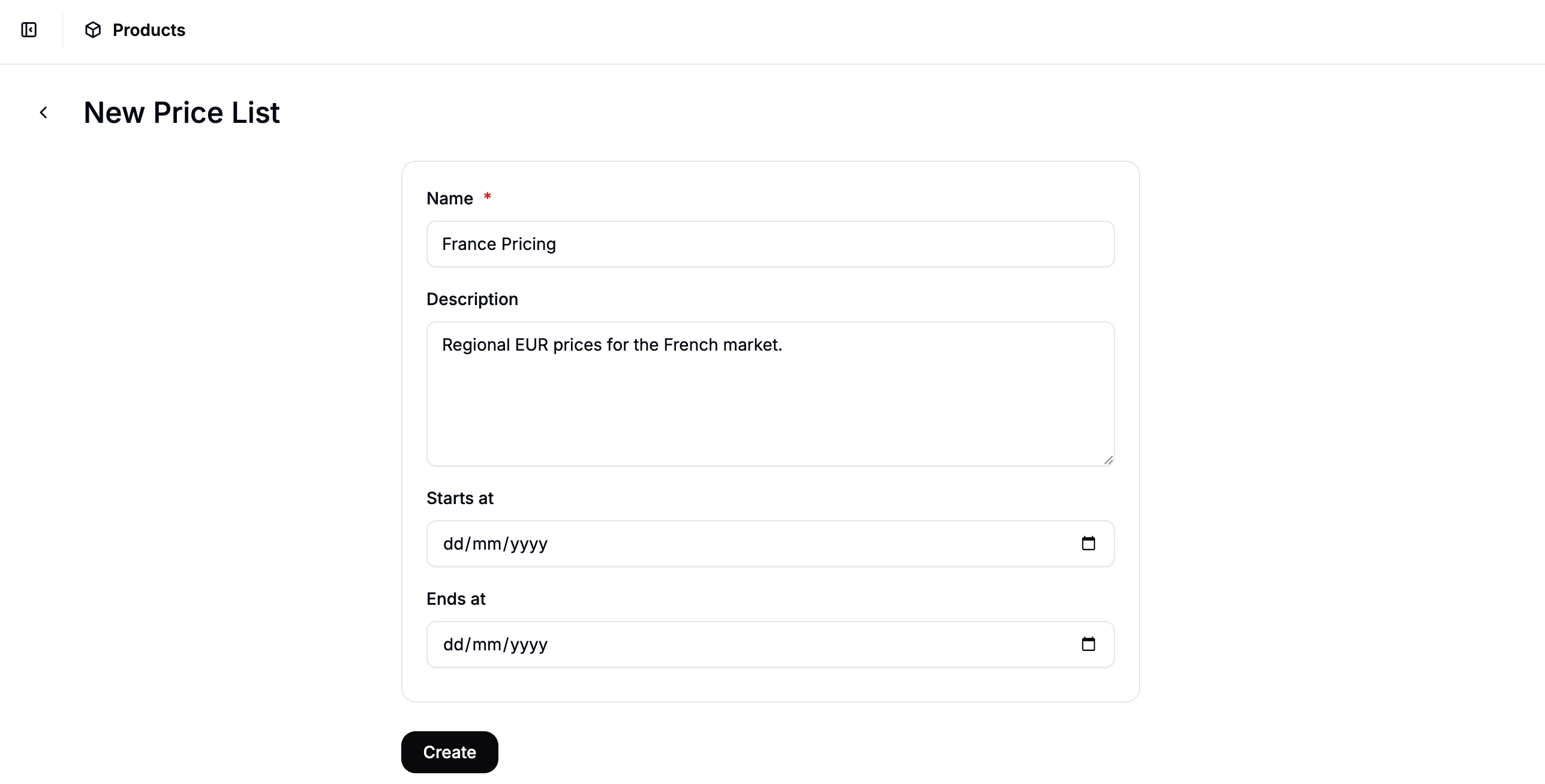 Fill in the details for France:
* **Name** — e.g., `France Pricing`
* **Description** — optional, but useful for other admins (e.g., `Regional EUR prices for the French market`)
* **Start Date / End Date** — leave blank if this pricing should apply indefinitely
Click **Create** to open the price list editor.
### Add a Market Rule
In the price list editor, click **Add Rule** and select **Market** from the rule type dropdown. Select **France** from the market options.
Fill in the details for France:
* **Name** — e.g., `France Pricing`
* **Description** — optional, but useful for other admins (e.g., `Regional EUR prices for the French market`)
* **Start Date / End Date** — leave blank if this pricing should apply indefinitely
Click **Create** to open the price list editor.
### Add a Market Rule
In the price list editor, click **Add Rule** and select **Market** from the rule type dropdown. Select **France** from the market options.
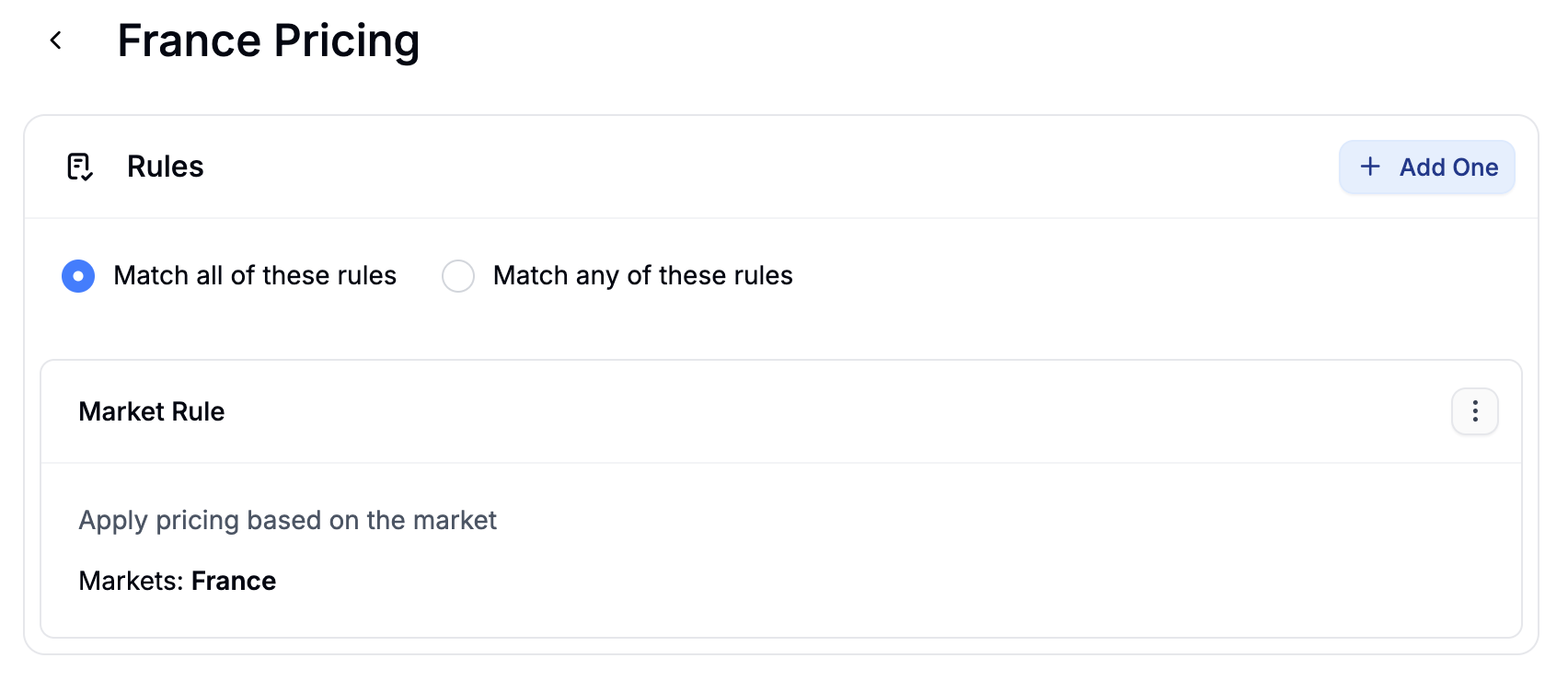 This ensures the price list only applies to customers browsing in the French market.
### Add Products and Set Prices
Click **Add Products** to open the product selector. Search for and select the products you want to price differently for France, then click **Add Selected**.
Once the products appear in the list, click **Edit Prices** to open the price editor. Make sure **EUR** is selected in the currency switcher, then enter the regional prices for France in the **Price** column.
This ensures the price list only applies to customers browsing in the French market.
### Add Products and Set Prices
Click **Add Products** to open the product selector. Search for and select the products you want to price differently for France, then click **Add Selected**.
Once the products appear in the list, click **Edit Prices** to open the price editor. Make sure **EUR** is selected in the currency switcher, then enter the regional prices for France in the **Price** column.
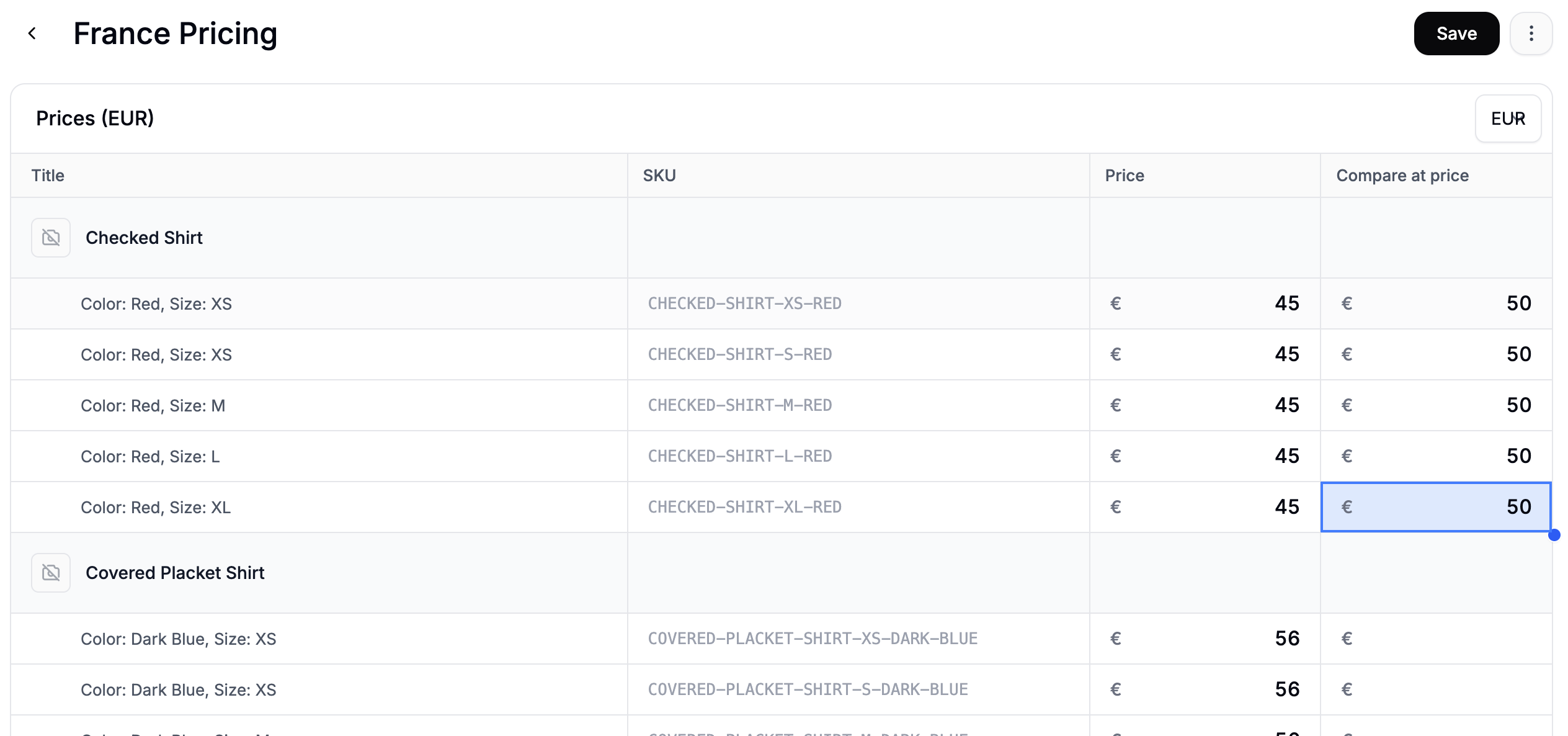 Click **Save** to apply the prices, then click **Activate** in the top right to make the price list live (or **Schedule** if it has a future start date).
Repeat this entire process to create a second price list for Spain — name it `Spain Pricing`, set the Market rule to **Spain**, and enter the appropriate EUR prices for Spanish customers.
Any product you don't add to a regional price list will fall back to its base EUR price. If you want France and Spain customers to see different prices, every relevant product needs to be included in the respective price list.
## 3. Verify on the Storefront
Once your markets and price lists are active, verify that the correct prices appear for each region.
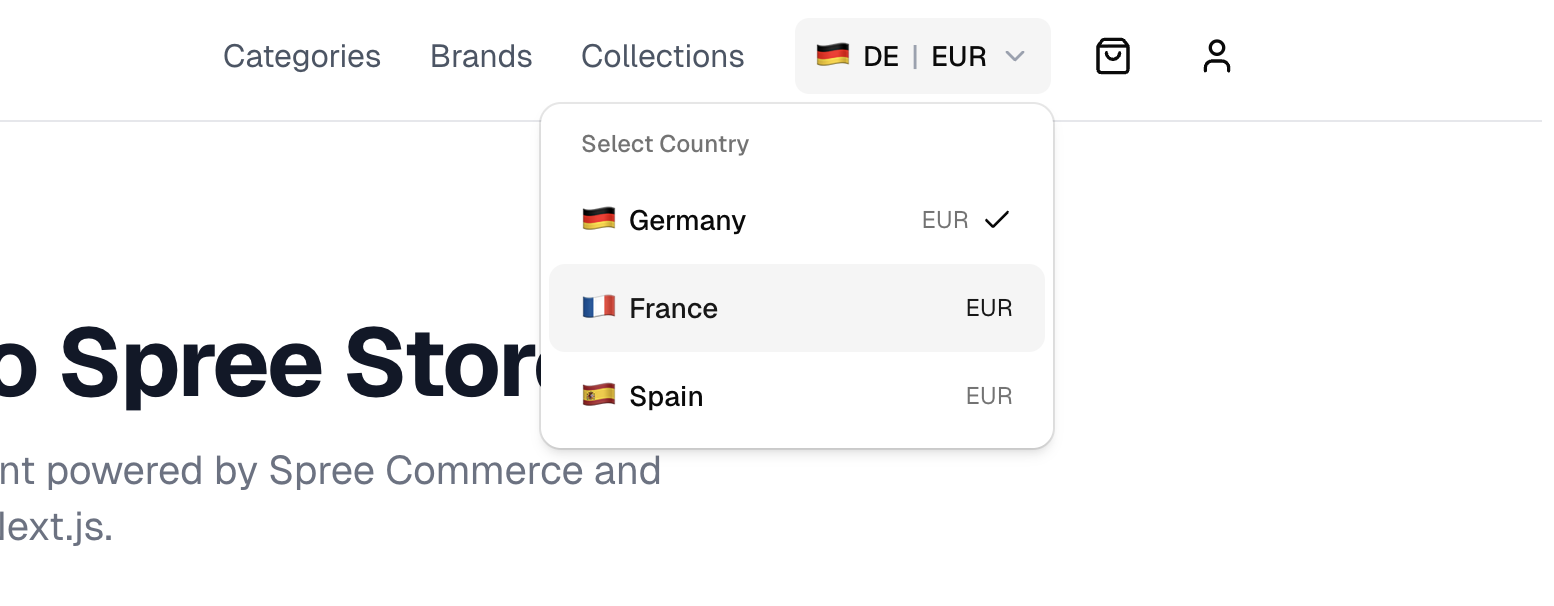
1. Visit your storefront and look for the market switcher in the navigation. If you're using the Spree Next.js starter storefront, this appears in the navigation bar.
2. Switch to **France / EUR** and note the price shown for a product you included in the France price list.
3. Switch to **Spain / EUR** and confirm the price changes to reflect the Spain price list.
4. Switch back to **Germany / EUR** and confirm the base EUR price is shown (since Germany has no regional price list).
Click **Save** to apply the prices, then click **Activate** in the top right to make the price list live (or **Schedule** if it has a future start date).
Repeat this entire process to create a second price list for Spain — name it `Spain Pricing`, set the Market rule to **Spain**, and enter the appropriate EUR prices for Spanish customers.
Any product you don't add to a regional price list will fall back to its base EUR price. If you want France and Spain customers to see different prices, every relevant product needs to be included in the respective price list.
## 3. Verify on the Storefront
Once your markets and price lists are active, verify that the correct prices appear for each region.
1. Visit your storefront and look for the market switcher in the navigation. If you're using the Spree Next.js starter storefront, this appears in the navigation bar.
2. Switch to **France / EUR** and note the price shown for a product you included in the France price list.
3. Switch to **Spain / EUR** and confirm the price changes to reflect the Spain price list.
4. Switch back to **Germany / EUR** and confirm the base EUR price is shown (since Germany has no regional price list).
 If a product shows the base EUR price instead of the regional price, check that:
* The product has been added to the correct price list
* The price list is set to **Active**
* The Market rule on the price list is correctly set to the intended market
## Next Steps
* [Set Up Multi-Currency Pricing](https://spreecommerce.org/docs/user/how-to/multi-currency-pricing) — sell in different currencies for different regions
* [Price Lists](https://spreecommerce.org/docs/user/manage-products/price-lists) — full reference for rules, volume pricing, and customer group pricing
* [Markets](https://spreecommerce.org/docs/user/settings/markets) — full reference for configuring Markets
If a product shows the base EUR price instead of the regional price, check that:
* The product has been added to the correct price list
* The price list is set to **Active**
* The Market rule on the price list is correctly set to the intended market
## Next Steps
* [Set Up Multi-Currency Pricing](https://spreecommerce.org/docs/user/how-to/multi-currency-pricing) — sell in different currencies for different regions
* [Price Lists](https://spreecommerce.org/docs/user/manage-products/price-lists) — full reference for rules, volume pricing, and customer group pricing
* [Markets](https://spreecommerce.org/docs/user/settings/markets) — full reference for configuring Markets