> ## Documentation Index
> Fetch the complete documentation index at: https://spreecommerce.org/docs/llms.txt
> Use this file to discover all available pages before exploring further.
# Issue a Gift Card
> Learn how to issue gift cards to customers in the Spree admin dashboard.
Gift cards are prepaid balances that can be redeemed like cash on future purchases. They’re commonly used for promotions, customer service gestures, loyalty rewards, or as products sold directly to customers.
In Spree, you can issue gift cards to individual customers or generate them in bulk for later distribution. This guide covers how to issue a gift card to a specific customer.
## How to Issue a Gift Card
To issue a gift card, navigate to **Customers** in the admin dashboard.
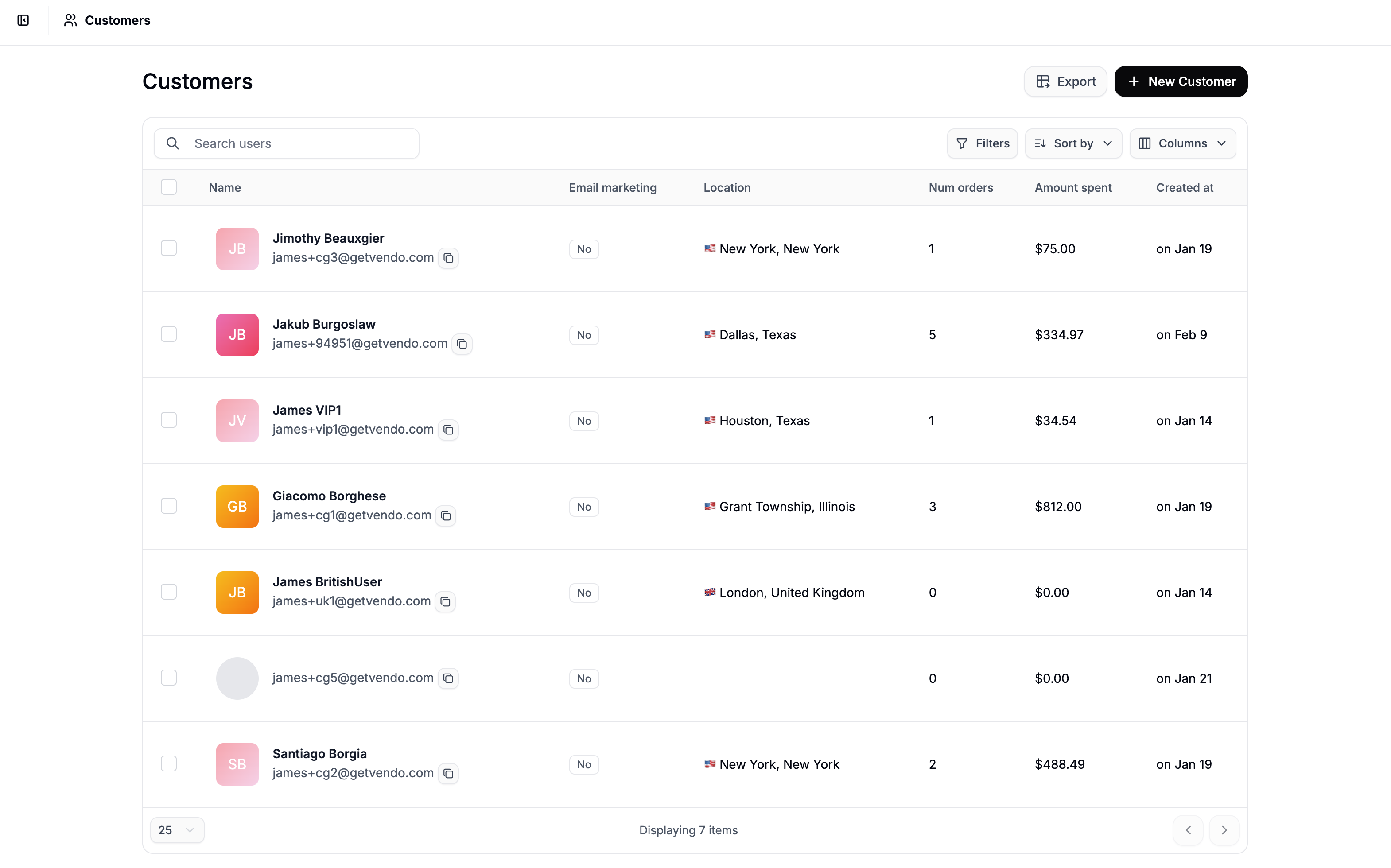 Find and click the customer who should receive the gift card to open their customer profile.
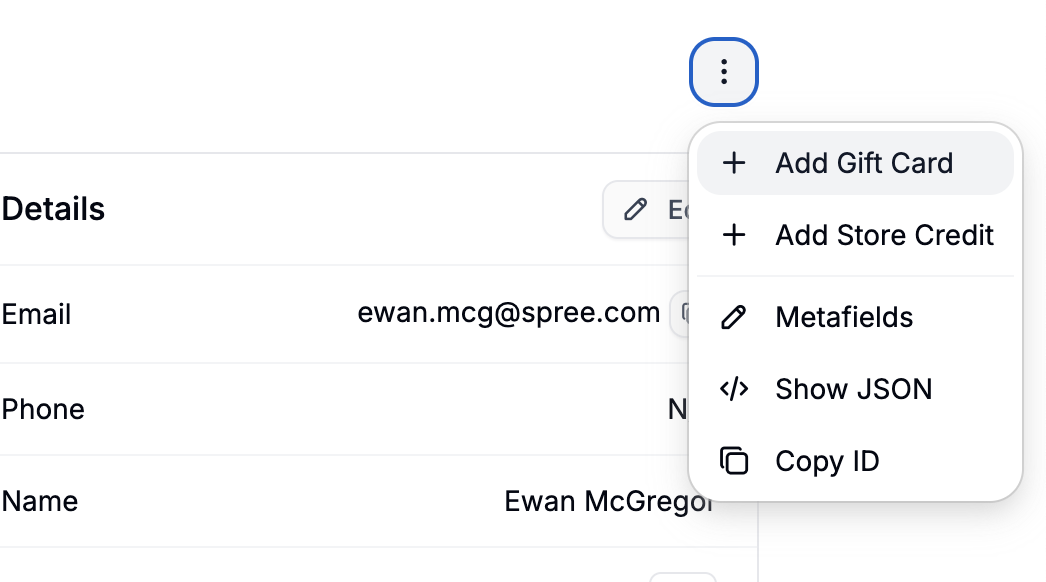
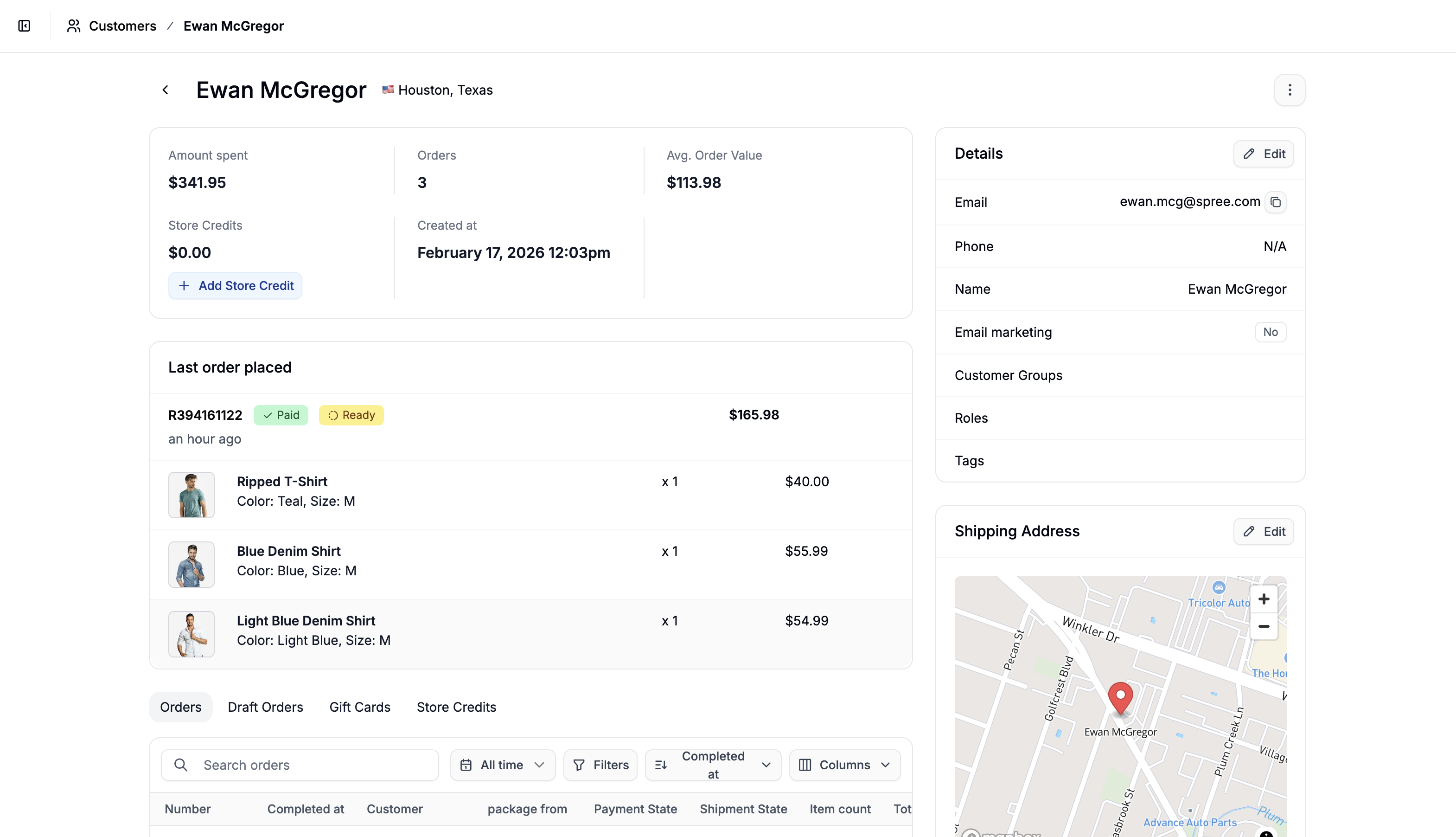 Click the **three-dot menu** in the top right corner, and select **Add a Gift Card**.
 You’ll be redirected to the gift card creation form.
## Configure the Gift Card
You’ll be redirected to the gift card creation form.
## Configure the Gift Card
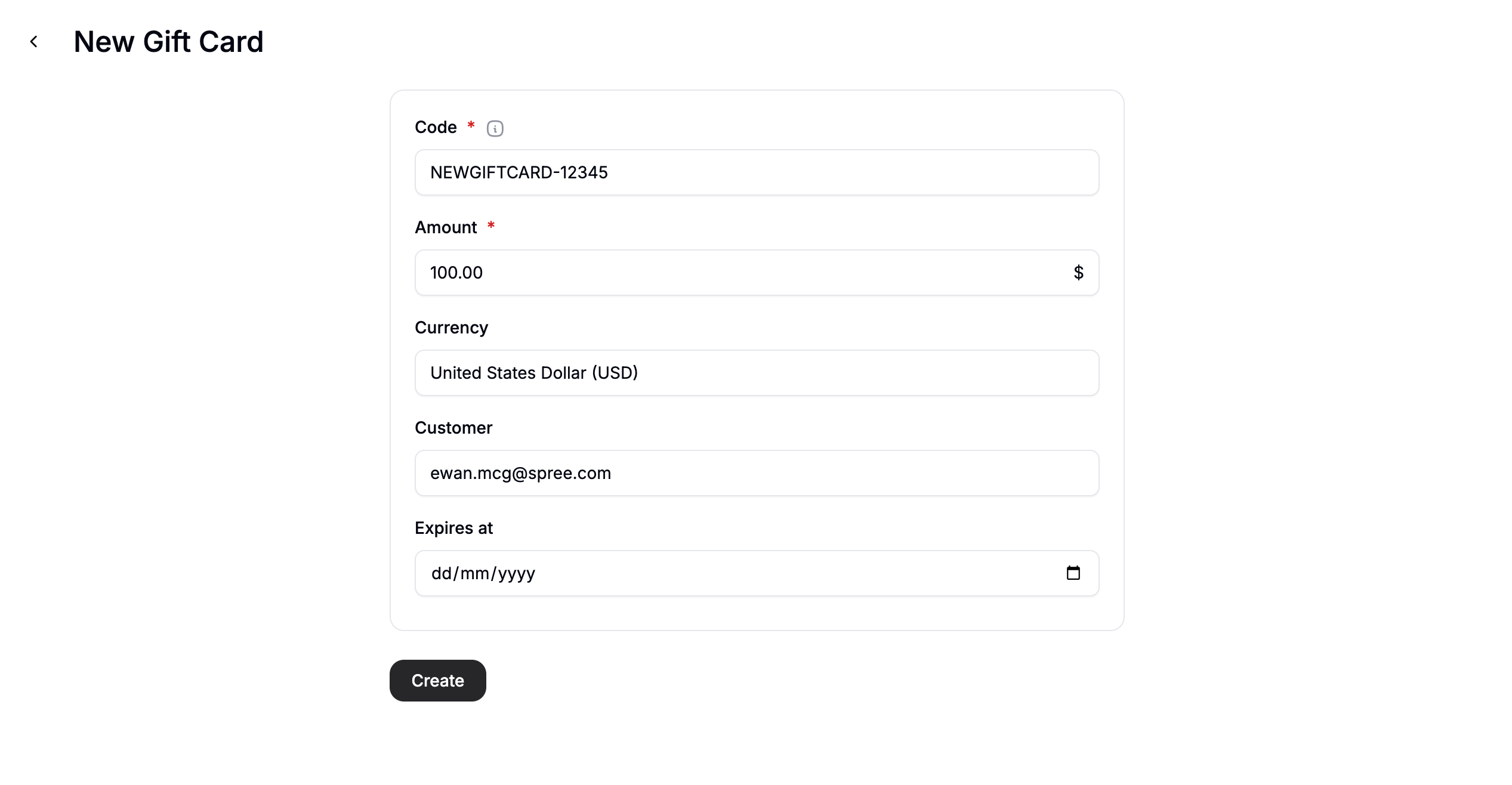 Complete the following fields:
* **Code** - Leave blank to have Spree automatically generate a unique code, or enter one manually.
* **Amount** - The value of the gift card.
* **Currency** - Select the currency the gift card should be issued in.
* **Expires At** - Optional expiration date. Leave blank for a non-expiring gift card.
Click **Create** to issue the gift card. It will immediately appear in the customer’s **Gift Cards** section.
## Edit a Gift Card
Complete the following fields:
* **Code** - Leave blank to have Spree automatically generate a unique code, or enter one manually.
* **Amount** - The value of the gift card.
* **Currency** - Select the currency the gift card should be issued in.
* **Expires At** - Optional expiration date. Leave blank for a non-expiring gift card.
Click **Create** to issue the gift card. It will immediately appear in the customer’s **Gift Cards** section.
## Edit a Gift Card
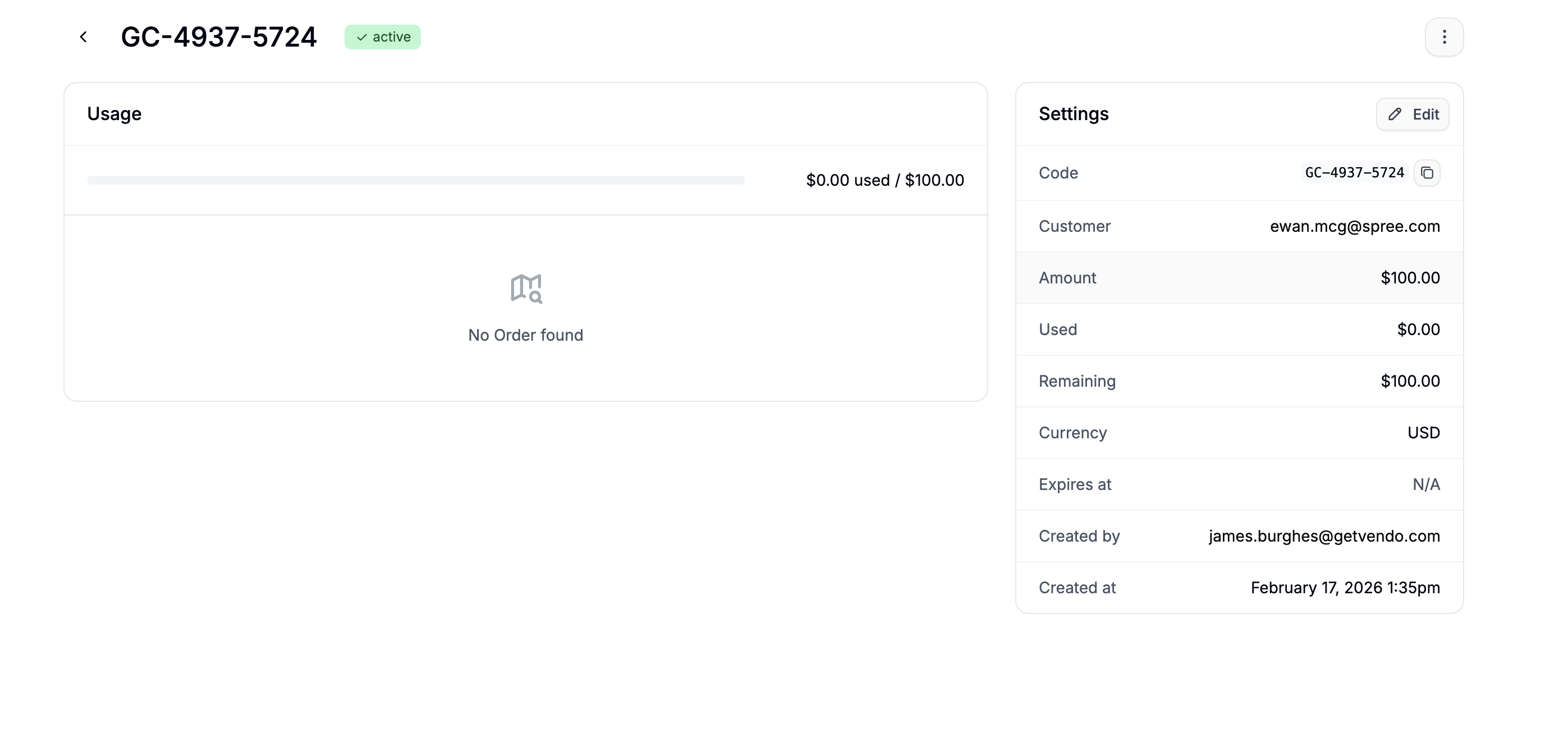 To modify a gift card:
1. Go to the customer’s profile
2. Scroll to the **Gift Cards** subsection
3. Click on the gift card to be redirected that gift card's form
4. Click **Edit** in the Settings section
5. Make your changes and click **Update**
## Delete a Gift Card
To modify a gift card:
1. Go to the customer’s profile
2. Scroll to the **Gift Cards** subsection
3. Click on the gift card to be redirected that gift card's form
4. Click **Edit** in the Settings section
5. Make your changes and click **Update**
## Delete a Gift Card
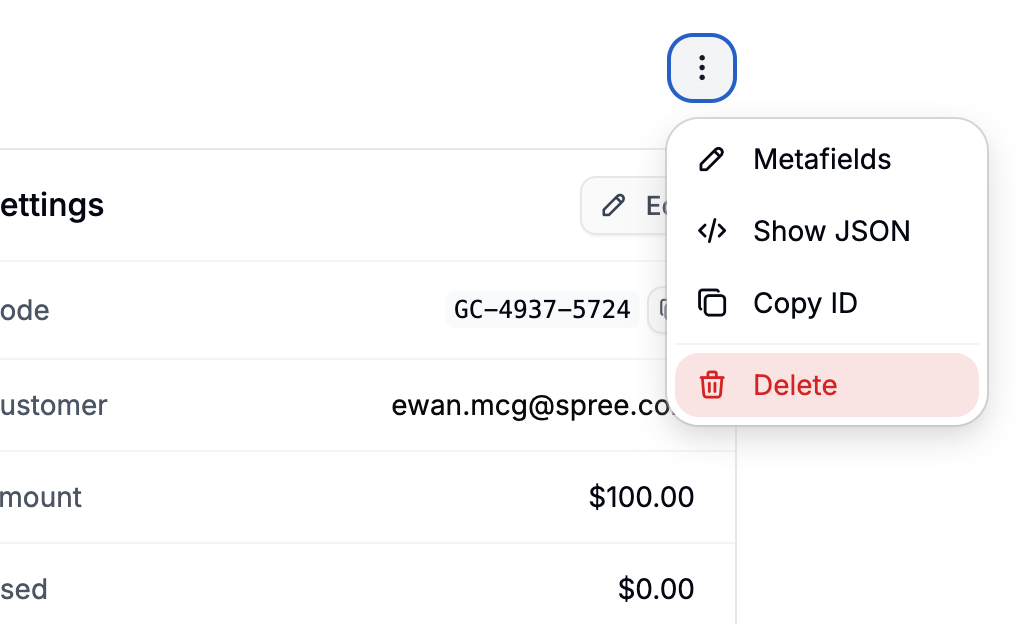 To delete a gift card:
1. Go to the customer’s profile
2. Scroll to the **Gift Cards** subsection
3. Click on the gift card to be redirected to that gift card's form
4. Click **three-dot menu** in the top-right corner
5. Click **Delete**
To delete a gift card:
1. Go to the customer’s profile
2. Scroll to the **Gift Cards** subsection
3. Click on the gift card to be redirected to that gift card's form
4. Click **three-dot menu** in the top-right corner
5. Click **Delete**