> ## Documentation Index
> Fetch the complete documentation index at: https://spreecommerce.org/docs/llms.txt
> Use this file to discover all available pages before exploring further.
# Export Customers
> Learn how to export customers records to CSV in Spree Commerce.
In Spree you can, export your customer database for reporting, segmentation, or integration with external tools such as email marketing platforms or CRM systems.
Doing so can make it easier to analyze trends, review engagement, and manage customer relationships outside of Spree when needed.
## How to Export Customers
To export customers, navigate to **Customers** in the admin dashboard.
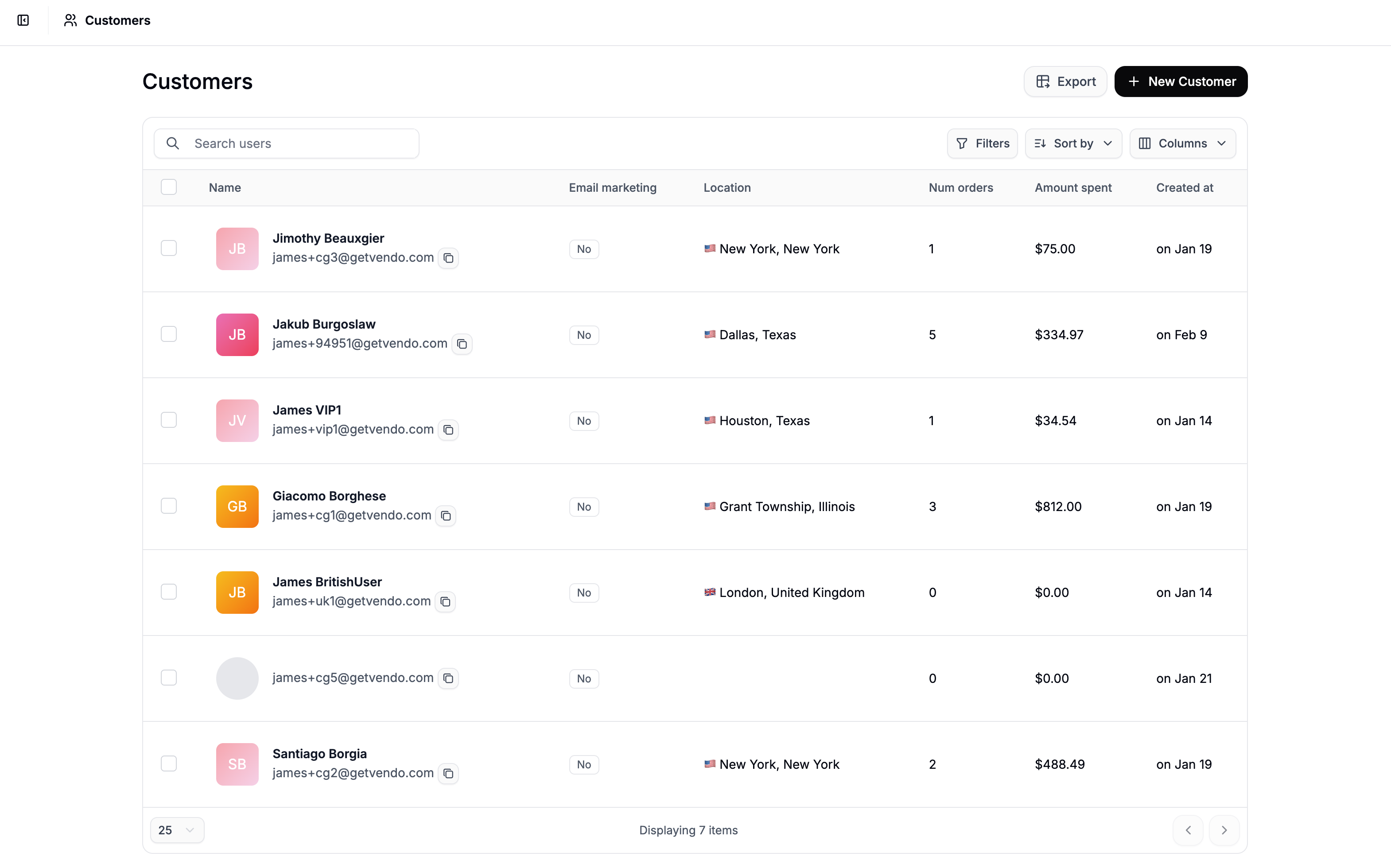 From here you may optionally apply filters and export the records you require.
### Apply Filters
If you want to export a specific segment rather than your entire customer list, apply filters before exporting.
You can use the **Filters** button to narrow results by fields such as:
* Email marketing (opt-in status)
* Location
* Created at / Updated at
* First Name
* Last Name
* Tags
To learn more about filters, refer to our [Searching Customers](https://spreecommerce.org/docs/user/customers/searching-customers) article.
If no filters are applied, the export will include all customers, regardless of your choice in the next step.
### Export
From here you may optionally apply filters and export the records you require.
### Apply Filters
If you want to export a specific segment rather than your entire customer list, apply filters before exporting.
You can use the **Filters** button to narrow results by fields such as:
* Email marketing (opt-in status)
* Location
* Created at / Updated at
* First Name
* Last Name
* Tags
To learn more about filters, refer to our [Searching Customers](https://spreecommerce.org/docs/user/customers/searching-customers) article.
If no filters are applied, the export will include all customers, regardless of your choice in the next step.
### Export
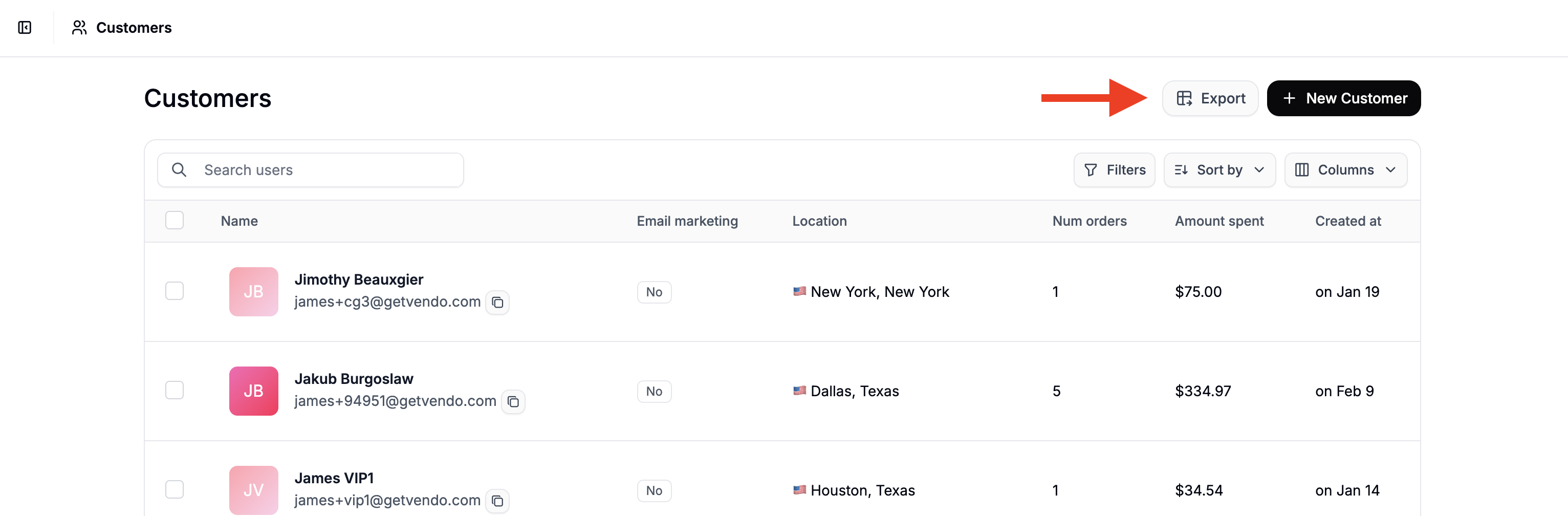 Once your desired view is set, click **Export** in the top-right corner.
You’ll be prompted to confirm whether you want to export:
* **Filtered records** (only the customers currently shown), or
* **All records**
After confirming, a CSV file will be generated and sent to the email address associated with your admin account.
Using filters before exporting allows you to create targeted customer lists for campaigns, reporting, or operational needs.
Once your desired view is set, click **Export** in the top-right corner.
You’ll be prompted to confirm whether you want to export:
* **Filtered records** (only the customers currently shown), or
* **All records**
After confirming, a CSV file will be generated and sent to the email address associated with your admin account.
Using filters before exporting allows you to create targeted customer lists for campaigns, reporting, or operational needs.