> ## Documentation Index
> Fetch the complete documentation index at: https://spreecommerce.org/docs/llms.txt
> Use this file to discover all available pages before exploring further.
# Issue Store Credits
> Learn how to issue store credits to customers in the Spree admin dashboard.
Store credits allow you to add funds directly to a customer’s account. Unlike gift cards, store credits are tied to a specific customer and cannot be transferred. They are commonly used for refunds, compensation, or loyalty rewards.
In more advanced use cases, store credits can serve as the primary payment method - particularly in B2B scenarios where customers operate on prepaid balances or agreed credit thresholds that they draw from over time.
## How to Issue Store Credits
To issue store credits, navigate to **Customers** in the admin dashboard.
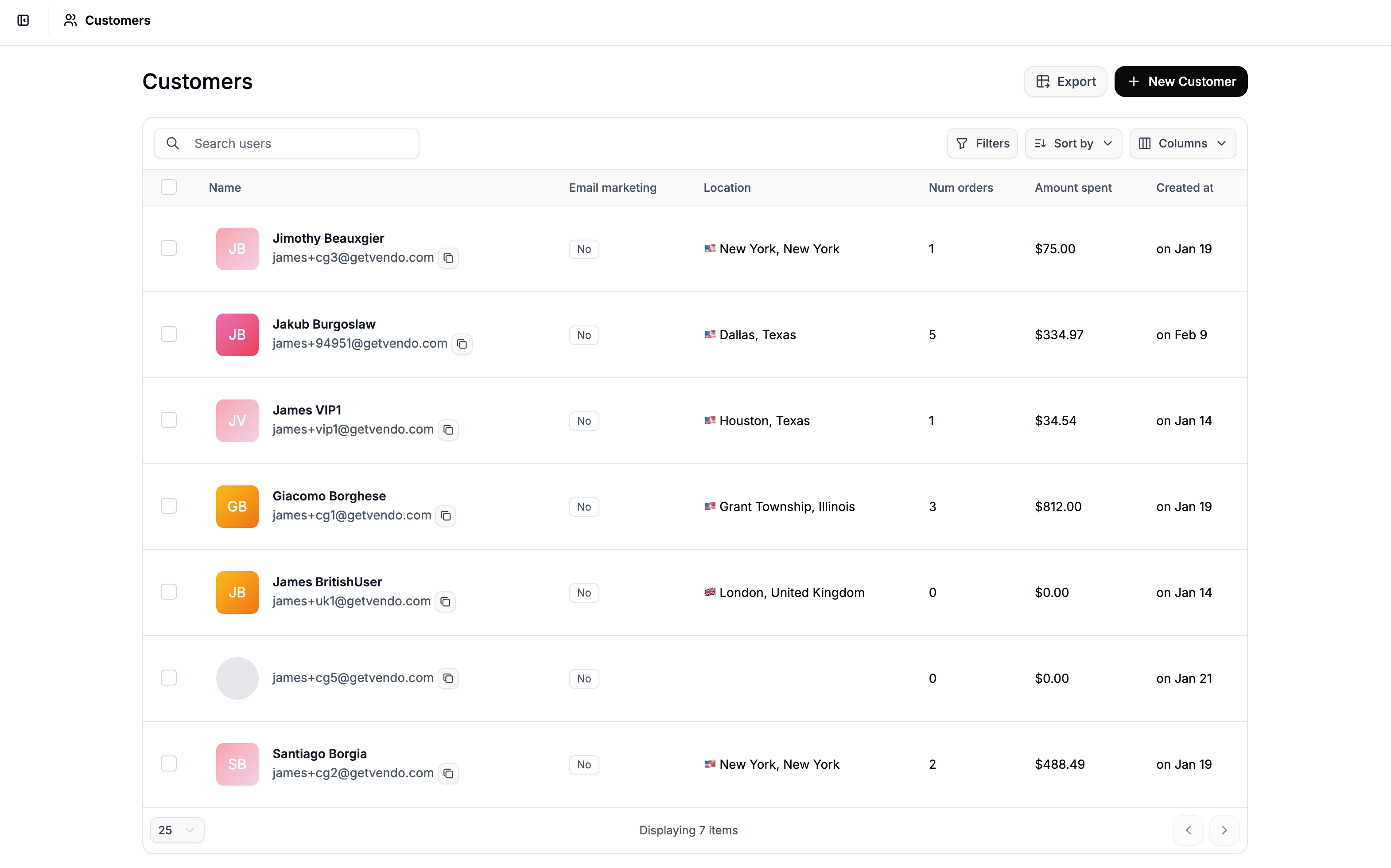 Find and click on the customer to open their profile page.
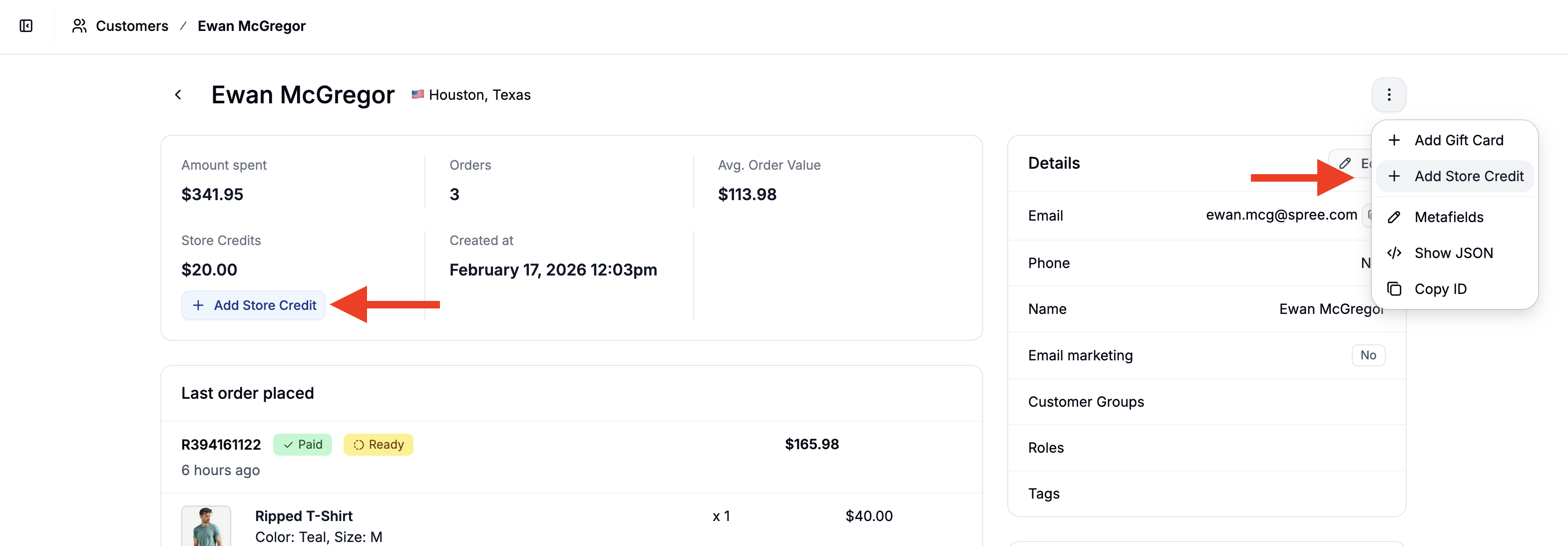
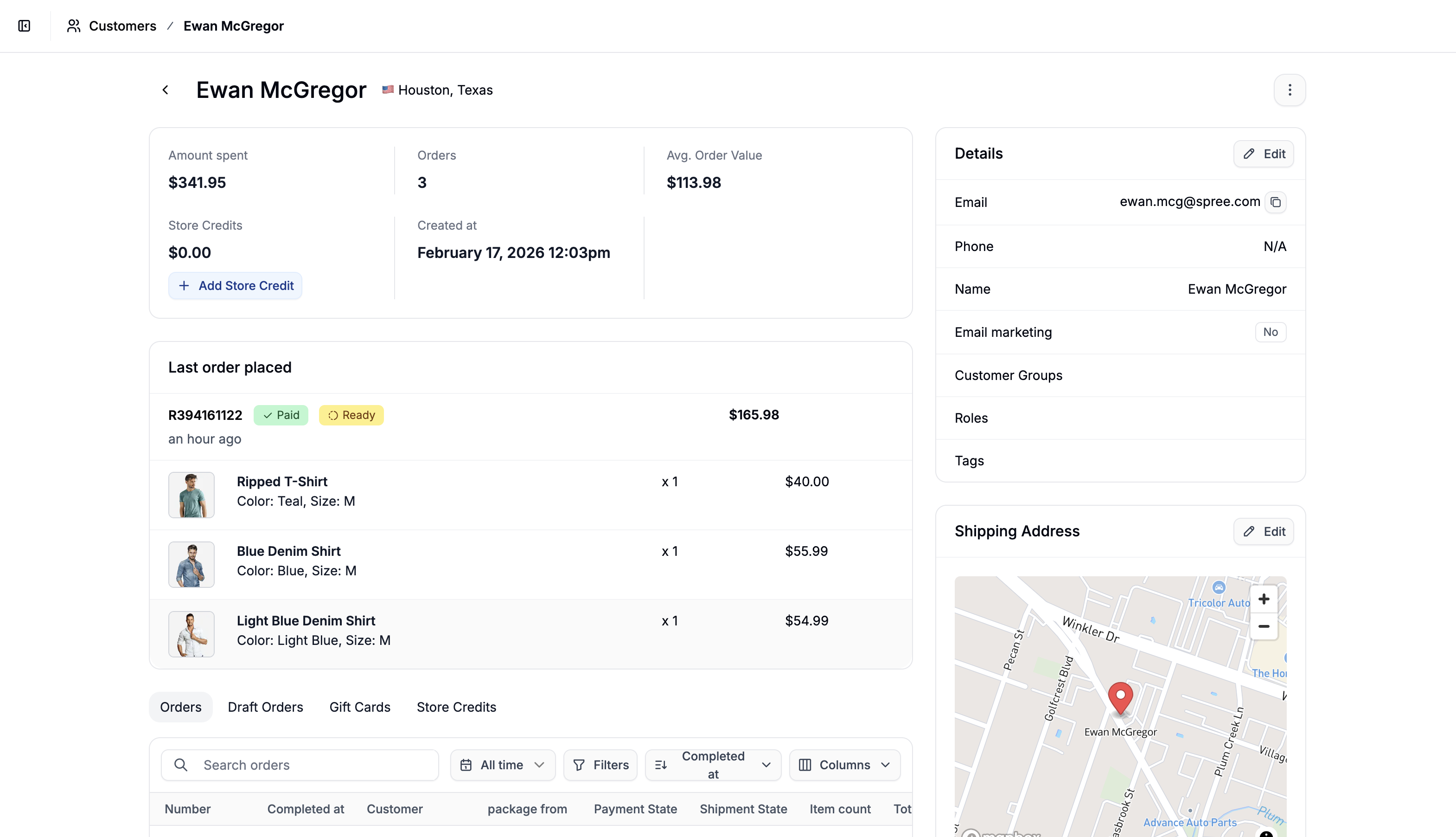 You can issue store credit in two ways:
* Click the **three-dot menu** in the top right corner and select **Add Store Credit**
* Or click **Add Store Credit** directly from the analytics section at the top of the customer profile
You can issue store credit in two ways:
* Click the **three-dot menu** in the top right corner and select **Add Store Credit**
* Or click **Add Store Credit** directly from the analytics section at the top of the customer profile
 Clicking on either of these will redirect you to the store credit creation form.
## Configure the Store Credit
Clicking on either of these will redirect you to the store credit creation form.
## Configure the Store Credit
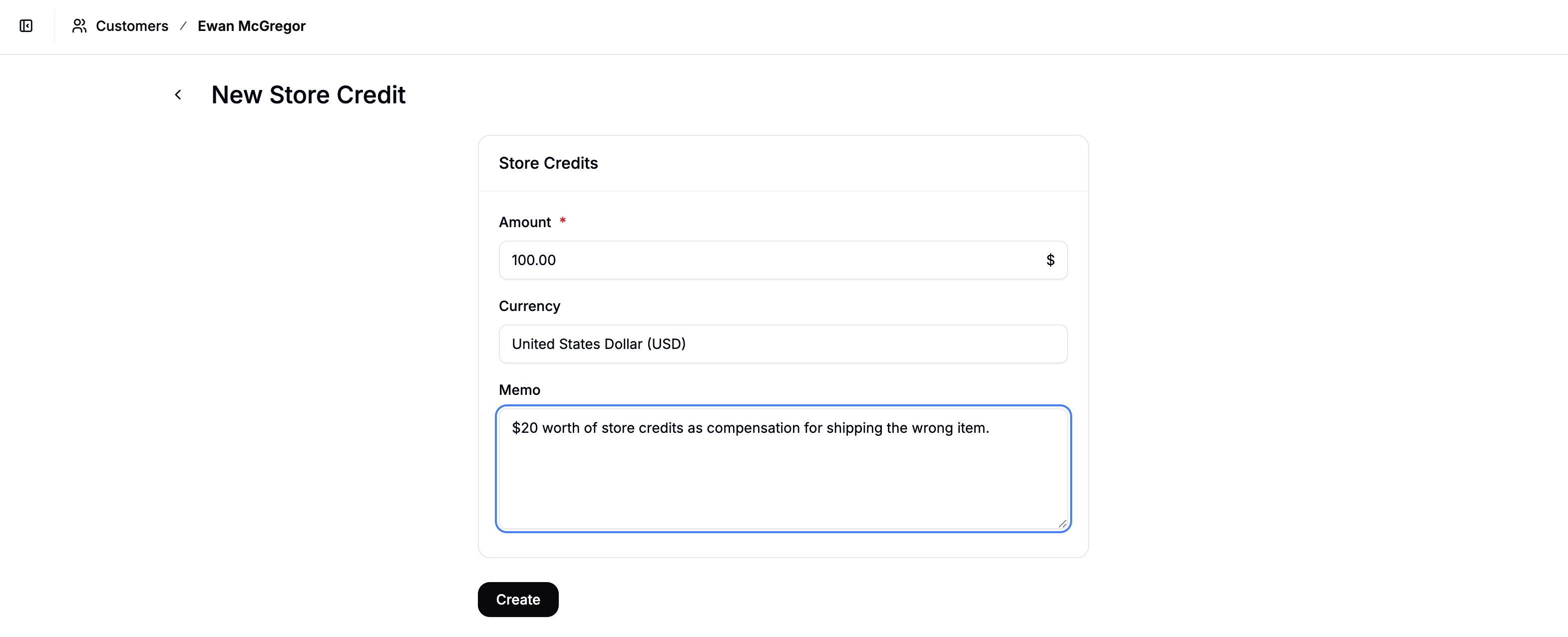 Complete the following fields:
* **Amount** - The value of the store credit
* **Currency** - Select the currency (if your store supports multiple currencies)
* **Memo** - Optional internal note explaining the reason for issuing the credit
Click **Create** to assign the credit. The balance will immediately be available to the customer and visible in the **Store Credits** section of the customer profile.
## Edit Store Credits
Complete the following fields:
* **Amount** - The value of the store credit
* **Currency** - Select the currency (if your store supports multiple currencies)
* **Memo** - Optional internal note explaining the reason for issuing the credit
Click **Create** to assign the credit. The balance will immediately be available to the customer and visible in the **Store Credits** section of the customer profile.
## Edit Store Credits
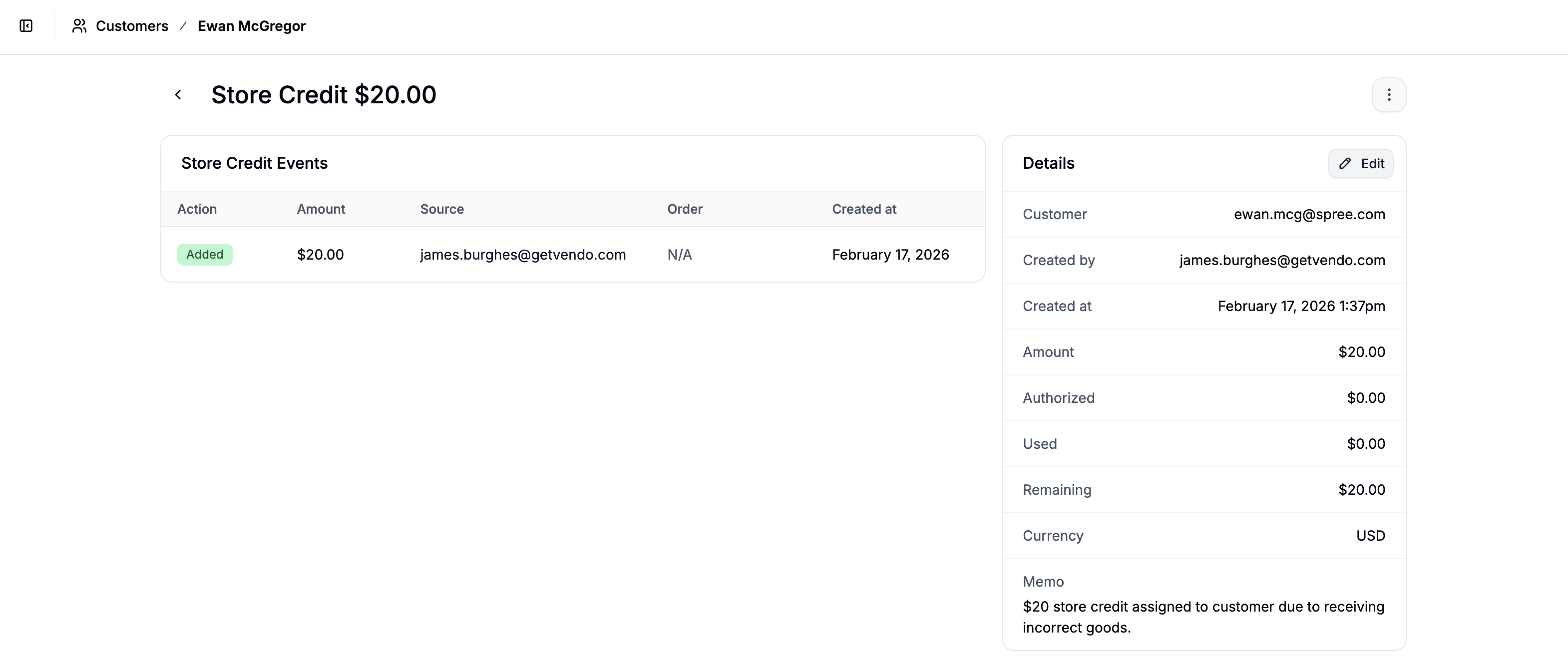 To edit a store credit assignment:
1. Navigate to the customer profile
2. Scroll to the **Store Credits** section
3. Click on a store credit assignment to be redirected to that credit’s form
4. Click **Edit** in the Details section
5. Modify the store credit assignment as necessary and click **Update**
## Delete Store Credits
To edit a store credit assignment:
1. Navigate to the customer profile
2. Scroll to the **Store Credits** section
3. Click on a store credit assignment to be redirected to that credit’s form
4. Click **Edit** in the Details section
5. Modify the store credit assignment as necessary and click **Update**
## Delete Store Credits
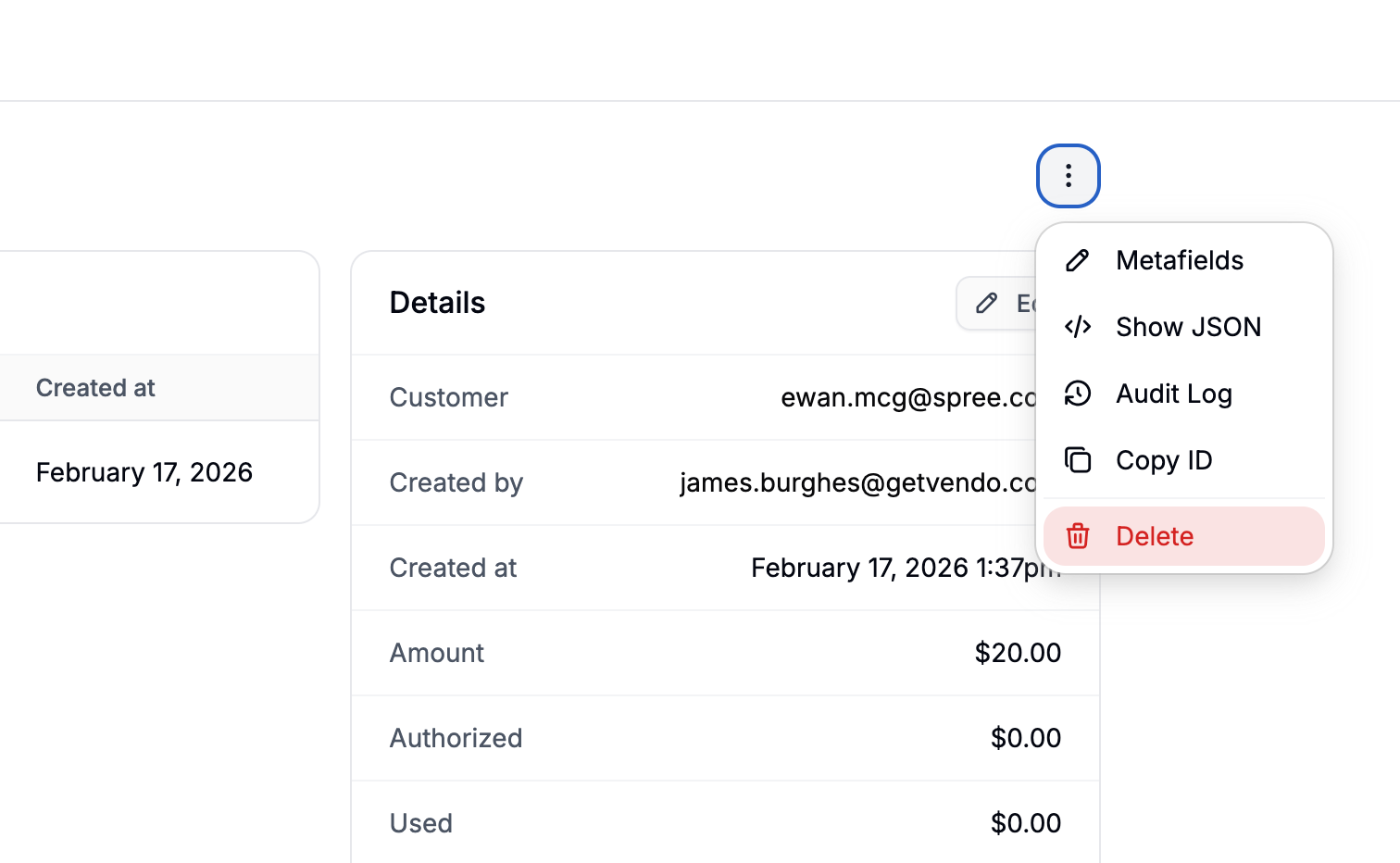 To remove a store credit:
1. Navigate to the customer profile
2. Scroll to the **Store Credits** section
3. Click on a store credit assignment to be redirected to that credit’s form
4. Click the **three-dot menu** in the top-right corner
5. Click **Delete** from the menu
Deleting store credit will permanently remove the assigned balance from the customer’s account.
To remove a store credit:
1. Navigate to the customer profile
2. Scroll to the **Store Credits** section
3. Click on a store credit assignment to be redirected to that credit’s form
4. Click the **three-dot menu** in the top-right corner
5. Click **Delete** from the menu
Deleting store credit will permanently remove the assigned balance from the customer’s account.