> ## Documentation Index
> Fetch the complete documentation index at: https://spreecommerce.org/docs/llms.txt
> Use this file to discover all available pages before exploring further.
# Connect Razorpay payments to Spree Commerce
> Configure the Razorpay payment gateway in Spree to accept cards, UPI, net banking, and wallets, plus international transactions across multiple currencies.
Razorpay is a secure payment gateway that enables businesses to accept online payments via cards, UPI, net banking, and wallets. It also supports international transactions across multiple currencies.
Razorpay integration is maintained and developed by [Umesh Ravani](https://github.com/umeshravani).
To support this development, please star the [GitHub repository](https://github.com/umeshravani/spree_razorpay) ❤️
## Installation
Before you can enable Razorpay, it must be installed. To do so, you need to run the following command:
```bash Spree CLI (Docker) theme={"theme":"night-owl"}
spree bundle add spree_razorpay_checkout && spree generate spree_razorpay_checkout:install
```
```bash Without Spree CLI theme={"theme":"night-owl"}
bundle add spree_razorpay_checkout && bin/rails g spree_razorpay_checkout:install
```
After that, you need to make sure to restart the server.
## Connect Razorpay
Sign in to your Spree admin dashboard and navigate to **Settings → Payments**.
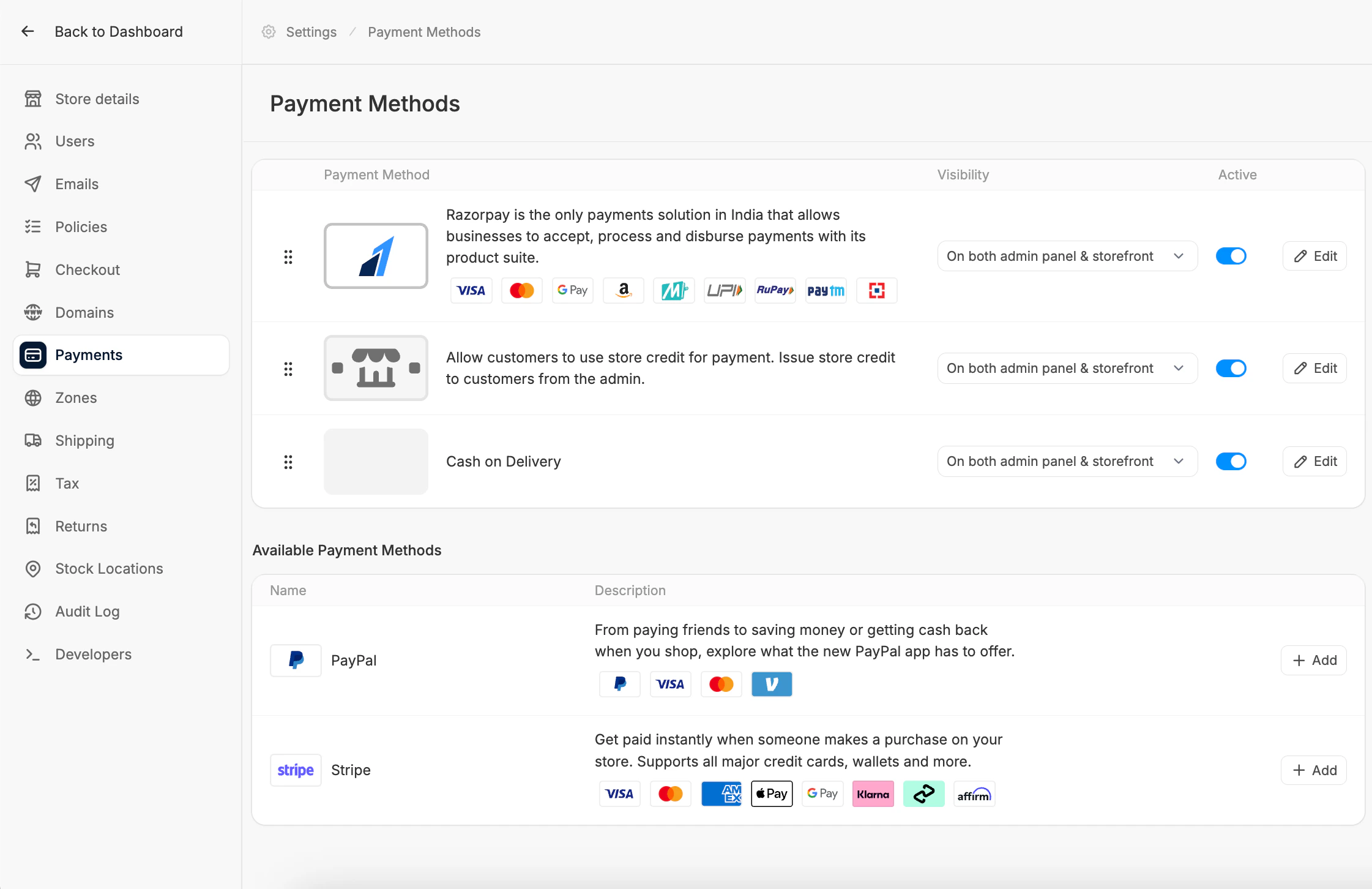 Find Razorpay under Available Payment Methods and click **Add**.
This will redirect you to the Razorpay setup form.
Find Razorpay under Available Payment Methods and click **Add**.
This will redirect you to the Razorpay setup form.
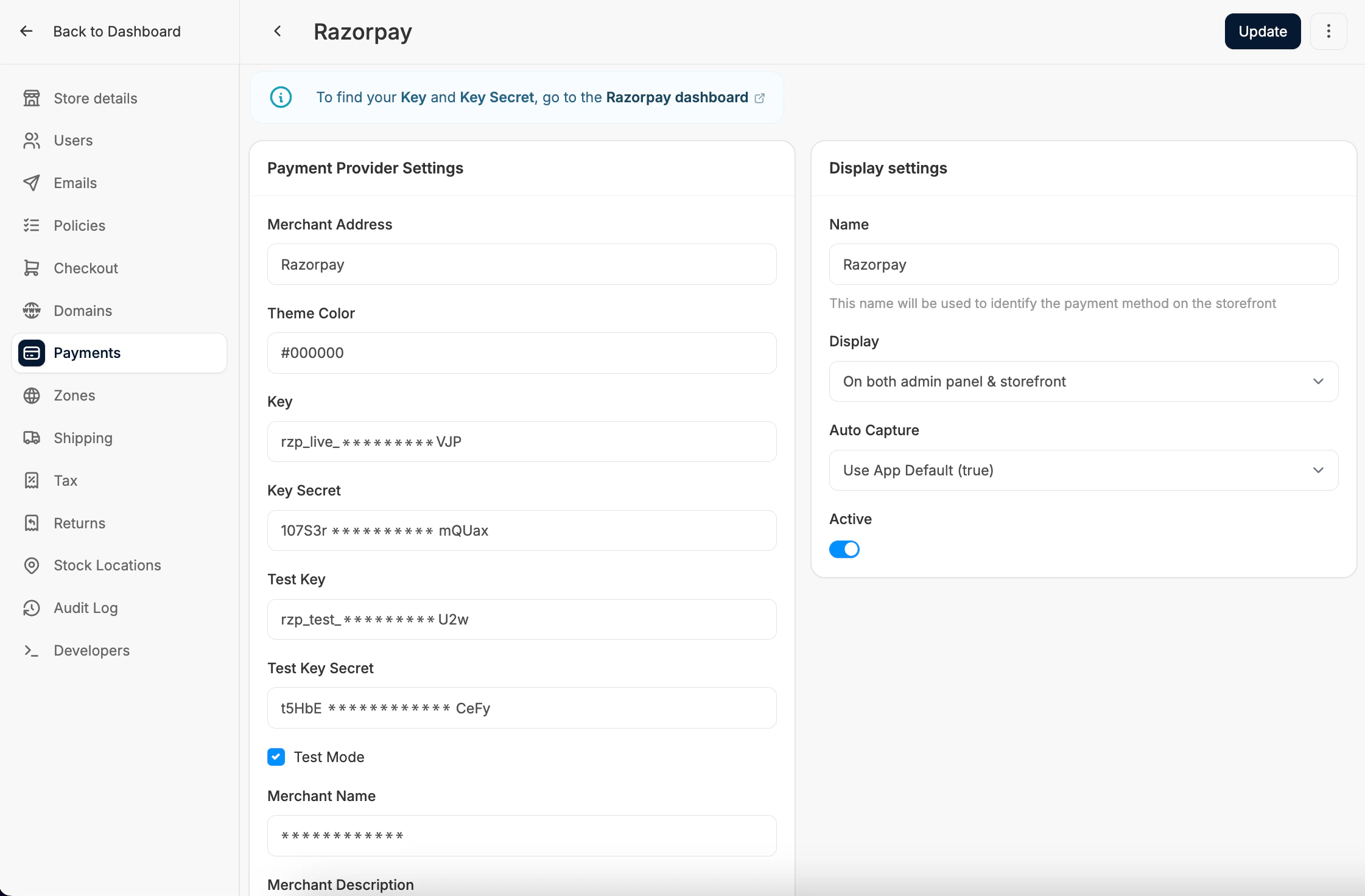 You will need Key and Key Secret from your [Razorpay dashboard credentials page](https://dashboard.razorpay.com/app/website-app-settings/api-keys).
To get your credentials, Navigate to Account & Settings → API Keys (under Website and app settings) → Generate new key to generate key for the selected mode.
You will need Key and Key Secret from your [Razorpay dashboard credentials page](https://dashboard.razorpay.com/app/website-app-settings/api-keys).
To get your credentials, Navigate to Account & Settings → API Keys (under Website and app settings) → Generate new key to generate key for the selected mode.
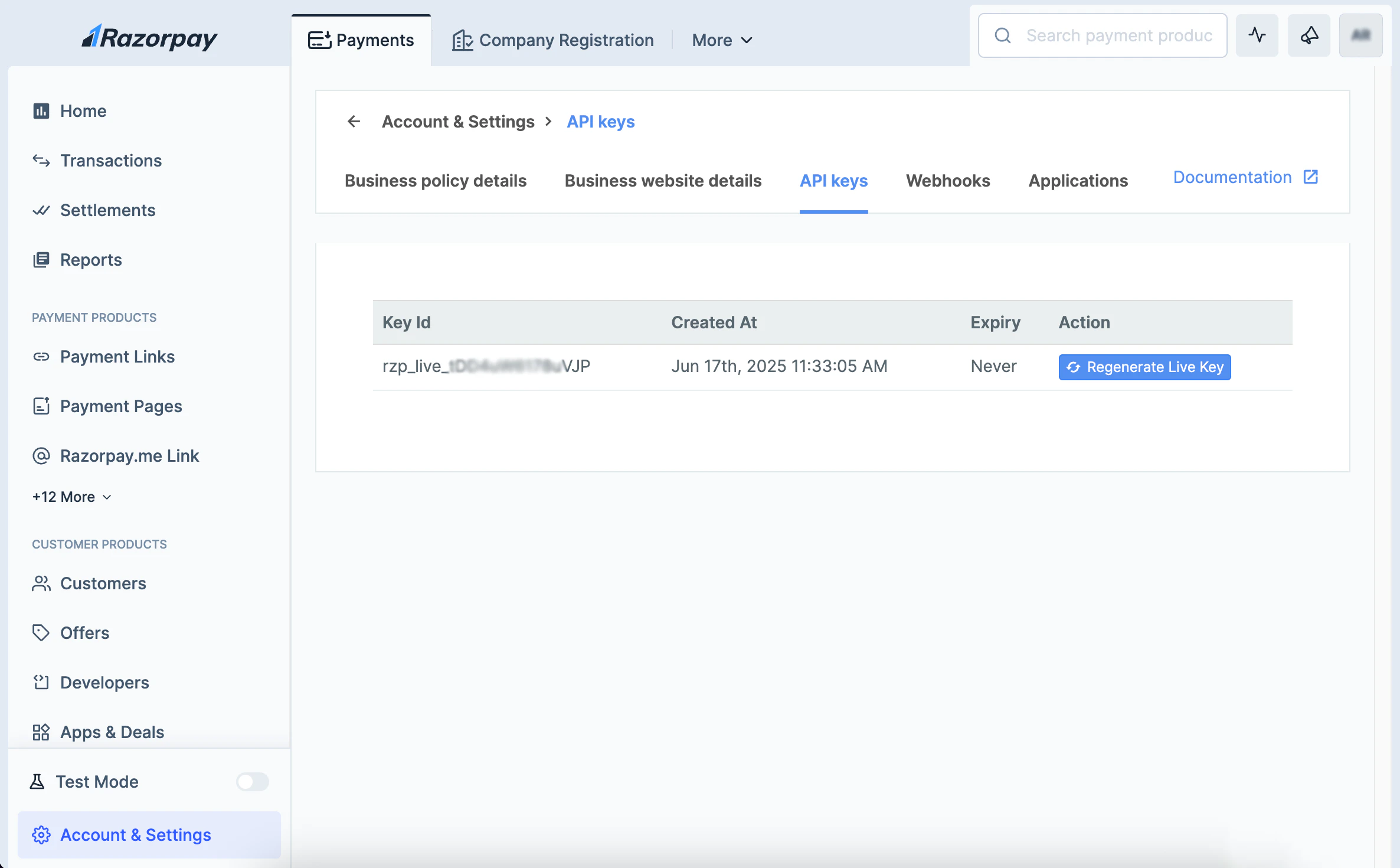 You should see your live and test credentials. Copy both API key into `Key` and Secret into `Key Secret`, also Test API key into `Test Key` and Test Key Secret into `Test Key Secret`
If you wish to test the Razorpay payments before going live, just select `Test Mode` option in Spree.
Click **Create** to enable Razorpay as a payment method on your store.
You should see your live and test credentials. Copy both API key into `Key` and Secret into `Key Secret`, also Test API key into `Test Key` and Test Key Secret into `Test Key Secret`
If you wish to test the Razorpay payments before going live, just select `Test Mode` option in Spree.
Click **Create** to enable Razorpay as a payment method on your store.