> ## Documentation Index
> Fetch the complete documentation index at: https://spreecommerce.org/docs/llms.txt
> Use this file to discover all available pages before exploring further.
# Connect Adyen payments to Spree Commerce
> Set up Spree's native Adyen integration to accept global payments across multiple methods, with built-in fraud protection and a seamless checkout experience.
Adyen is a global payment platform that enables businesses to accept payments across multiple channels and markets. It supports a wide range of payment methods, provides advanced fraud protection, and offers seamless checkout experiences for customers worldwide.
## Installation
Before you can enable Adyen, it must be installed. To do so, you need to run the following command:
```bash Spree CLI (Docker) theme={"theme":"night-owl"}
spree bundle add spree_adyen --github spree/spree_adyen && spree generate spree_adyen:install
```
```bash Without Spree CLI theme={"theme":"night-owl"}
bundle add spree_adyen --github spree/spree_adyen && bin/rails g spree_adyen:install
```
After that, you need to make sure to restart the server.
## Connect Adyen
Sign in to your Spree admin dashboard and navigate to **Settings → Payments**.
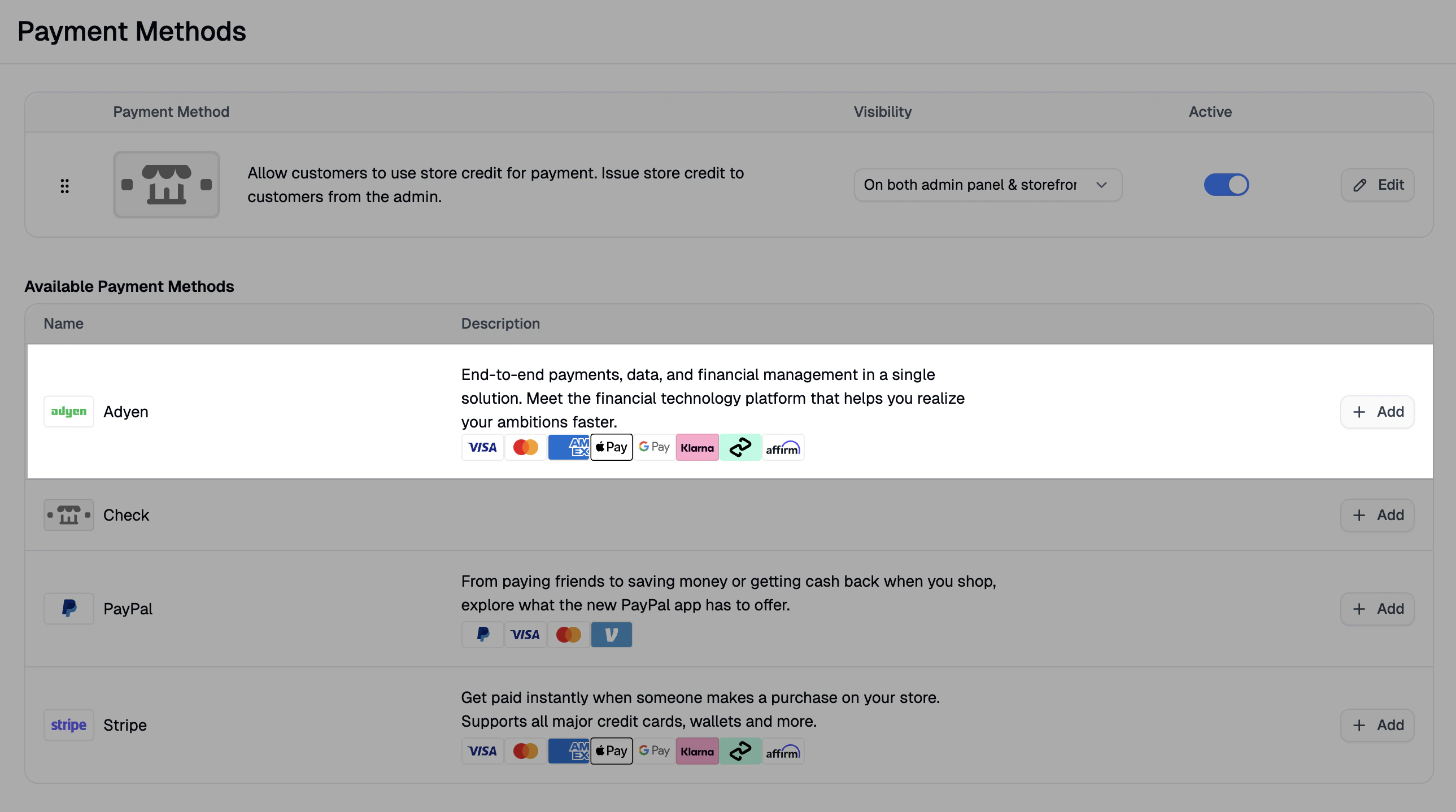 Find Adyen under Available Payment Methods and click **Add**.
This will redirect you to the Adyen setup form.
Find Adyen under Available Payment Methods and click **Add**.
This will redirect you to the Adyen setup form.
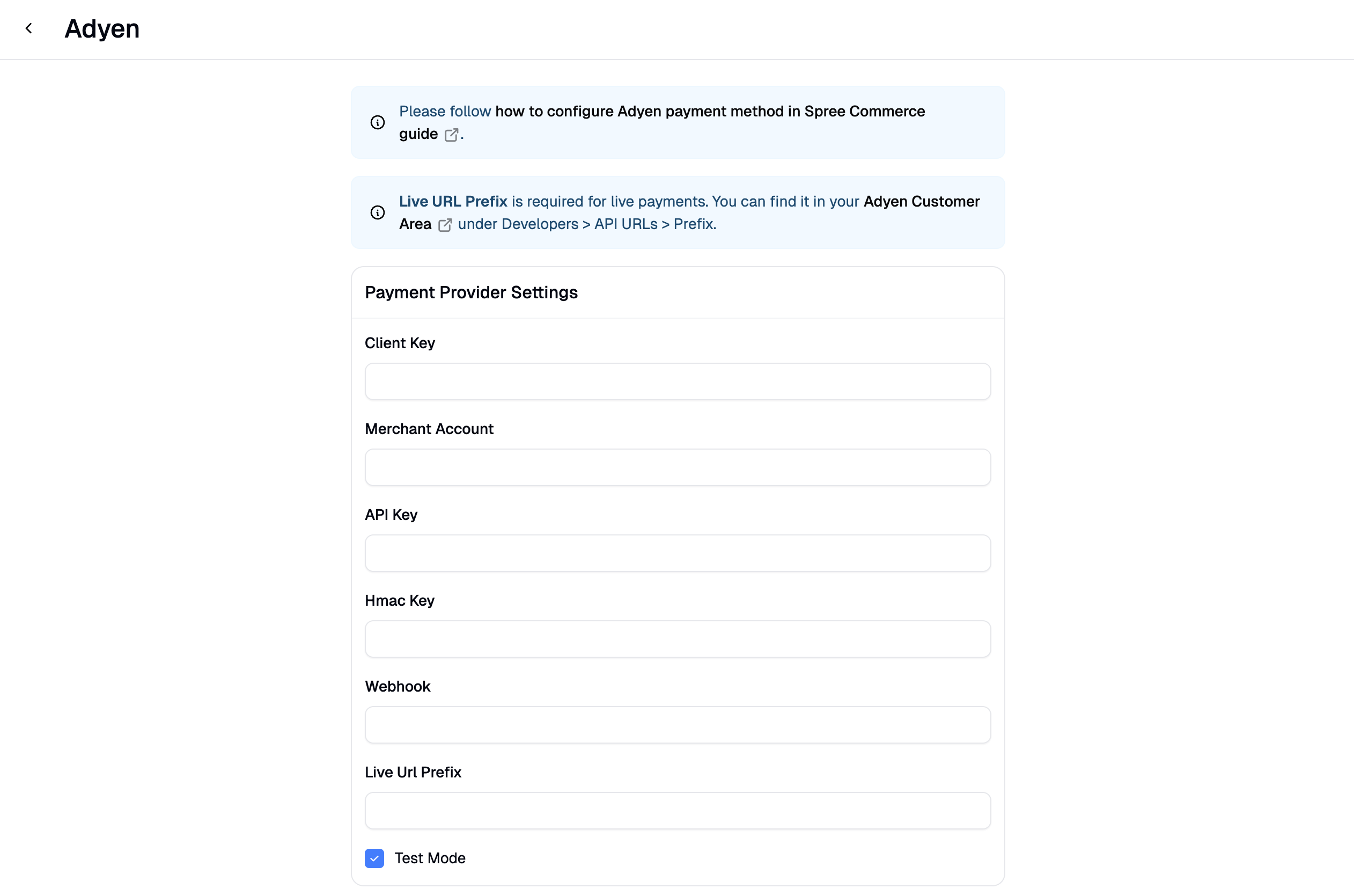 You only need to provide the **API Key**, **Client Key**, and (for live payments) **Live URL Prefix** to get started. Spree automatically populates the **Merchant Account**, **Hmac Key**, and **Webhook** fields after you create the payment method.
Don't enter values into the **Merchant Account**, **Hmac Key**, or **Webhook** fields manually. Spree fills these in automatically after creation — entering values yourself can block the auto-population process.
The following steps walk through generating the credentials you need from inside the [Adyen Customer Area](https://ca-live.adyen.com/).
### 1. Select your Merchant Account
Log into the [Adyen Customer Area](https://ca-live.adyen.com/) and select the **merchant account** you're configuring. A company account can contain multiple merchant accounts — if so, pick the one tied to the store you're setting up.
All subsequent steps (generating API credentials, retrieving the Live URL Prefix) happen inside this merchant account.
### 2. Generate API credentials
Inside the merchant account you selected, Adyen groups your Client Key and API Key under a single "API credential" record.
1. Navigate to **Developers → API credentials**.
2. Click **Create new credential** and select **Web service user**.
3. On the next page, go to **Server Settings** and click **Generate API key**.
4. Scroll down to **Client Settings** and click **Generate client key**.
5. Still in **Client Settings**, add your Spree storefront URL under **Allowed origins** (e.g., `https://your-store.com`). Without this, the Drop-in checkout component won't load on your storefront.
6. Click **Save changes**.
Copy your API Key and Client Key as soon as they're generated and store them somewhere safe. Adyen displays the API Key **only once** — if you navigate away without copying it, you'll need to generate a new credential. The process is quick, but it's an avoidable annoyance.
### 3. Get your Live URL Prefix (live only)
If you're configuring Adyen for live (non-test) payments, you'll need your unique API URL prefix. In the Adyen Customer Area, navigate to **Developers → API URLs** and copy the value under **Prefix**.
This field is not needed for test mode.
### 4. Paste credentials into Spree and create the payment method
Back in the Spree admin form, paste each value into its matching field:
1. **API Key** — from step 2 (Server Settings)
2. **Client Key** — from step 2 (Client Settings)
3. **Live URL Prefix** — from step 3 (required for live sites only)
Leave the **Merchant Account**, **Hmac Key**, and **Webhook** fields blank — Spree populates them automatically once the payment method is created.
Tick **Test Mode** if you're using test credentials, then click **Create** to enable Adyen as a payment method on your store.
You only need to provide the **API Key**, **Client Key**, and (for live payments) **Live URL Prefix** to get started. Spree automatically populates the **Merchant Account**, **Hmac Key**, and **Webhook** fields after you create the payment method.
Don't enter values into the **Merchant Account**, **Hmac Key**, or **Webhook** fields manually. Spree fills these in automatically after creation — entering values yourself can block the auto-population process.
The following steps walk through generating the credentials you need from inside the [Adyen Customer Area](https://ca-live.adyen.com/).
### 1. Select your Merchant Account
Log into the [Adyen Customer Area](https://ca-live.adyen.com/) and select the **merchant account** you're configuring. A company account can contain multiple merchant accounts — if so, pick the one tied to the store you're setting up.
All subsequent steps (generating API credentials, retrieving the Live URL Prefix) happen inside this merchant account.
### 2. Generate API credentials
Inside the merchant account you selected, Adyen groups your Client Key and API Key under a single "API credential" record.
1. Navigate to **Developers → API credentials**.
2. Click **Create new credential** and select **Web service user**.
3. On the next page, go to **Server Settings** and click **Generate API key**.
4. Scroll down to **Client Settings** and click **Generate client key**.
5. Still in **Client Settings**, add your Spree storefront URL under **Allowed origins** (e.g., `https://your-store.com`). Without this, the Drop-in checkout component won't load on your storefront.
6. Click **Save changes**.
Copy your API Key and Client Key as soon as they're generated and store them somewhere safe. Adyen displays the API Key **only once** — if you navigate away without copying it, you'll need to generate a new credential. The process is quick, but it's an avoidable annoyance.
### 3. Get your Live URL Prefix (live only)
If you're configuring Adyen for live (non-test) payments, you'll need your unique API URL prefix. In the Adyen Customer Area, navigate to **Developers → API URLs** and copy the value under **Prefix**.
This field is not needed for test mode.
### 4. Paste credentials into Spree and create the payment method
Back in the Spree admin form, paste each value into its matching field:
1. **API Key** — from step 2 (Server Settings)
2. **Client Key** — from step 2 (Client Settings)
3. **Live URL Prefix** — from step 3 (required for live sites only)
Leave the **Merchant Account**, **Hmac Key**, and **Webhook** fields blank — Spree populates them automatically once the payment method is created.
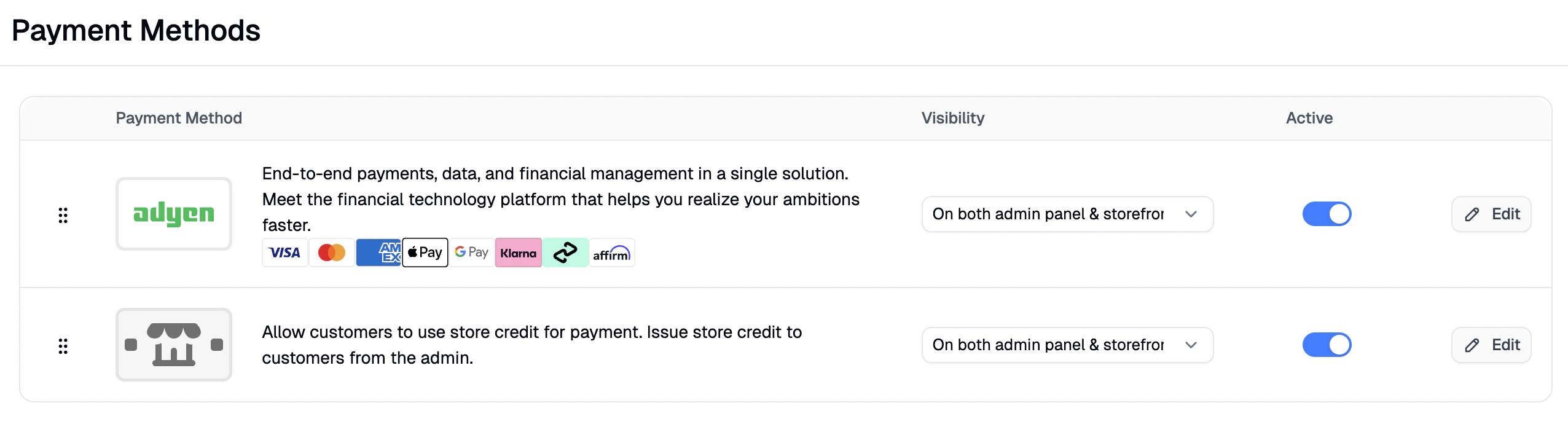
Tick **Test Mode** if you're using test credentials, then click **Create** to enable Adyen as a payment method on your store.
 ## Storefront Configuration
For the Adyen Drop-in SDK to initialize on the Next.js storefront, set the following environment variables in your storefront's hosting platform or `.env` file:
* **`NEXT_PUBLIC_ADYEN_CLIENT_KEY`** — Your Adyen **Client Key** (test or live, matching the environment you're running). This is the same value you pasted into the Spree admin.
* **`NEXT_PUBLIC_ADYEN_ENVIRONMENT`** — Either `test` or `live`. Determines which Adyen environment the Drop-in SDK connects to. Defaults to `test` if unset.
The `NEXT_PUBLIC_` prefix makes the variables available to client-side code so the Adyen JS SDK can initialize in the browser. The Client Key is safe to expose publicly.
If `NEXT_PUBLIC_ADYEN_CLIENT_KEY` isn't set, the Adyen payment option won't render on the storefront even if Adyen is configured in the Spree admin.
## Additional Settings
## Storefront Configuration
For the Adyen Drop-in SDK to initialize on the Next.js storefront, set the following environment variables in your storefront's hosting platform or `.env` file:
* **`NEXT_PUBLIC_ADYEN_CLIENT_KEY`** — Your Adyen **Client Key** (test or live, matching the environment you're running). This is the same value you pasted into the Spree admin.
* **`NEXT_PUBLIC_ADYEN_ENVIRONMENT`** — Either `test` or `live`. Determines which Adyen environment the Drop-in SDK connects to. Defaults to `test` if unset.
The `NEXT_PUBLIC_` prefix makes the variables available to client-side code so the Adyen JS SDK can initialize in the browser. The Client Key is safe to expose publicly.
If `NEXT_PUBLIC_ADYEN_CLIENT_KEY` isn't set, the Adyen payment option won't render on the storefront even if Adyen is configured in the Spree admin.
## Additional Settings
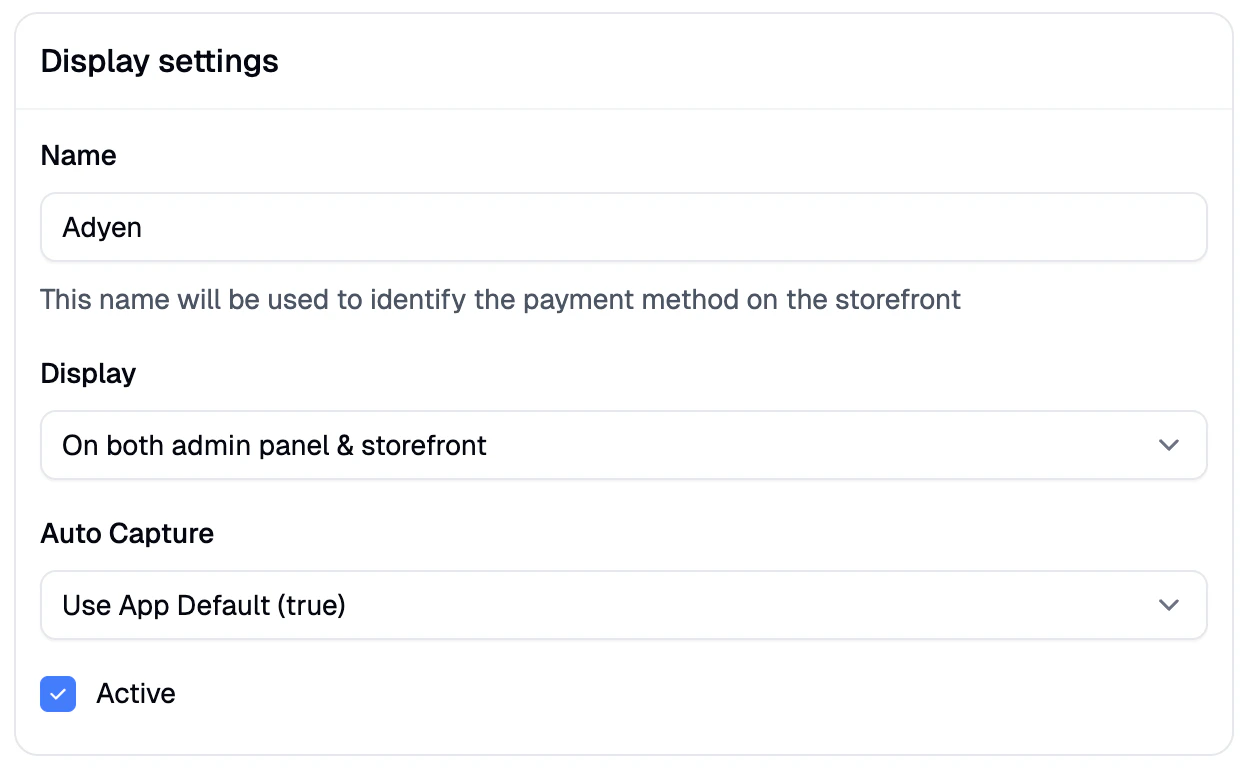 You can optionally configure the following settings for your Adyen payment method:
* **Name**: Customize the display name shown for this payment method on the storefront.
* **Display**: Choose where Adyen should be available:
* Storefront only
* Admin panel only
* Both (recommended)
* **Auto Capture**: Decide whether payments should be automatically captured at the time of authorization (recommended), or manually captured later.
* **Active Status**: Enable or disable the payment method. Inactive methods are hidden from checkout but not removed.
## Test Mode
If you'd like to test your checkout flow without processing real payments, Adyen's test environment is a safe and effective way to simulate transactions. To enable it:
1. Tick the **Test Mode** checkbox in the Adyen payment method settings in Spree.
2. Switch your Adyen Customer Area to **Test** mode using the environment switcher in the top-right.
3. Generate separate test credentials (API Key, Client Key) from your test environment following the same steps above.
4. Paste the test credentials into Spree. The **Live URL Prefix** field is not used in test mode.
See [Testing Adyen payments](#testing-adyen-payments) below for a walkthrough of simulating transactions with Adyen's test card numbers.
## Testing Adyen payments
Once Test Mode is set up, you can simulate real payments using Adyen's published test card numbers.
### 1. Use Adyen's test cards
At checkout on your Spree store, Adyen's Drop-in component will present payment options. Use one of Adyen's [official test card numbers](https://docs.adyen.com/development-resources/testing/test-card-numbers/) to simulate:
* **Successful payments** — e.g. Visa `4111 1111 1111 1111`
* **3D Secure authentication flows**
* **Declined payments** — specific test cards trigger different decline reasons
* **Refunds and chargebacks**
For CVC and expiry, any valid-format values work (e.g. `737` CVC, a future expiry date).
### 2. View test transactions in Adyen
To see transactions from Adyen's side, log in to the Adyen Customer Area with **Test** selected in the environment switcher. Navigate to **Transactions → All transactions** to view captures, authorizations, refunds, and webhook delivery attempts.
### Common Issues
* **Drop-in not loading on the storefront**: make sure your storefront URL is in the **Allowed origins** list on the Adyen API credential (Client Settings).
* **Auto-populated fields not filling in**: if the **Merchant Account**, **Hmac Key**, or **Webhook** fields stay empty after creating the payment method, check that you didn't enter values into them manually before saving — any pre-filled input can block the auto-population process. Delete the payment method and re-create it with only the API Key, Client Key, and (if live) Live URL Prefix filled in.
* **Wrong environment**: credentials are environment-specific. Test-mode credentials won't work against the Live URL Prefix, and vice versa.
## Features
Spree's native Adyen integration supports a comprehensive range of features and payment methods to help you offer a fast, secure, and flexible checkout experience:
* Support for 3D Secure and other security standards
* Support for off-session payments
* Support for Storefront API integration (see the API docs [here](/api-reference/storefront/adyen/create-an-adyen-payment-session))
* Accept payments in over 150 currencies
* Accept Credit Cards, Debit Cards, and Digital Wallets
* Accept Buy Now, Pay Later (BNPL) payments
* Accept Bank transfers and Direct Debit
* Accept Local payment methods (iDEAL, SOFORT, Bancontact, etc.)
* Accept Mobile payments (Apple Pay, Google Pay, Samsung Pay)
* Accept Cryptocurrency payments
* Advanced fraud protection and risk management
* Real-time payment status updates
* Comprehensive reporting and analytics
### Storefront Display
Spree's Adyen integration enhances the customer experience with dynamic, context-aware payment options across the storefront:
* Dynamic payment method selection based on customer location
* Real-time payment method availability
* Seamless checkout experience with Adyen's Drop-in component
* Support for one-click payments and saved payment methods
* Mobile-optimized payment flows
Feel free to [reach out](https://spreecommerce.org/contact) to learn more.
You can optionally configure the following settings for your Adyen payment method:
* **Name**: Customize the display name shown for this payment method on the storefront.
* **Display**: Choose where Adyen should be available:
* Storefront only
* Admin panel only
* Both (recommended)
* **Auto Capture**: Decide whether payments should be automatically captured at the time of authorization (recommended), or manually captured later.
* **Active Status**: Enable or disable the payment method. Inactive methods are hidden from checkout but not removed.
## Test Mode
If you'd like to test your checkout flow without processing real payments, Adyen's test environment is a safe and effective way to simulate transactions. To enable it:
1. Tick the **Test Mode** checkbox in the Adyen payment method settings in Spree.
2. Switch your Adyen Customer Area to **Test** mode using the environment switcher in the top-right.
3. Generate separate test credentials (API Key, Client Key) from your test environment following the same steps above.
4. Paste the test credentials into Spree. The **Live URL Prefix** field is not used in test mode.
See [Testing Adyen payments](#testing-adyen-payments) below for a walkthrough of simulating transactions with Adyen's test card numbers.
## Testing Adyen payments
Once Test Mode is set up, you can simulate real payments using Adyen's published test card numbers.
### 1. Use Adyen's test cards
At checkout on your Spree store, Adyen's Drop-in component will present payment options. Use one of Adyen's [official test card numbers](https://docs.adyen.com/development-resources/testing/test-card-numbers/) to simulate:
* **Successful payments** — e.g. Visa `4111 1111 1111 1111`
* **3D Secure authentication flows**
* **Declined payments** — specific test cards trigger different decline reasons
* **Refunds and chargebacks**
For CVC and expiry, any valid-format values work (e.g. `737` CVC, a future expiry date).
### 2. View test transactions in Adyen
To see transactions from Adyen's side, log in to the Adyen Customer Area with **Test** selected in the environment switcher. Navigate to **Transactions → All transactions** to view captures, authorizations, refunds, and webhook delivery attempts.
### Common Issues
* **Drop-in not loading on the storefront**: make sure your storefront URL is in the **Allowed origins** list on the Adyen API credential (Client Settings).
* **Auto-populated fields not filling in**: if the **Merchant Account**, **Hmac Key**, or **Webhook** fields stay empty after creating the payment method, check that you didn't enter values into them manually before saving — any pre-filled input can block the auto-population process. Delete the payment method and re-create it with only the API Key, Client Key, and (if live) Live URL Prefix filled in.
* **Wrong environment**: credentials are environment-specific. Test-mode credentials won't work against the Live URL Prefix, and vice versa.
## Features
Spree's native Adyen integration supports a comprehensive range of features and payment methods to help you offer a fast, secure, and flexible checkout experience:
* Support for 3D Secure and other security standards
* Support for off-session payments
* Support for Storefront API integration (see the API docs [here](/api-reference/storefront/adyen/create-an-adyen-payment-session))
* Accept payments in over 150 currencies
* Accept Credit Cards, Debit Cards, and Digital Wallets
* Accept Buy Now, Pay Later (BNPL) payments
* Accept Bank transfers and Direct Debit
* Accept Local payment methods (iDEAL, SOFORT, Bancontact, etc.)
* Accept Mobile payments (Apple Pay, Google Pay, Samsung Pay)
* Accept Cryptocurrency payments
* Advanced fraud protection and risk management
* Real-time payment status updates
* Comprehensive reporting and analytics
### Storefront Display
Spree's Adyen integration enhances the customer experience with dynamic, context-aware payment options across the storefront:
* Dynamic payment method selection based on customer location
* Real-time payment method availability
* Seamless checkout experience with Adyen's Drop-in component
* Support for one-click payments and saved payment methods
* Mobile-optimized payment flows
Feel free to [reach out](https://spreecommerce.org/contact) to learn more.