> ## Documentation Index
> Fetch the complete documentation index at: https://spreecommerce.org/docs/llms.txt
> Use this file to discover all available pages before exploring further.
# Connect Google Analytics 4 to Spree Commerce
> Set up Spree's native Google Analytics 4 integration to track ecommerce events, user behavior, and sales performance across your store with no custom code.
Spree Commerce comes with a native Google Analytics 4 integration that allows you to track user behavior, sales performance, and marketing effectiveness across your store.
With minimal setup required, you can gain valuable insights into how visitors interact with your site, which can help you make informed decisions to improve conversions, user experience, and overall business strategy.
To set up the Google Analytics integration, you must have a Google Analytics account and an associated property.
## Installation
Before you can enable Google Analytics 4, it must be installed. To do so, you need to run the following command:
```bash Spree CLI (Docker) theme={"theme":"night-owl"}
spree bundle add spree_google_analytics && spree generate spree_google_analytics:install
```
```bash Without Spree CLI theme={"theme":"night-owl"}
bundle add spree_google_analytics && bin/rails g spree_google_analytics:install
```
After that, make sure to restart your server if it was running.
## Connect Google Analytics
Sign in to your Spree admin dashboard and navigate to the **Integrations** tab.
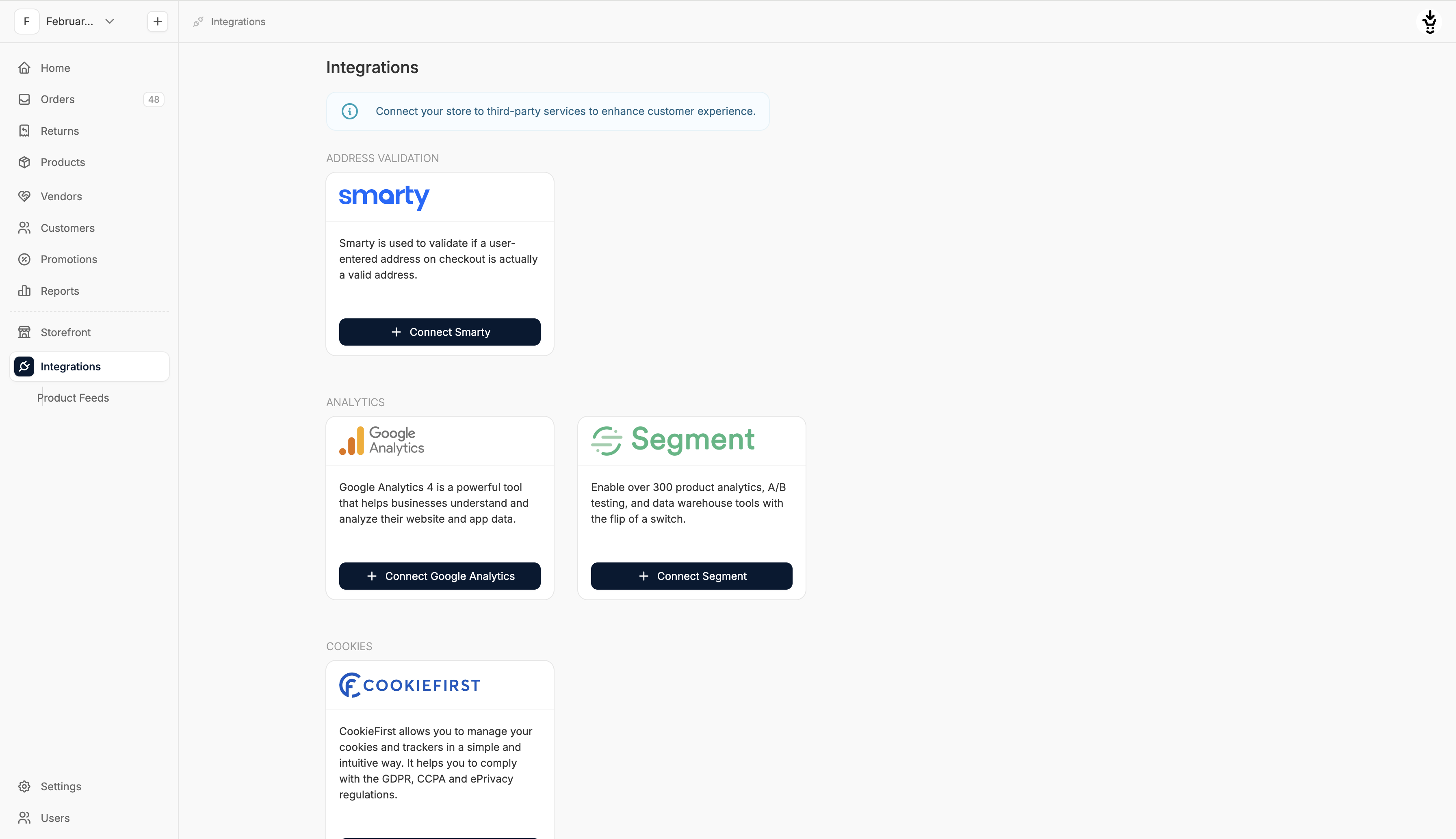 Locate the Google Analytics tile under Analytics, and click **Connect Google Analytics**.
This will redirect you to the setup page for Google Analytics integration.
Locate the Google Analytics tile under Analytics, and click **Connect Google Analytics**.
This will redirect you to the setup page for Google Analytics integration.
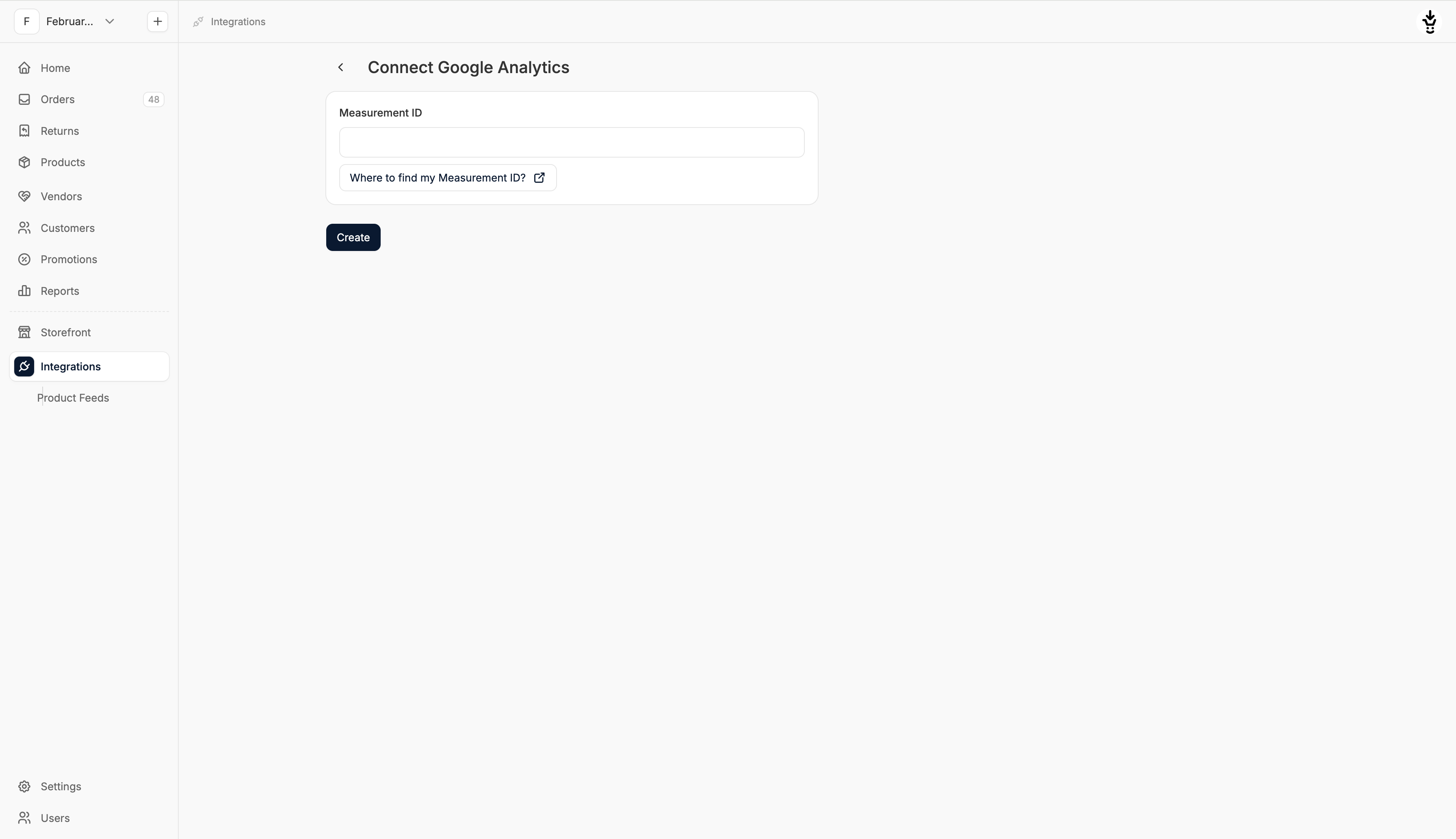 Simply enter the **Measurement ID** from your Google Analytics account into the field and click **Create** to finalize the integration.
You can find the **Measurement ID** in the Home screen of your Google Analytics dashboard, if no data has been collected yet. Otherwise, it can be found by navigating to Admin settings > Data Streams and then clicking on the property associated with your Spree site.
Simply enter the **Measurement ID** from your Google Analytics account into the field and click **Create** to finalize the integration.
You can find the **Measurement ID** in the Home screen of your Google Analytics dashboard, if no data has been collected yet. Otherwise, it can be found by navigating to Admin settings > Data Streams and then clicking on the property associated with your Spree site.
 ## Event Tracking
By default, the following events will be tracked in Google Analytics:
* page\_view
* first\_visit
* session\_start
* user\_engagement
* search
* add\_payment\_info
* add\_shipping\_info
* add\_to\_cart
* add\_to\_wishlist
* begin\_checkout
* purchase
* remove\_from\_cart
* view\_cart
* view\_item
## Manage Your Integration
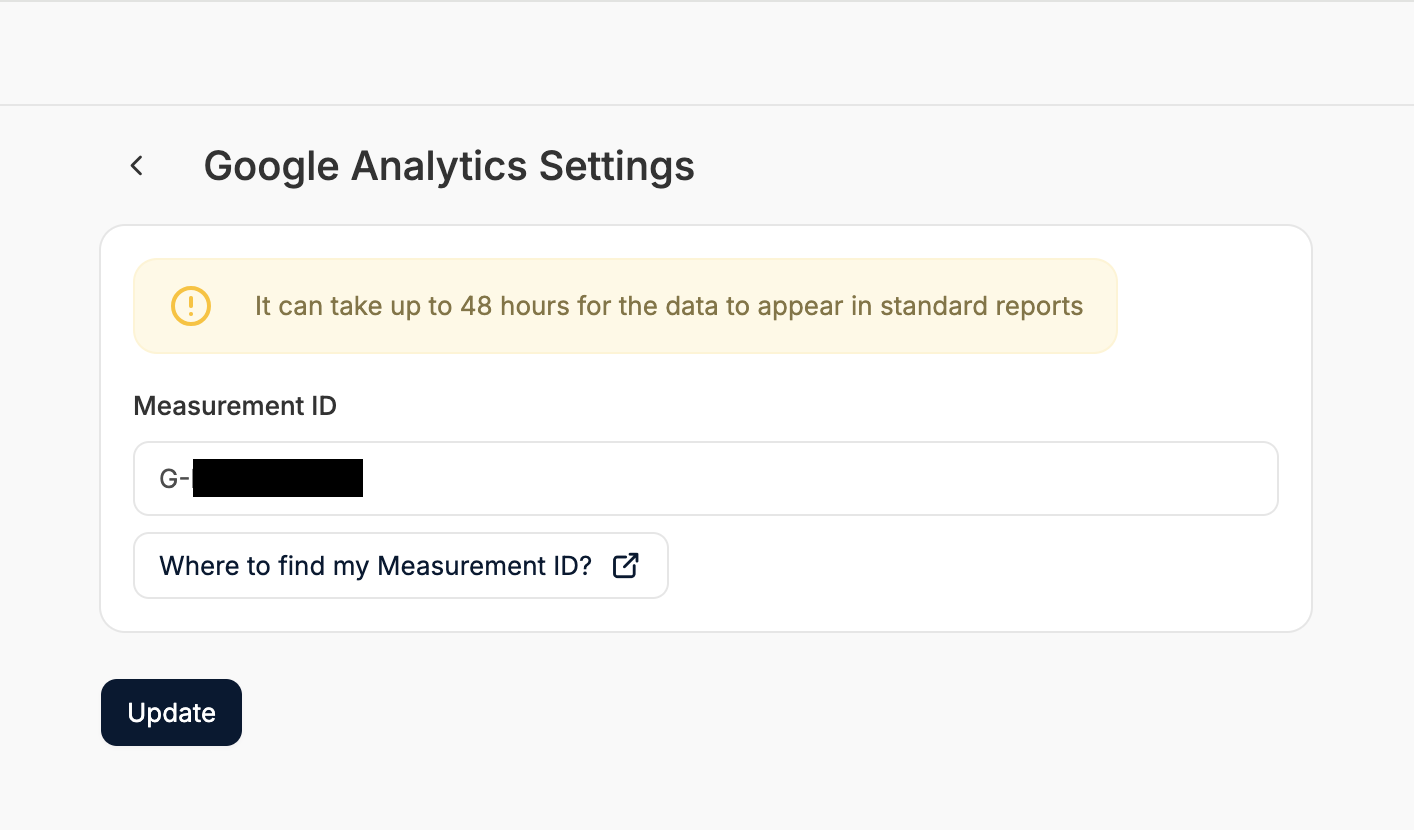
If you’d like to remove Google Analytics from your site, simply revisit the integration’s setup form and click **Delete** on the lower right hand side.
You can also switch out the Measurement ID if you’d like to switch the Google Analytics property that your site is connected to.
## Event Tracking
By default, the following events will be tracked in Google Analytics:
* page\_view
* first\_visit
* session\_start
* user\_engagement
* search
* add\_payment\_info
* add\_shipping\_info
* add\_to\_cart
* add\_to\_wishlist
* begin\_checkout
* purchase
* remove\_from\_cart
* view\_cart
* view\_item
## Manage Your Integration
If you’d like to remove Google Analytics from your site, simply revisit the integration’s setup form and click **Delete** on the lower right hand side.
You can also switch out the Measurement ID if you’d like to switch the Google Analytics property that your site is connected to.