> ## Documentation Index
> Fetch the complete documentation index at: https://spreecommerce.org/docs/llms.txt
> Use this file to discover all available pages before exploring further.
# Authentication
Platform API is meant to be used by external applications to perform operations within Spree. Because of that, it uses a different authentication schema than the Storefront API.
### Creating an application inside Spree
To generate a valid token for the Platform API, you'll first need to create an application inside Spree.
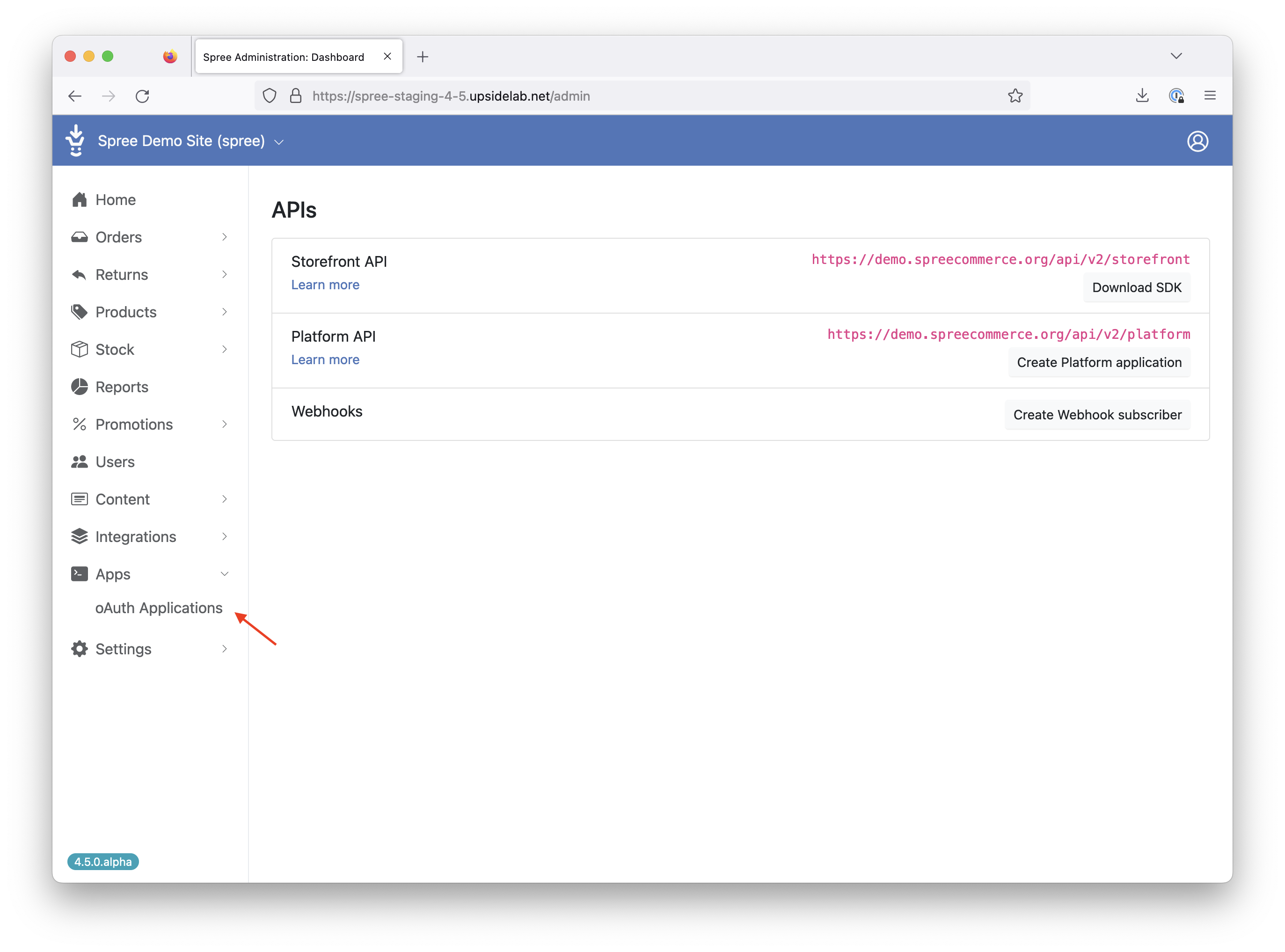
1. Go to Spree's admin panel and open `Apps` -> `oAuth Applications` in the menu
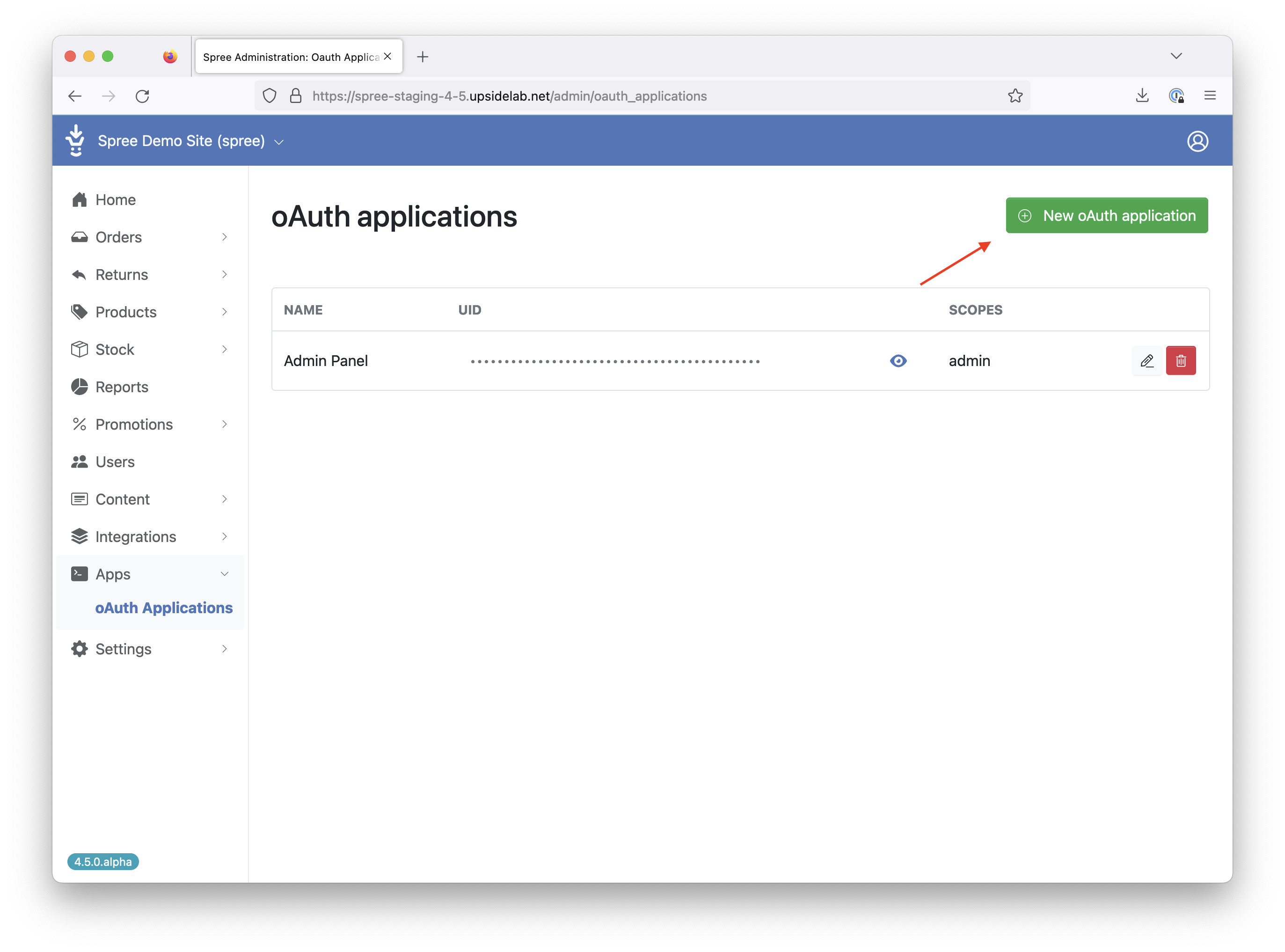
 2. Click on `New oAuth Application`
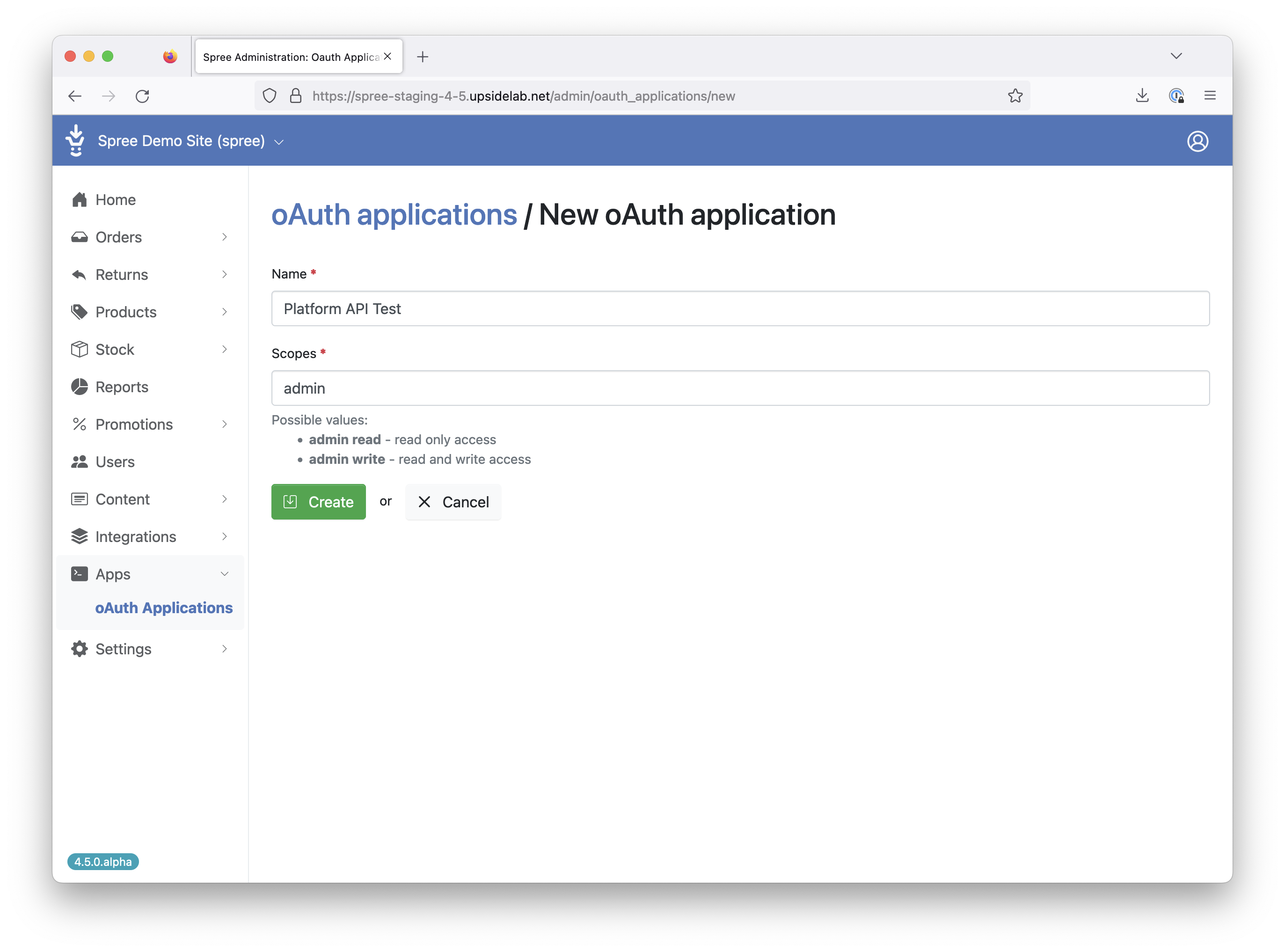
 3. Give your application a name and click `Create`
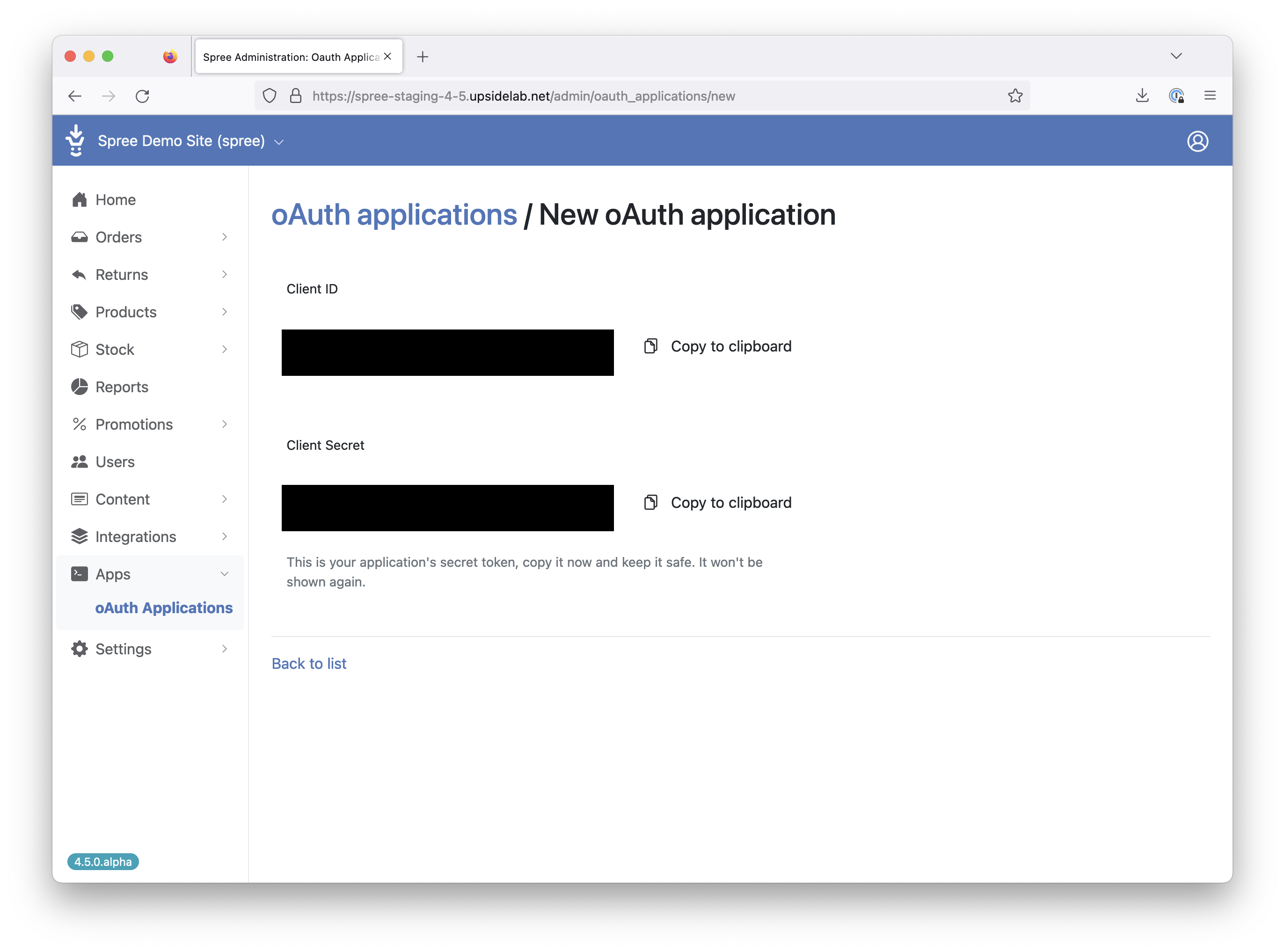
 4. Save your Client ID and Secret - you'll later use it to generate an OAuth token to access the platform API
 ### Generating OAuth token
Once the application is configured inside Spree, you can use its credentials to generate an OAuth token that will give you access to the APIs.
To obtain the token, send the following `POST` request to `/spree_oauth/token`
```json theme={"theme":"night-owl"}
{
"grant_type": "client_credentials",
"client_id": "xxx",
"client_secret": "xxx",
"scope": "admin"
}
```
In the response, you'll receive a token to pass in `Authorization: Bearer {token}` header when making requests to the Platform API.
### Generating OAuth token
Once the application is configured inside Spree, you can use its credentials to generate an OAuth token that will give you access to the APIs.
To obtain the token, send the following `POST` request to `/spree_oauth/token`
```json theme={"theme":"night-owl"}
{
"grant_type": "client_credentials",
"client_id": "xxx",
"client_secret": "xxx",
"scope": "admin"
}
```
In the response, you'll receive a token to pass in `Authorization: Bearer {token}` header when making requests to the Platform API.